It currently is possible to use the Guest account in Windows 10. You will just have to activate it through local group policy.
No, guest account is available in Windows 10 as well. It’s only that
the guest user account can’t be enabled in Windows 10 via Settings or
classic Control Panel. In order to enable the guest account in Windows
10, you need to use the Local Users and Groups.
Step 1: In the Start menu or taskbar search box, type lusrmgr.msc and
then press the Enter key to open Local Users and Groups.
Step 2: Here, on the left-side, under Local Users and Groups (local),
click Users.
Step 3: Next, in the middle pane, double-click on Users to view all
user accounts on your Windows 10 PC.
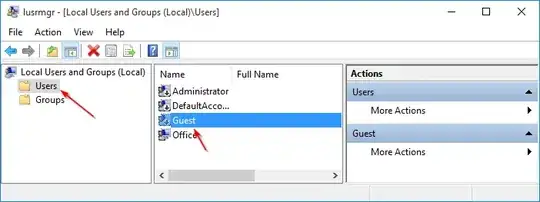
Step 4: Right-click the Guest and then click Properties or
double-click on Guest to open its properties.
Step 5: To enable the Guest account, under the General tab, uncheck
the option titled Account is disabled. In the full name field, type in
a name for the account if you wish to have a different name for the
account, and then click Apply button to enable the guest account.
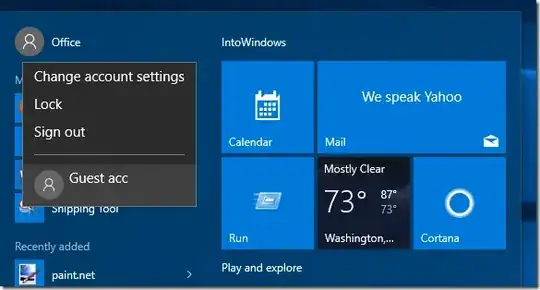
To sign in or switch to the Guest account, click on your user account
name on the Start menu (top-left of the Start) and then click on the
Guest account to switch the account.
You can also within an elevated command prompt just enable the account again.
net user guest /active:yes
Source
This answer only applies to Windows 10 version 1507 and Windows 10 version 1511


