15

I have two monitors on my desktop computer running Windows 10.

1- Dell 2560 x 1440 2- HP 1920 x 1200

In "Customize your display", if I set both monitors at 100%, everything is sharp. If I set both at 125%, everything is still sharp. But if I set the Dell at 125% and the HP at 100%, the Dell is sharp but the HP is blurry.

I tried the registry fix that is suggested on many places on the internet (including SuperUser) but it's not working. As I understand it, this fix the issue when the monitor that is at 125% is blurry. But in my case, it's the one that is at 100% that is blurry.

The only other person I found that had the same issue resolved it by buying another high DPI display to have 2 monitors with the same resolution and scaling. Unfortunately, I don't have the budget for such a fix... ;)

Any idea on how I can fix this?

Gabriel
  • 291
  • 2
  • 3
  • 10
  • Have you tried fiddling around in your Geforce or AMD settings? those should have more control. Also try adding photos of the "blurryness" because blurry could mean many different things. – Maarten Sep 21 '16 at 09:50
  • Ditto what Maarten said, have you tried reinstalling display drivers for both the monitors and your graphics card? Why not just leave both at %100 or 125? – bcm27 Sep 29 '16 at 03:54
  • Does the HP lower res. monitor have a digital connector like DVI or HDMI, or does it use a std VGA connector cable? A VGA cable will definitely lower the clarity of the display. – Byrna5 Oct 05 '16 at 14:44
  • The display is sharp unless the other monitor is set to 125%. That's a strange one, but it suggests that the issue isn't the connection method. – fixer1234 Oct 05 '16 at 16:49
  • What registry fix are you referring to? ie post the URL – YetAnotherRandomUser Oct 06 '16 at 14:27
  • It's amazing how this question finally get some attention 10 months after it was posted... So forgive me if I don't remember what was the registry fix that I tried and didn't work. But yes, I tried reinstalling display drivers for monitors and graphic card. I tried different connection (don't remember which one exactly). I was hoping that the big Win 10 update a few weeks ago would have fix my problem but it hasn't. – Gabriel Oct 07 '16 at 14:36
  • @Gabriel can you make a photo to show how exactly blurry is it? Because it can be many things, and they're visually distinguishable. – LogicDaemon Oct 07 '16 at 15:08
  • What about current version of Windows 10? Is Anniversary Update installed? – Neurotransmitter Oct 11 '16 at 11:03

3 Answers3

5

This is the way DPI scaling works on Windows 10. The primary display is used as a reference, so it’s always sharp. On other displays, there are two possibilities:

  • The application is “per-monitor” DPI aware – if correctly programmed, it will be sharp on all displays. It will use the DPI of the display where the majority of its window is located. Example: Firefox
  • The application is “system” DPI aware – it will be sharp on your primary display. On other displays with different DPI, it will not be sharp, because Windows will resample the output image. Example: MS Office

There are of course also unaware applications. Unfortunately, there aren’t many “per-monitor” aware applications. There are also applications that have the “per-monitor” aware flag, but do not scale at all. Lync/Skype for Business is one such application.

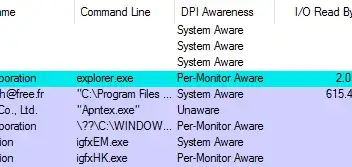
You can use Process Explorer to check program’s awareness (the column is deselected by default):

enter image description here

It might be noteworthy that DPI scaling on OS X works exactly the same, except it uses a less blurry scaling algorithm.

tl;dr: Working OK, by design.

Daniel B
  • 60,360
  • 9
  • 122
  • 163
  • This is a much better explanation than anything on [answers.microsoft.com](https://answers.microsoft.com/en-us/windows/forum/windows_10-start/windows-10-multiple-screens-of-different-dpi-shows/76a1ad7a-3664-4851-ba7c-e24998bd4c76) and suggests a workaround: change the primary display to the one you want to use the app on and restart the app. Doing so doesn't seem to affect apps already running; however, I've had limited success with Office (2010), though have managed to get them to switch without logging out, and to get Excel look clear on one monitor and Word on the other. – Jake Apr 12 '19 at 19:33
2

If one monitor is running from a dedicated graphics card and another from the on-board graphics card, Windows treats the two monitors as a continuous desktop, but the different DPI settings have to be processed by the graphics controller the monitor is attached to. If this is the case for you, you might try applying the following steps to set a CUSTOM value of 100% rather than a "standard" value of 100% (don't ask me why this works, but it worked for me):

  1. Set custom scaling to a value that isn't 100% (Windows won't let you set a custom value of 100% if you already have a "standard" value of 100% set).
  2. Click apply, then re-login later.
  3. Set the custom scaling back to 100% and click re-login later.
  4. Restart the computer.
  5. Don't mess with DPI settings afterwards.

If the issue is specific to certain programs, you can check "disable display scaling on high DPI settings" in the compatibility tab under properties for the affected programs.

If the issue is global (everything everywhere is blurry) I would play with different versions of the drivers for the graphics controller the HP is connected to. I would also strongly suggest calibrating your Cleartype settings after you've set the DPI settings.

Zediiiii
  • 262
  • 1
  • 7
0

As I landed on this page while looking for the way to improve bluryness, I'll add a notice of Windows evolution :

As of Windows 10 CU ( 1703 15063.332 ), Microsoft added a way to control the display algorithm :

  • right click on application link
  • Properties - Compatibility
  • You will find a check box ( Override High DPI scalling ...) which allows you to select a scaling algorithm combo box with a choice of Application / System / System (improved). In my experience "System (improved)" is fairly good.