28

We get PDF's from our professor to read for homework but they're often scanned documents, is there a way to adjust the contrast of the text to make it easier to read?

Edit: I've got Photoshop but is there a way to do it from a PDF reader?

Edit2: Windows XP, 7 ** Windows or Ubuntu Only **

wag2639
  • 7,054
  • 14
  • 41
  • 52
  • I'd suggest asking your professor to scan it as black & white instead of grayscale or 24-bit color, as long as the content is mostly text and line art (i.e., no photos or gradients). Not only will this make the documents perfectly legible, but it will also shrink the file size dramatically. Maybe you can turn this to your advantage and get some extra credit in return for rescanning or fixing the contrast on all the PDFs. – rob Mar 08 '10 at 19:04
  • Related: http://softwarerecs.stackexchange.com/questions/20865/tool-to-sharpen-contrast-a-pdf-image-file, http://graphicdesign.stackexchange.com/questions/57425/how-to-make-pdf-characters-darker-for-print-without-using-photoshop – mic Feb 14 '16 at 23:38

11 Answers11

12

You can try this:

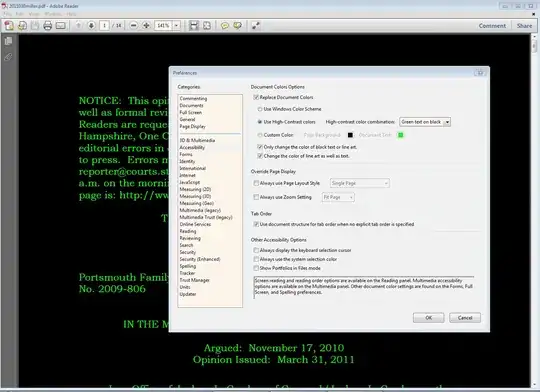
Go to Edit>Preferences>Accessibility

This will not change the true contrast, but you can pick contrasting colors of your choice, or one of the defaults, as in the screenshot.

enter image description here

KCotreau
  • 25,519
  • 5
  • 48
  • 72
  • 7
    I have tried this but it doesn't work. I think this works only for ebooks. My pdf is scanned text, so it's made of images. When do accessibility thing, the whole page goes white. It doesn't recognize the text. – a06e Aug 05 '11 at 05:09
  • I see. If it is a scanned image, I do not think there will be much you can do. I would mention it to the professor so he can consider adding contrast before he makes it a PDF. – KCotreau Aug 05 '11 at 05:15
  • 1
    Worked great for me though, so still a +1 – Ivo Flipse Aug 19 '11 at 20:07
  • I set grey letters over black background using this method. When I scroll down I get horizontal white stripes. Very annoying. Any idea how to solve it? – hipoglucido Jul 05 '18 at 09:24
7

You could try Imagemagick - it's a graphics manipulation program that can read and write PDFs too.

There are a few command line options that may help - for example: -normalize, -contrast and -contrast-stretch

http://www.imagemagick.org

Try something like: convert original.pdf -contrast new.pdf

More info and examples on the site.

Cocowalla
  • 312
  • 2
  • 16
Linker3000
  • 27,498
  • 3
  • 52
  • 73
  • Good answer, and one that works fine; but note that ImageMagick doesn't do the PDF interpretation on its own -- in the background it employs Ghostscript as its *delegate* doing some of the hard work... – Kurt Pfeifle Aug 08 '11 at 19:38
  • could not get this trick to work -- looks like ghostscript errored out (screenful of mostly incomprehensible text, but near the end: "postscript delegate failed 'thefilename.pdf' No such file or directory (but it's there) – JMarsch Mar 27 '14 at 14:11
  • On windows, downloading and installing 32 bit ghostscript got it working for me. https://ghostscript.com/download/gsdnld.html – user3828685 Apr 11 '17 at 09:00
4

Under OS X, you can use ColorSync which is installed by default. There are many filters, and one is for decreasing contrast.

slhck
  • 223,558
  • 70
  • 607
  • 592
Antoine
  • 49
  • 2
  • This is a useful workaround though users should beware that it will likely make the size of the PDF much more hefty. I was able to salvage a barely readable 11 page scan but the file went from 6.6 mb to 17.7 mb. – Yacine B Feb 06 '19 at 19:25
  • I've voted this up sometime in the past so I believe this worked at some point, but now I can't figure out how to use it (on macOS 10.15 Catalina)… does it still work? – ShreevatsaR Oct 12 '20 at 09:21
1

I've found two PDF readers that allow you to change brightness, contrast and gamma for PDFs from scans:

  1. YACReader: It is actively maintained, but is specialized for comic book formats. It does display PDF files, but seems to lack such staple PDF viewing abilities as selecting and copying text, and a continuous view. It is available as an x64 windows prog. that runs on Win7. To change the contrast, brightness and gamma of a document you are viewing, click the Options gear on the toolbar on the upper right, and choose the Image Adjustment tab. It supports a wide variety of formats; and has a lot of ability to rotate the view as well.
  2. STDU Viewer: This is no longer actively maintained; with the last update being in or before 2015. It has the ability to select and copy text, as well as do a continuous view. In fact, it defaults to page width, continuous view; as all PDF readers and PDFs in general always should. It is available only as x86, but still works great under Win7 x64. To change the contrast, brightness and gamma of a document you are viewing, go to View | Settings. It also supports a rich variety of formats, even comic ones, can rotate pages, and has a rich set of navigation tabs .
CodeLurker
  • 214
  • 2
  • 4
  • Thanks! I used STDU viewer to view then export to a new a high-contrast PDF. It did a great job (even though running under the latest Win10). – filofel Oct 29 '21 at 17:38
1

I saved it as a Microsoft Word file in Acrobat Reader. Then I opened the Word Document and adjusted the brightness and contrast of the image until it was readable. It makes for an expensive print, but it works.

BMK
  • 11
  • 1
0

If you open it in Photoshop and resave as a PSD file you can or if you want to apply on all pages, do the following:

  1. Open the pdf in Preview.
  2. Make sure the preview pages are showing
  3. Click page one
  4. "Select All" (or Command + A), All pages are selected
  5. Run any Preview tool/filter and all pages will be affected simultaneously

If your pdf is locked, you will not be able to perform this operation.

r0ca
  • 5,727
  • 10
  • 42
  • 63
  • 2
    I don't want to sound negative, but he does state he would like to do it with a PDF reader ;-) Photoshop is a quite expensive PDF reader! – Ivo Flipse Mar 08 '10 at 18:02
  • I know... it is :) but the feature requested is not in new version unfortunately. Hope my answer will help him since he has Photoshop. – r0ca Mar 08 '10 at 18:27
  • I used to use Photoshop to try to fill out forms before I learned of other options, regardless, my experience with photoshop and pdf makes me fear ever doing that again. Thank tho. – wag2639 May 14 '10 at 21:50
0

I've run into this as well. for some reason version 5 of the reader seems to work as expected. I think it might be something in the creation, but I've not tracked it down yet.

Richard June
  • 947
  • 9
  • 8
0

I changed contrast with PDFClerk. It has a lot of filters in there, when exporting PDF.

holms
  • 3,257
  • 4
  • 25
  • 33
0

What I did was change the color of the text by going to edit menu, clicking on preferences and then the accessibility tab. You can customize the color for the document text. It doesn't do anything for the images, but at least you can see the text on a dark background.

Ash
  • 9
  • 1
0

You can use the graphics card or monitor settings to handle this.

See this post as well.

For that you could use a system wide gamma/brightness/contrast setting; usually if you have a modestly advanced graphics card, its control panel will have options to change gamma / contrast / brightness / hue. e.g. NVIDIA control panel, ATI Catalyst Control Center/Panel etc. It will affect the the whole system, but you can always change it back when you're done viewing the file.

Mehper C. Palavuzlar
  • 55,164
  • 49
  • 193
  • 250
0

You can also try Nuance Paperport (I got this "free") with my Brother MFC scanner/printer.

Essentially if you have a dark grey font on a light grey background (a low contrast scan), then you tell it to "stretch" the dark grey to black and the light grey to white. This is done by setting the black/white points as follows:

  • Open Paper port, navigate to the PDF
  • Right click the PDF within PaperPort
  • "SET Tools"
  • Auto-enhance (or Apply current white/black points)

Now you can manually set the while/black points for finer control

  • Open Paper port, navigate to the PDF
  • Right click the PDF within PaperPort
  • Open with ImageView
  • In the top ribbon, pick "White point" and now click some area of the scanned page you think should be white (eg: grey background of a low contrast scan).
  • In the top ribbon, pick "Black point" and now click some area of the scanned page you think should be black (eg: The grey text letters of a low contrast scan)

I used this to create a legible black and white PDF from a scan that was originally black text on dark blue paper (that scans as a very low contrast)

DeepSpace101
  • 8,787
  • 12
  • 44
  • 47