11

I've installed TortoiseSVN on my work Windows XP machine as the administrator. When I login in as a standard user my working copies do not display the overlay icons in Windows Explorer.

I found this on TortoiseSVN's support pages:

Did you install TortoiseSVN as a different user under WinNT/Win2K/WinXP than you are using now?

Go to the settings of TSVN and activate the icon overlays for at least the fixed drives. The installer does this automatically for the current user (can't do it for other users...) but since you are using TSVN as a different user than you installed it you need to set this manually.

http://tortoisesvn.net/node/97

I've checked the settings for overlay icons for the current user and the options Local and Network drives are checked. I've tried even toggling them off, applying, then on again and applying, then restarting but they still don't appear.

I'm unable to install TortoiseSVN on the current user hence why I logged into the admin account.

Any ideas?

Tamara Wijsman
  • 57,083
  • 27
  • 185
  • 256
Camsoft
  • 221
  • 1
  • 2
  • 6

3 Answers3

7

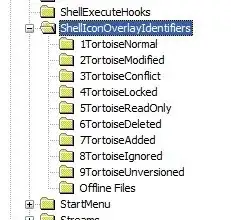
Check that the ShellIconOverlayIdentifiers are set up in the registry correctly.

HKLM\SOFTWARE\Microsoft\Windows\CurrentVersion\Explorer\ShellIconOverlayIdentifiers

You should have nine entries for Tortoise.

enter image description here

Windows will only load the first 15 entries so if there are others in there before the Tortoise ones which push them past 15th they will not get loaded.

Gaff
  • 18,569
  • 15
  • 57
  • 68
Shevek
  • 16,502
  • 7
  • 46
  • 75
  • Any particular course of action if that is the case?```HKEY_CURRENT_USER``` (administrator) is NOT showing ```ShellIconOverlays``` at that path. Also, can you more explicitly specify the first directory. ```regedit``` is showing 5 directories initially, all prefixed with ```HKEY_``` (```HKEY_CLASSES_ROOT```, ```HKEY_CURRENT_USER```, ```HKEY_LOCAL_MACHINE```, ```HKEY_USERS```, and ```HKEY_CURRENT_CONFIG```) – tarabyte Aug 07 '14 at 21:59
  • HKLM is shorthand for HKEY_LOCAL_MACHINE – Shevek Aug 17 '14 at 03:49
  • If you have more than 15, delete the ones you don't want or rename them so that the Tortoise ones are first (backup the keys first, just in case) – Shevek Aug 17 '14 at 03:50
4

Check if tsvncache.exe is running (for example from taskmanager). If yes, kill it then it restarts itself. If not try to launch it. A possible trick is to remove svn with uninstall, give the standard user the admin privileges and install it with this normal user, then remove the admin privileges and I think you are ok.

Francesco
  • 674
  • 2
  • 11
  • 30
Kreker
  • 214
  • 1
  • 3
  • 12
2

Another solution found in the TortoiseSVN FAQ:

Why don't the icon overlays appear?

  1. You rebooted your PC of course after the installation? If you haven't please do so now. TortoiseSVN is a windows Explorer Shell extension and will be loaded together with Explorer.
  2. Go to the settings of TSVN and activate the icon overlays for at least the fixed drives. The installer does this automatically for the current user (can't do it for other users...) but since you are using TSVN as a different user than you installed it you need to set this manually.
Oliver Salzburg
  • 86,445
  • 63
  • 260
  • 306
user184223
  • 21
  • 1
  • 3
    Welcome to Super User! Whilst this may theoretically answer the question, [it would be preferable](http://meta.stackexchange.com/q/8259) to include the essential parts of the answer here, and provide the link for reference. – slhck Jan 03 '13 at 10:40
  • 1
    For point 1, it is not necessary to reboot the PC, killing explorer from the task manager and going in "File/Run new task" typing "explorer" to restart it does the trick. – Benoittr Jan 30 '13 at 15:49