11

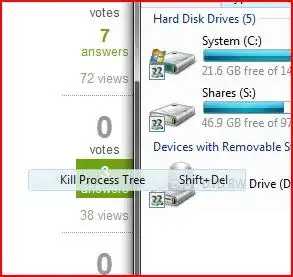
Occasionally, I get part of an application lingering behind on my desktop:
alt text

This is part of a context menu for an application. It is always top-most, meaning that it is always on the screen, and I cannot click on it (it just clicks through it). It has happened before, sometimes with whole windows. It remains on screen even if the application it originated from is no longer running.

How do I get rid of it without rebooting?

Gaff
  • 18,569
  • 15
  • 57
  • 68
adrianbanks
  • 1,104
  • 1
  • 8
  • 21
  • Related: [The ghost of icons past, should I pray to Saint William?](http://superuser.com/questions/154170/the-ghost-of-icons-past-should-i-pray-to-saint-william) – Tamara Wijsman Oct 09 '10 at 17:09
  • nice question! It is really annoying too on Windows7! – Junior Mayhé Nov 21 '10 at 18:38
  • I've added a new answer - a little late in the day but I can confirm that it does fix it (in Windows7 at least). – Ian Feb 21 '14 at 09:03

6 Answers6

6

I've found a really easy hack to get rid of context menu phantoms like what you describe. Simply go into your screen resolution settings and change to a different resolution, then change back. The change of resolution seems to reset stuff at a lower level than where the phantom exists, which means the phantom gets cleaned up during the resolution change.

Nathan Ridley
  • 1,506
  • 4
  • 15
  • 16
1

I've seen this behaviour with certain video cards.

Upgrade your video card driver. If that doesn't work or you can't upgrade it, you can dial down the acceleration on the video card. Go to the Advanced system Properties (Advanced tab) and in performance options, either reduce the level of acceleration or untick "Fade or slide menus into view"

seanyboy
  • 1,688
  • 1
  • 14
  • 14
1

Open cmd.exe as an administrator and type:

net stop uxsms

The ghosts are gone so you can leave it like that, but if you want you can re-start service
so then type:

net start uxsms

you can also add it as Desktop and Explorer Context Menu:

Add “Restart uxsms” Option in Desktop and Explorer Context Menu under Windows Vista and 7

AminM
  • 510
  • 1
  • 9
  • 22
user289290
  • 11
  • 1
0

When this happens to me, it sometimes helps to switch back to the application to which this popup belongs. Then switch back to the application I want to use in the forgeround.

Most of the times, the popup then disappears.

Martin
  • 3,862
  • 3
  • 22
  • 25
  • The application it came from is no longer running. – adrianbanks Jun 10 '10 at 11:39
  • Oh, okay. Maybe you can use the task manager to terminate explorer. Usually, it will be restarted automatically after termination. But I don't know if this has negative side-effects. You should save and close opened documents at any rate. – Martin Jun 10 '10 at 13:43
  • 1
    No, that doesn't work either. The only thing that seems to get rid of it is killing the desktop window manager (dwm.exe), but this then makes things paint very strangely on the screen and I end up having to reboot. – adrianbanks Jun 10 '10 at 23:37
  • Okay, I see everything's resolved, but I'd like to add (for further info) that there's no problem in stopping explorer.exe, and you don't even need to save everything. if it doesn't start again automatically, you can start Task Manager, and in the first tab, right-click anywhere, and click the only option. Key in 'explorer.exe' without the quotations and you're done. You can run explorer again. – Antrikshy Sep 06 '10 at 12:14
0

Usually the method of kill explorer.exe and rerun it from task manager work, but there observed one case of a past date time stamp float text box in windows 10 this approach do not work. Tried many suggestions such as change screen resolution or performance option of fade out and etc, finally find that right click the windows icon and open the desktop to show the file explorer get rided of the floating text box.

Frank
  • 191
  • 4
0

The problem is caused by Aero, but there's an easy way to stop it.

  1. Right click “Computer” and select “Properties”.
  2. Click “Advanced System Settings”
  3. Click “Settings” in the “Performance” section
  4. Uncheck “Fade out menu items after clicking”

To remove any existing floating windows open up task manager and kill the dwm.exe process (Desktop Window Manager).

You shouldn't encounter the problem after this point.

Ian
  • 391
  • 1
  • 5
  • 19
  • -1 the problem is obviously not caused by aero.. the problem existed long before aero. People saw it in XP loads of times but in Win7 the lingering is stronger. – barlop Sep 15 '16 at 23:09