I just installed IIS7, but whenever I want to start it, the following error occurs:
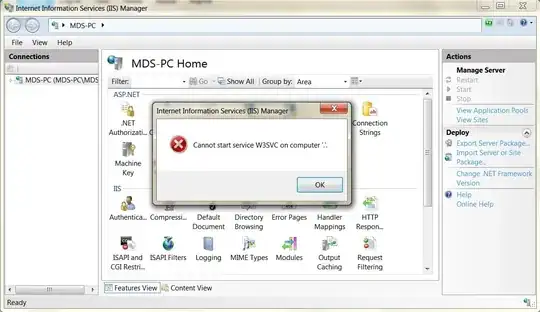
What's wrong with it ?
I have Windows 7 64-bit build 7600 and have installed .NET Framework 3.5 SP1 and .NET Framework 4 before installing IIS7.
I just installed IIS7, but whenever I want to start it, the following error occurs:
What's wrong with it ?
I have Windows 7 64-bit build 7600 and have installed .NET Framework 3.5 SP1 and .NET Framework 4 before installing IIS7.


Go to Task Manager --> Processes and manually stop the W3SVC process. After doing this the process should start normally when restarting IIS

I found the solution:
Run -> appwiz.cpl -> Turn windows features on or off -> Uncheck "Internet Information Services" and "Windows Process Activation Service"
Restart your machine.
Run -> appwiz.cpl -> install both "Internet Information Services" and "Windows Process Activation Service"

I came across the same problem. It got solved with following steps:
iisreset"This will solve the problem.


This commonly occurs when port 80 is being used by something else. If this is a dev box, do you also have Apache or Skype installed? These are a common culprit.
You can check if port 80 is in use by running netstat -ab|find "80" in an elevated command prompt. This may take a minute or two to run depending on what network activity is occurring on your PC.

A bit different from Mohammad's solution:
Run -> appwiz.cpl -> Turn windows features on or off -> Check "Windows Process Activation Service"
That's all.
It solved my problem.
The solution to this issue was different for me.
After following the solutions to check that the Window Features where there I was still having the same problem.
The error message was the same and I noticed the Windows Service "World Wide Web Publishing Service" which was set to automatic was not started.
This service was dependent on "Windows Process Activation Service" (You can check dependent services by right clicking > properties > dependent tab)
I received a file/assembly missing error when I tried to manually start "Windows Process Activation Service". According to this blog the apppools folder had gone missing. Like the author of that page I have no idea what caused it to disappear...security software?
I added the directory c:\inetpub\temp\apppools and started the services in the correct order. Both are now set to automatic and all work fine.

I had this issue because I forgot I was debugging the w3svc process in Visual Studio when working on a website, and I was paused at a breakpoint. :P

You should check to see that all of the following services are started, or at the very least, not disabled: HTTP, Windows Process Activation Service, DCOM Process Launcher, and RPC Endpoint Mapper.
You should also verify t hat no other process is listening on port 80. The simplest way to do this is to issue the following in a command window:
netstat -a -o|findstr 80

I had a similar issue. In my case, World Wide Web Publushing Service (W3SVC) service was disabled. Run services.msc, right-click on World Wide Web Publushing Service, then click Properties and select "Automatic" as startup type. Now start IIS again.

I was having the same issue, and followed all the steps described here.... However, nothing seems to worked.
The error in the event manager I was getting while trying to run "Windows Process Activation Service" service manually was stating that http service was not found or disabled. Moreover, we were not able to find http service in services list.. so wasn't sure how to enable it.
Here is the error I was getting
The World Wide Web Publishing Service service depends on the HTTP service which failed to start because of the following error:
The service cannot be started, either because it is disabled or because it has no enabled devices associated with it.
Finally I got it fixed using following command in command prompt.
sc config http start= auto
Then, just started "Windows Process Activation Service" and IIS is now running fine.
Credit goes to the original answer given here: How to re-install http windows service by MajidTaheri
Hoping this helps someone with the same issue...
After upgrading from Server 2010 to 2012 R2 I had the same issue. I followed the advice above with the additional steps.
From elevated command prompt:
sc config http start = auto
net start w3svc
Refreshed the WSUS website in IIS manager and restarted and things were good.
Similar problem when attempting to start the service from Powershell:
Start-Service -Name W3SVC
Start-Service: Service 'World Wide Web Publishing Service (w3svc)' cannot be started due to the following error: Cannot open 'w3svc' service on computer '.'
The problem was resolved when I restarted PowerShell as Administrator. Not sure how IIS Admin handles but the error seemed similar enough.

For me the following simple step fixed the issue:
Go to task manager and find and end any "IIS worker Process".

Just rebooted the server. It was fine then. The service was stuck trying to come down after I made some IIS changes.


