35

I use a multiple-monitor setup on Windows XP. I would like to be able to move the active window from one monitor to the other with a keyboard shortcut.

I know that I can use Alt+Space, M, or drag the window with the mouse. But is it possible to do this with a single keyboard shortcut?

Jonathan Garber
  • 619
  • 5
  • 18
ViliusK
  • 1,760
  • 4
  • 17
  • 18
  • OK, I need freeware/opensource tool. – ViliusK Jan 18 '11 at 08:44
  • 4
    This Q is about WinXP, so just for people interested in Win7: WIN+Right/Left Cursor will rotate the current window from current to docked at side of current window, docked at near side of next window, normal in next window, .... eventually (depending on monitor count) to where it started. – Richard Jan 18 '11 at 12:20
  • 7
    @Richard: In Win7 you can _move_ the active window from one screen to the other with WIN+Shift+Right/Left. – MrWhite Oct 07 '13 at 08:17

9 Answers9

108

In Windows 7 you can instantly move the active window from one monitor screen to another with WIN+Shift+Right/Left.

Raystafarian
  • 21,583
  • 11
  • 60
  • 89
name
  • 1,089
  • 1
  • 7
  • 3
7

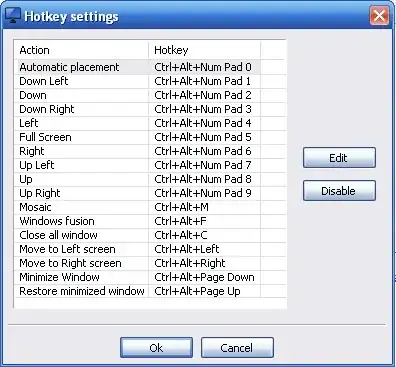
WinSplit Revolution can do this.

enter image description here

Gaff
  • 18,569
  • 15
  • 57
  • 68
Michel
  • 329
  • 1
  • 2
  • 1
    Hm... the problem is, that in the license agreement there is written: "Noncommercial: You may not use this work for commercial purposes." – ViliusK Jan 18 '11 at 11:53
  • 1
    @ViliusK Winsplit revolution FAQ says the following: The actual licence's "non-commercial" term just means that you can't directly make benefits with WinSplit Revolution. For example, you can't include it in a commercial package of software that you would sell. But as it is a freeware, you can distibute it freely as often as you want. [link](http://winsplit-revolution.com/faq) – Juha Palomäki Jan 19 '13 at 12:05
  • Link not longer works – Maks3w Aug 07 '14 at 06:39
  • I really like winsplit, because it gives you the ability to put/size windows on 1/3, 1/2, or 2/3 of the screen (or in the corner of the screen). It's a shame the web site was shut down. – Eric L Aug 16 '14 at 10:46
4

You can try Multimon Taskbar. They have a free version. You can use Ctrl-Alt-left/right to move the window between the monitors.

Amjith
  • 181
  • 7
2

You might take a look at Ultramon. It provides that feature and many more.

From the linked page:

UltraMon is a utility for multi-monitor systems, designed to increase productivity and unlock the full potential of multiple monitors.

  • efficiently move windows and maximize windows across the desktop
  • manage more applications with the Smart Taskbar
  • control application positioning with UltraMon Shortcuts
  • multi-monitor support for desktop wallpapers and screen savers
  • mirror your main monitor to secondary monitors for a presentation
Dennis Williamson
  • 106,229
  • 19
  • 167
  • 187
2

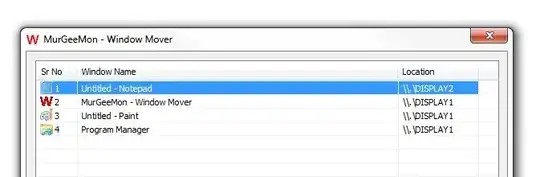
MurGeeMon is paid software that can move windows with keyboard shortcuts.

enter image description here

Tamara Wijsman
  • 57,083
  • 27
  • 185
  • 256
raj
  • 21
  • 1
2

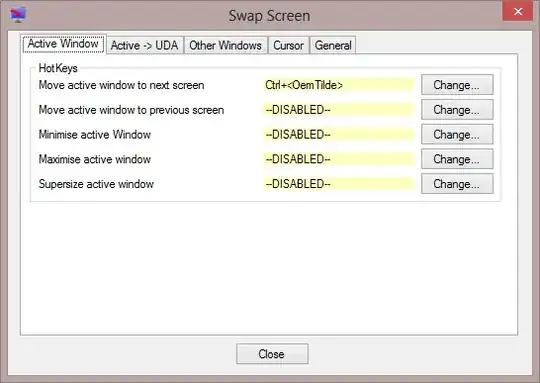
MultiMonitorTool is my choice because it can hook to Ctrl+` and works in Windows 8.

luchaninov
  • 233
  • 1
  • 3
  • 8
  • Something got mixed up, this tool on the screenshot is called "Swap Screen" and is part of [Dual Monitor Tools](http://dualmonitortool.sourceforge.net/swapscreen.html) – friederbluemle Aug 21 '13 at 21:40
1

You can do this by:

  1. Select the Window with Win+Tab or with Alt+Tab
  2. And then repeatedly press Win+Left
Eduard Florinescu
  • 2,946
  • 7
  • 34
  • 45
1

For those reading it in 2021 and later, and using Windows 10, please try:

Win+ to move to the monitor on the left side (or split the screen in half and snap to the left side)

Win+ - as above, but right side

Win+ - maximize/restore

Win+ - minimize/restore

For more hotkeys see https://support.microsoft.com/en-us/windows/keyboard-shortcuts-in-windows-dcc61a57-8ff0-cffe-9796-cb9706c75eec

Ekus
  • 340
  • 3
  • 7
1

I like ZBar because it's free and good enough for my purposes. You can move a window between monitors with Ctrl+Alt+Arrow. It also gives you a second taskbar which looks more native than Multimon Taskbar (but not as good as Ultramon).

Stephen Jennings
  • 23,171
  • 5
  • 72
  • 107