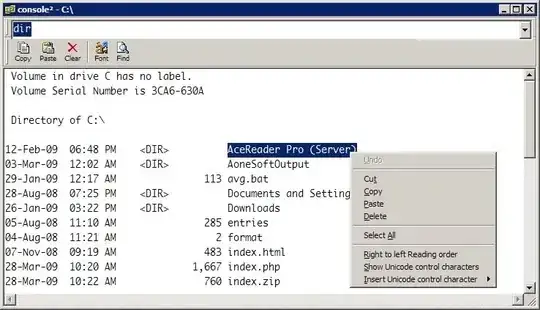
I want to learn to use the command prompt better on Windows to have more control over what I do and just for the learning experience. The main annoyance I have right now is all of the typing. If I want to perform an operation on a file with a large path I'm sitting there typing it out for a minute at least, and if I make a mistake I have to press the up arrow key and scroll through the entire thing and find what I did wrong. Is there any tools to make this easier?
Asked
Active
Viewed 8,331 times
38

-
I would love the Windows command prompt to have the "-o vi" option that bash does. It makes things very fast ( when you know a bit of vi of course ) – OscarRyz Sep 08 '09 at 02:09
-
3Tab completion! Any decent terminal will have it (and if it doesn't I'd question the capability of the terminal you're sitting at). – new123456 May 04 '11 at 12:25
-
Especially if you're learning, learn PowerShell. For old farts, learning a new trick can be difficult. But for beginners, it is good to get this advice early so as to direct your learning energies along the best path from the very start. – music2myear Jun 14 '11 at 14:56
19 Answers
45
You can use the Tab key to auto-complete file names. Although keep in mind you must first type enough of the file name to uniquely identify it or else you will have to shuffle through incorrect matches. For example, you have a folder with these files and it is your current directory that you're sitting in with cmd:
.
..
Su.exe
Sup.txt
SuperUser.COM
if you wanted to auto-complete SuperUser.COM, you would have to type supe then press Tab, since none of the other files start with those 4 characters. Note that if you had typed su and then pressed Tab, you could press Tab twice more to reach SuperUser.COM or you could type ShiftTab to go backwards through the list and get there.
Another trick is if you have the file in an explorer window, you can drag it into the cmd window and it will type the name out for you.

-
2This works great thank you, but when i am tabbing through files sometimes i pass over mine, is there a way to go backwards? – Sep 01 '09 at 05:11
-
14
-
2Bonus fact: `shift` + `
` is _always_ equivalent to reverse e.g. `alt-tab` -> `alt-shift-tab`. – glenneroo Jan 20 '11 at 06:39
33
If you intend to use the command prompt only under Windows, you could use Windows PowerShell, as it is easier to use than the initial command prompt, and copies some behavior from the *nix-like terminals. (It provides also a lot more functionalities, but at first, at least to me, it's an "easier command shell").
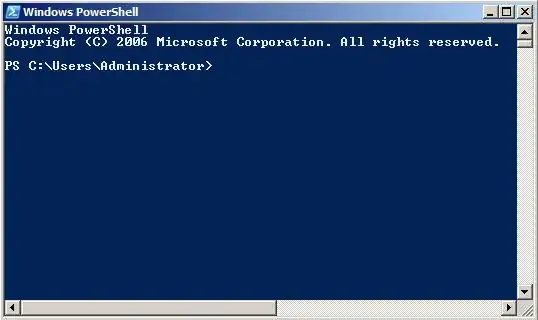
Edit: Changed picture for a more "friendly" one.

-
by the looks of wikipedia the picture looks a bit harder than what im using right now. I am still sort of struggling to learn windows let alone one of these *nix terminals but i will check it out thanks. – Sep 01 '09 at 05:10
-
3Yes, in this case maybe it's not really adapted. To me, as I knew *nix terminals before, this powershell helped me, as it also provides a lot of aliases(shortcuts) for usual *nix commands. Typically, "ls" works like "dir". In general, it's also more consistent for the "tab completion", in my opinion, compared to the original shell, which makes it easier to navigate. – Gnoupi Sep 01 '09 at 05:19
-
1PowerShell really is the way to go. As a long time user of cmd.exe I can tell you that it's really limited. Once you want to do anything clever, you'll end up needing VBScript or something similar, so you'll have to learn that. Each command has its own syntax and they're rarely similar so you have to learn each one and can't guess easily. PowerShell is much more powerful and much more consistent so you can apply what you've learnt from one command to another. – serialhobbyist Sep 01 '09 at 13:19
-
Plus some of the PoSh commands have aliases which are the same as the cmd commands to make transition easier. E.g. dir works (aliased to Get-ChildItem). But in PowerShell you can also dir the registry and other things. – serialhobbyist Sep 01 '09 at 13:20
-
And get PowerTab http://thepowershellguy.com/blogs/posh/pages/powertab.aspx for even better Tab completion – Scott Weinstein Sep 01 '09 at 14:22
-
Good suggestion, I'm used to *nix commands as well, after 5 minutes I like PS better than cmd.exe. I hope they have it installed at work :) – TM. Sep 05 '09 at 07:30
-
Does PowerShell remember commands like in Linux? I know you can use the up key to access recently used commands with cmd.exe but it appears to clear the list after you close the window. Whereas in Linux commands from previous windows are still there. (Sorry if I butchered any terminology there.) – Nathaniel Feb 19 '10 at 22:01
-
1Also, PowerShell has MUCH better (IMO) help text. Anyone ever tell you to read the cmdpages? – Hello71 Jul 05 '10 at 01:18
27
Here are some more tips and tricks in using the command prompt including:
"...drag n' drop files or folders from an explorer window into a command prompt; this inserts the quoted path as if you had manually pasted it..."
This is yet another way to reduce the amount of typing involved in long file paths.

Ray
- 672
- 8
- 15
-
3
-
1
-
This doesn't work in Windows Vista or Server 2008, but works again in Windows 7 and Windows Server 2008 R2. See http://superuser.com/questions/27347/what-is-conhost-exe/28897#28897 for a few details. – Reuben Sep 07 '09 at 18:06
-
21
Here’s the complete list of function key actions :
F1 retypes the previous command one character at a time
F2 brings up a dialog and asks “Enter the char to copy up to:”
F3 retypes the last command in full
F4 brings up a dialog and asks “Enter char to delete up to:”
F5 as for F3
F6 Print EOF character (Ctrl+Z)
F7 brings up a dialog of all the recent command history
F8 brings up each of the most recent commands, one at a time
F9 brings up a dialog and asks “Enter command number:”

harrymc
- 455,459
- 31
- 526
- 924
-
2Has any one got F4 to work? The dialog appears but doesn't delete. – Charles Beattie Feb 04 '11 at 10:46
-
for F7 pressing Enter will enter that command, if you want to edit it before, press `→` – golimar Jun 03 '21 at 09:44
15
Pressing F7 will list the last executed commands.
cd \ to get back to the c: directory.

Hugh Allen
- 9,820
- 6
- 34
- 42
-
2
-
COOL! (that's all I have to say but a reply has to be 15 chars long...) – Traveling Tech Guy Sep 01 '09 at 12:40
-
I use the command prompt all of the time and I didnt know that F7 one - very handy! – Justin Oct 05 '09 at 11:01
8
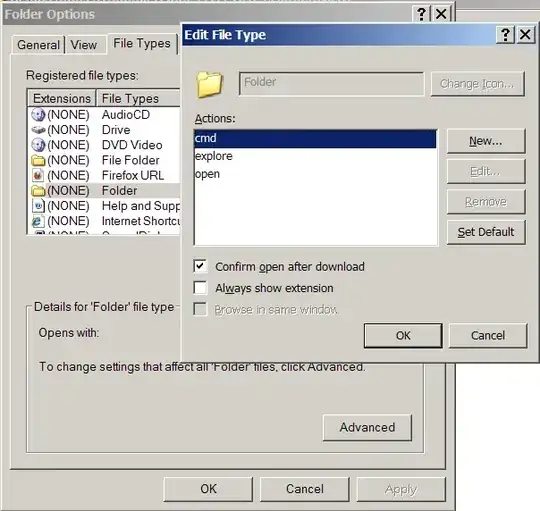
Often you can reduce your typing by being in the correct directory. You can open a command shell in the directory you see in an Explorer window by adding cmd.exe in the folder type associations.
(Tools - Folder Options - File Types - Folder - Advanced - New - cmd)
Then, when you select cmd by right-clicking on that folder the command window that opens will have as its current directory that of the folder you clicked on.

Gaff
- 18,569
- 15
- 57
- 68

Diomidis Spinellis
- 676
- 2
- 6
- 14
-
1for XP users, MS Power Toys for XP will provide this for you as well: http://www.microsoft.com/windowsxp/Downloads/powertoys/Xppowertoys.mspx – akf Sep 05 '09 at 11:53
-
I knew there were various widgets that did this for you, but I always like a self-config that'll replace a widget. Thanks for this info. – music2myear Jun 14 '11 at 14:58
7
If Windows PowerShell is too overwhelming, there are also some cmd replacement shells:
- TCC/LE at http://www.softpedia.com/get/Desktop-Enhancements/Shell-Replacements/TCC-LE.shtml
- PowerCmd at http://www.powercmd.com/
- Console at http://sourceforge.net/projects/console/
- If you're a Linux person, you can run Bash (or tcsh or ksh, etc) using Cygwin
And more can be found via google.
harrymc
- 455,459
- 31
- 526
- 924
-
+1 for cygwin: using that toolset means the tricks you learn are portable to Linux installs and to a certain extent other OSs (BSD, MacOS, ...) where the same or similar tools and bash-a-like shells are present. Though if powershell is overwhelming, cygwin is likely to be too. – David Spillett Sep 01 '09 at 10:32
-
+1 for Console, which isn't a replacement shell, but a better terminal for existing shells. – wfaulk Oct 02 '09 at 21:23
-
+1 for Cygwin, but the emulator is awful. Would suggest Terminator + Cygwin, in that case. – jamesh Nov 18 '09 at 19:50
-
I'm a huge fan of TCC (have been since it was 4DOS, back around 1989); I much prefer it to PowerShell. And now that TCC/LE is freeware, I can send .BTM scripts complete with a TCC installation :-) Note that PowerCMD and Console are not replacement command processors, but replacement terminals. Personally, I use Console with multiple tabs, each containing a TCC (or Cmd, or Cygwin) session. – billdehaan Apr 08 '10 at 13:56
-
7
Something I use constantly while using command prompt is the up arrow (and down arrow) to scroll through recently used commands. Especially when I've entered a long command and only wish to edit some part of it without retyping it.
A short example, if you:
c:\>ping 192.168.1.1
And then want to ping another similar address, you can simply press the up arrow. The command appears on the prompt with the cursor at the end. This makes it easy to backspace once and change the address to 192.168.1.2 or something similar.

JYelton
- 3,227
- 3
- 26
- 32
4
I suggest that you use the command prompt.
I know, it seems facetious, but this is serious---if not instantly helpful---advice. There is a lot to know, and to absorb it deeply, you have to use it over and over again.

John T
- 163,373
- 27
- 341
- 348

dmckee --- ex-moderator kitten
- 7,817
- 1
- 29
- 43
-
9Yes, he wants to, but he would like to know what he can do with it, I think. Because "bruteforcing" the available commands might take some time. – Gnoupi Sep 01 '09 at 11:26
-
I learned the command prompt by writing an ambitious system deployment batch script. I tried to incorporate every feature I could think of that would benefit the desired task just kept asking questions in forums and of others I knew until it worked. 1500 lines and a lot of good experience that I still use. – music2myear Jun 14 '11 at 15:03
-
@music2myear you're 28, old enough. Where have you been that you didn't learn DOS in its day? – barlop Jun 16 '11 at 00:42
-
My dad bought our first computer when I was 10. DOS 4, I guess it was, and Win 3.1. I was only interested in painting apps and what games it could play. It wasn't until 98 that I got my own computer to study engineering. And it wasn't until that system started to have problems and I had to fix it myself that I really got into technology and computers. It was in 2003 that I got a job doing IT support and built the batch script I mentioned earlier. I was just a late starter by geek standards. – music2myear Jun 16 '11 at 16:09
4
Enable quick edit mode to:
- Copy text by: select text + ENTER
- Paste code by pressing right click.
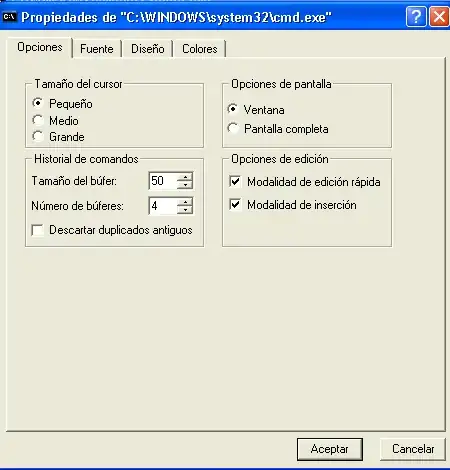
I also change the Font and the layout to something more pleasant than the default bit map.
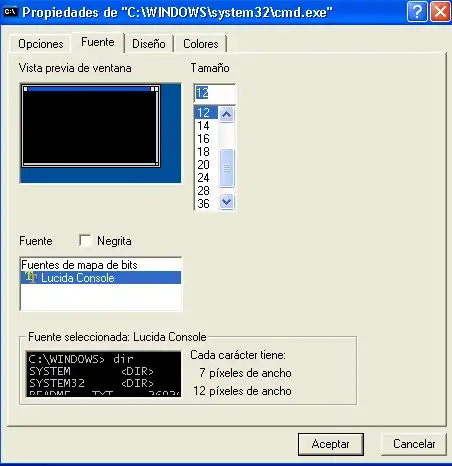
Finally add more rows and columns the the editing window, and more rows to the buffer.
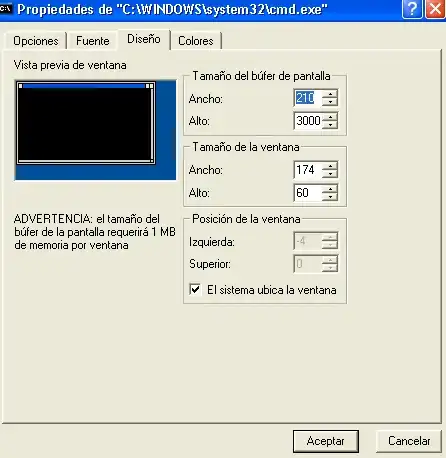
Screenshots are in spanish, but they are exactly in the same place in english

-
1Changing the width of the console window is one of the first things I do on a new computer. – Justin Oct 05 '09 at 11:05
-
2
Definitely grab a copy of Cygwin, and add its \bin folder to your PATH variable. It's like a usable command prompt!
But really, the only way to get used to it is to get used to it, so use it!

Peter Mortensen
- 12,090
- 23
- 70
- 90

Phoshi
- 23,233
- 2
- 61
- 81
1
If you're using XP (don't know about Vista) you can download a powertoy that adds an "Open command window here" menu entry to your explorer folder context menu.
Something else that I've found useful is to stop using the windows default paths for everything. They are just too hard to remember and the spaces can become a problem. Using something more like linux' directory structure can be a real time saver. My directories look something like this (by way of examples):
 - C:\usr\bin\firefox
 - C:\usr\bin\7zip
 - C:\usr\bin\dropbox

 - C:\usr\lang\cpp\gcc
 - C:\usr\lang\cpp\lib\qt_4_5_0
 - C:\usr\lang\python\py25

 - C:\usr\home\wrksp\cpp
 - C:\usr\home\doc
 - C:\usr\home\wrksp\svn
Way easier to remember.

drby
- 345
- 3
- 8
-
5Vista (Ultimate Edition at least) has this by default, but hidden from the average user. Just hold down shift and then right-click a folder in the right-hand Explorer pane, and you should see "Open Command Window Here". – GAThrawn Sep 01 '09 at 09:06
-
@GAThrawn, I have Vista Home Premium and I confirm that I have seen this feature there too. – Shivasubramanian A Sep 03 '09 at 05:49
-
Is "C:\usr\bin\7zip" that much quicker to get to than "c:\Program Files\7zip"? In terms of keystrokes.. c:\prog
\7zip vs c:\usr\bin\7zip maybe program files is quicker to get to? – barlop Jun 16 '11 at 00:40
1
You may find "Useful Command-line Commands on Windows" from Server Fault helpful. Actually, there are quite a few interesting command-line questions there, go have a look.


1
Personally I think that if you want to learn to use the Command Prompt and are not finding it joyful, you probably don't need to use the Command Prompt.
As soon as you need to hit a CLI, you will find it useful, and even pleasant. If you're trying to do your day-to-day tasks with it, then you're bashing your head against a wall.
Once you are familiar with the command prompt, you may migrate your day to day tasks there just because it's easier than always reaching for the mouse :)

salmonmoose
- 1,703
- 12
- 14
1
Make use of environment variables.
For example, instead of typing c:\documents and settings\username you can simply use %userprofile%. For a list of standard environment variables, type SET and press enter on a command prompt.
In addition, get familiar with commands that are available to you - I like two sites for them: www.ss64.com and www.robvanderwoude.com
You can also learn batch scripting - using that, you can automate frequently used tasks.

Multiverse IT
- 4,478
- 16
- 22
1
There are some great tips posted in this thread!
In my opinion posting CMD replacements is rather 'Off Topic'. But it seems to be OK here so I might add ColorConsole to the list.
The tabbed interface, Favorite Commands menu, Copy/Cut & Paste and indeed HTML export are very useful features that I don't want to miss anymore.
p.s.: try this in the "Must have Firefox addons" thread: Lads, get Opera, it's got the goodies aready built in! :)
Peter Mortensen
- 12,090
- 23
- 70
- 90
1
- To paste into a command window using the keyboard, press alt-space, e, p.
- To repeat the last command that started with the letter "d" (for example; it could be any character) press d and then F8.
The latter tip may sound kind of obscure, but when you spend a lot of time in the console it can be much faster and easier than pressing the up arrow or F8 several times.

stone
- 1,197
- 1
- 8
- 17
0
I agree with the suggestion to use powershell. In addition I find it incredibly useful to set up functions and aliases to reduce common tasks to fewer letters typed.
For example, to launch a http link I set this up in my powershell profile:
function browse-url { param($url="http://www.google.com/"); (new-object -com shell.application).ShellExecute($url); }
set-alias -name "browse" -value "browse-url"
and then I just type browse to open google, or browse http://.... to open a specific link
Another example for listing files or directories:
function lsa { param($path="."); Get-ChildItem -Force $path }
set-alias -name "la" -value "lsa"
set-alias -name "ll" -value "lsa"
function lsd { param($path="."); lsa $path | ? { $_.PSIsContainer } }
function lsf { param($path="."); lsa $path | ? { !$_.PSIsContainer } }
function lat { param($path="."); lsa $path | sort -property lastwritetime -descending }
function latr { param($path="."); lsa $path | sort -property lastwritetime }
function fi { param($pat,$root="."); gci -r $root | ? {$_.Name -match $pat} | % { $_.FullName } }
And then I use lsa to show all items in a directory, including hidden items.
Use la or ll as even shorter aliases.
I use lsd to list only folders, lsf to list only files, lat to list ordered by last write time, and latr to list by time in the opposite direction.
fi was set up as a simple substitute for the unix find command, just recursively look for a file name.

John Weldon
- 1,641
- 13
- 16
0
Install the Windows Explorer replacement Xplorer2. It includes a command prompt tool that allows all functions of the command prompt ALONG WITH the Windows GUI like use of the mouse, right-click for copy-paste functions etc. Take a look the screenshot below.