Is it possible to know the (public) IP address of a computer where TeamViewer is ready for a remote control session - without connecting to the computer?
Asked
Active
Viewed 1.2e+01k times
4 Answers
29
Prior to TeamViewer v12, it was possible to read the partner IP from the log files without connecting, but it's not possible anymore. Since v12, you can still see the IP address in the log, but only after a successful connection (which is not that useful, since you'd have many ways to get the public IP address once you're connected).
For TeamViewer v12 → v13...
You need to make a successful connection, then read the logs:
- Open TeamViewer
Fill in the partner ID, and click Connect
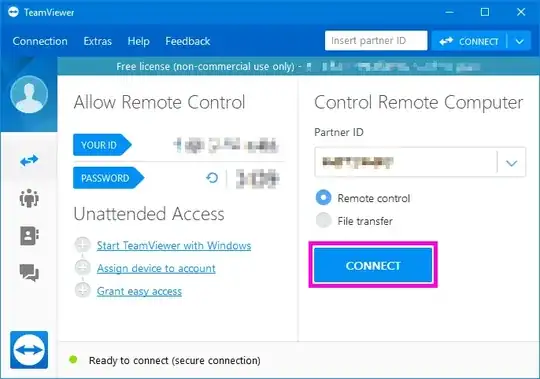
Fill in the password, and click Log On

You can now close the TeamViewer connection.
Back on the main window, click Extra >> Open log files... in order to access the TeamViewer logs
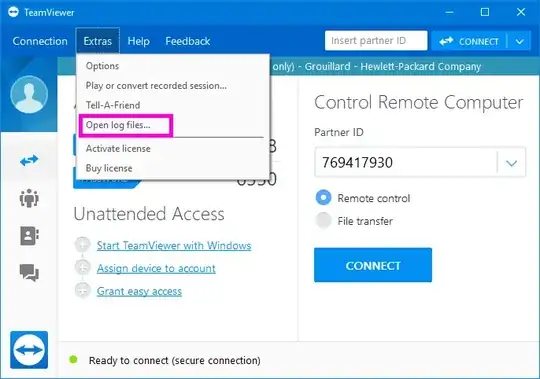
Open the
TeamViewer12_Logfile.logfile (located by default inC:\Program Files (x86)\TeamViewer) (replace12with your version number). The log folder can be accessed from the main window by clicking Extra >> Open log files...In the file, search from the bottom for the first line where it is written:
UDP: punch ignored a=xxx.xxx.xxx.xxx:yyyyya=xxx.xxx.xxx.xxx→ That's the IP address you're looking for!yyyyyis the UDP port used for the connection.
For TeamViewer v7 → v11
You can discover the IP address by faking a connection (partner TeamViewer must be up and running) then read the logs:
- Open TeamViewer
Fill in the partner ID, and click Connect to partner
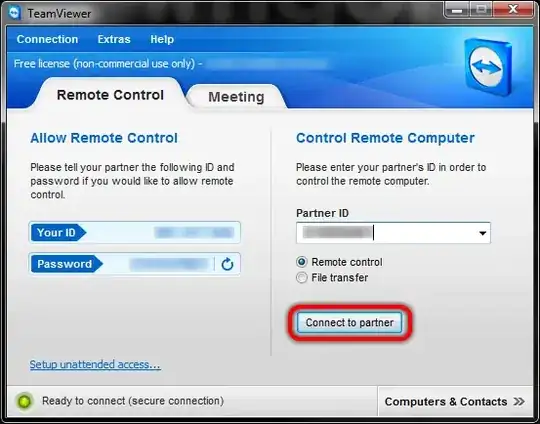
Click Cancel
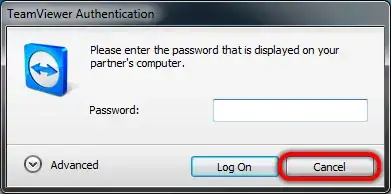
Back on the main window, click Extra >> Open log files... in order to access the TeamViewer logs
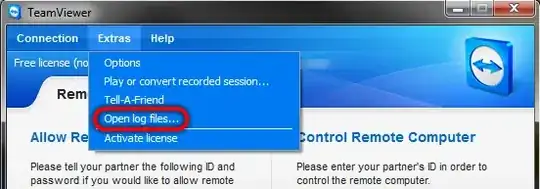
Open (with Notepad or whatever) the
TeamViewer7_Logfile.logfile (located by default inC:\Program Files\TeamViewer\Version7) (replace7with your version number)In the file, search from the bottom for the first line where it is written:
CTXX GWT.CmdUDPPing.PunchReceived, a=xxx.xxx.xxx.xxx, p=yyyyya=xxx.xxx.xxx.xxx→ That's the IP address you're looking for!yyyyyis the UDP port used for the connection.

Otiel
- 1,580
- 2
- 14
- 30
-
2I can't find "CTXX GWT...." in the log. I'm using TeamViewer 12 – sports Dec 22 '16 at 21:04
-
2@sports Unfortunately TeamViewer might have changed their logs in the newer versions. – Otiel Jan 03 '17 at 15:55
-
1I can't find it either. This solution doesn't work any more. – user643011 Sep 28 '17 at 19:59
-
1It appears to only work for successful connections. :-( – BaseZen Dec 01 '17 at 22:04
-
Updated the answer to reflect new TeamViewer version behavior. Unfortunately, as indicated by @BaseZen, the IP address is not logged anymore if the connection is not successful (no more "faking it"). – Otiel May 03 '18 at 12:39
-
Also make sure logs are enabled: Settings > Advanced > Show Log File > "Enable Logging" & "Log Outgoing Connections". Then you can search from the bottom of the log for "punch received" (for successful connections). – gamingexpert13 Oct 28 '22 at 18:02
2
The text to search for in the log file is the following (IP address is replaced by xxx.xxx.xxx.xxx):
UDP: punch received a=xxx.xxx.xxx.xxx:49518: (*)

-
In TeamViewer 13, I see `UDP: connectivity: a=xxx.yyy.zzz.www p=45653: (*)` as well as `punch received` and `punch ignored`. – BaseZen Dec 01 '17 at 21:59
-
2Also, if you're actively monitoring the log file while troubleshooting: It *does not* update until you explicitly choose **Extras** --> **Open log files...** which initiates a flush from RAM to disk. – BaseZen Dec 01 '17 at 22:00
-
@DavidPostill This isn't a duplicate of the answer from 2012, the text string to search for in the log file seems to have been changed in the newer version, from `CTXX GWT...` to `UDP: punch received...` All other answers posted since this one, however, *are* duplicates. – Hashim Aziz May 03 '18 at 02:27
-
It now separates into UDPv4 and UDPv6. Easiest search string is just "punch received". – gamingexpert13 Oct 28 '22 at 18:09
0
This method is still working...
...you just have to open the TeamViewerXX_Logfile.log (where XX stands for the version number) and search from the bottom up (press CTRL+F and tick the from the bottom radio button). Search for a= and there you go:
you'll find the IP-Address of the remote computer and and the UDP Port Teamviewer connects to.

simlev
- 3,782
- 3
- 14
- 33

Attila Papjack Szab
- 36
- 1
-1
In TV12 (and probably other newer versions) you have to look for the "punch ignored a=" phrase. There is the only one which gives you unmasked IP address of the remote host.
