I have a fresh install of Windows 8 Pro on a new PC and have done for some weeks. On Friday I hit the shutdown option Update and Restart. On the Saturday (yesterday) I turned on my machine to greeted with the Windows 8 Logo then a blank screen and doesn't boot at all into Windows (And not I have checked both monitors and they connected fine.
What was I doing just BEFORE "Update and Restart".......
- Enabled UEFI on the BIOS
- Installed the Hyper-V Windows 8 Features
- Created and installed a Virtual Switch
- Created and installed a Virtual Machine and installed Windows 8.
- Onto the VM I installed Visual Studio 2012 Web (MVC4) and SQL Server Express 2012 (NOT LocalDb)
Then after than I ran the Windows Update on the main PC and pressed "Update and Restart".
What have I tried doing to resolve this issue?
Booted (F12) using the OEM Disc. I have then Repair your computer->Troubleshoot....
1.1 Advanced Options
1.2 Automatic Repair
1.3 This fails and I get the following error:
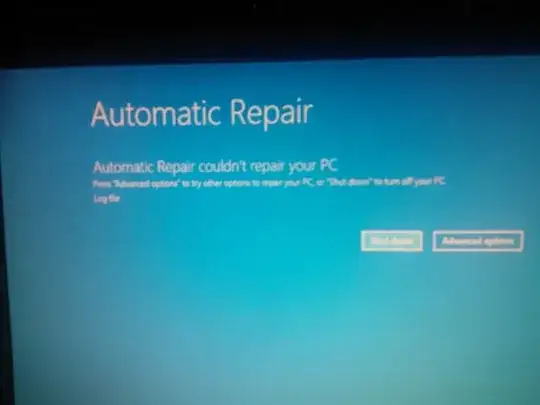
then I tried....
2.1 Refresh PC
2.2 I get the following error:
"The Drive where Windows is installed is locked. Unlock the drive and try again"
then I tried....
3.1 Reset PC
3.2 I get the following error:
"Unable to reset your PC. A required drive partition is missing"
then I tried....
4.1 System Restore
4.2 This fails and I get the following error:
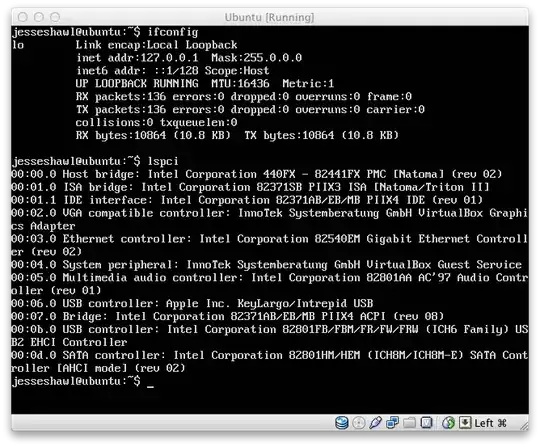
So I'm completely at a loss. I presume if I unlock the primary disk I should be able to boot or at least repair? Anyway I really don't want to wipe and uninstall if possible.

