12

I recently fixed a defect in our product by applying Microsoft hotfix. Some of our customers are still reporting that the issue remains with the hotfix applied. They are using pretty tightly controlled laptops and can't just apply the hotfix themselves. I want to know if there is some way I can check if a hotfix has been applied.

This article and this thread suggest that a hotfix applied with the hfx.exe program will appear in the registry under:

  • HKEY_LOCAL_MACHINE\Software\Microsoft\Windows NT\CurrentVersion\Hotfix\KB nnnn.

However, I see no "Hotfix" key under CurrentVersion (also, I didn't apply the hotfix with hfx.exe, I just ran the file I downloaded from Microsoft and it did the trick). Is there another way to determine if it has been applied?

Devin
  • 223
  • 1
  • 2
  • 6

6 Answers6

11

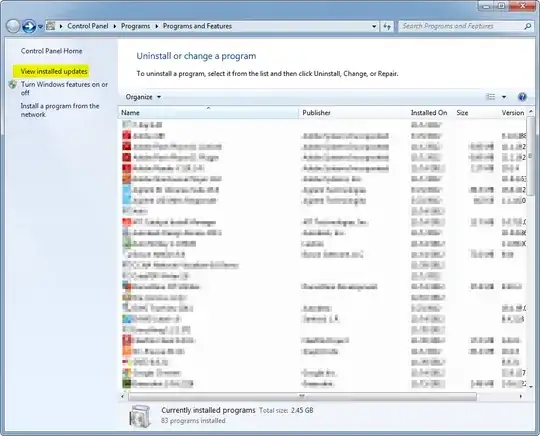
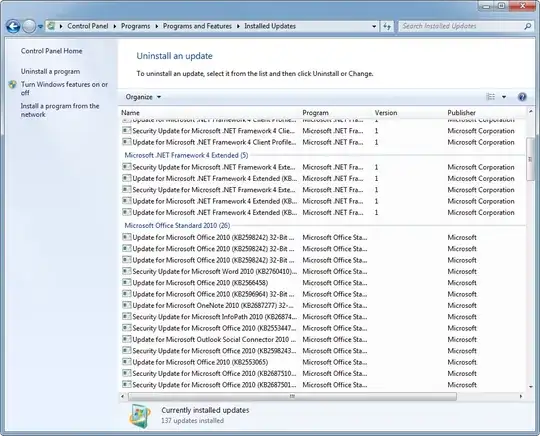
You can see what updates have been installed on a computer by going to Add/Remove Programs and then clicking View installed updates. The search box comes in very handy here.

Updates Updates

David
  • 9,144
  • 3
  • 24
  • 41
  • Yeah, I just realized that myself. I didn't think hotfixes would be in there, but I was wrong. – Devin Dec 18 '12 at 21:10
  • 2
    Although this works actually trying to identify a particular Hotfix can be painful. As I already knew of this method went with the [PowerShell 2.0 solution](http://superuser.com/a/736267/95106) by [@oleschri](http://superuser.com/users/77310/oleschri) which worked great. – user692942 Jul 28 '15 at 11:04
  • 1
    Remember that you can search for a specific Hotfix number by using the top-right search bar. – Stevoisiak Jul 13 '17 at 21:00
9

You can use PowerShell 2.0 or greater to detect which hotfixes are installed.

PS> Get-HotFix

To detect whether a specific hotfix (e.g. KB2799904) is installed, write:

PS> Get-HotFix -ID "KB2799904"

PS> Get-HotFix | where { $_.HotFixID -eq "KB2799904" }

If this returns at least one object, the hotfix is installed.

You can also specify a remote computer with the -ComputerName parameter if you have sufficient permissions on that computer.

oleschri
  • 1,175
  • 9
  • 16
3

The hotfix's KB article should show file information for what it is updating. They provide version numbers, file sizes and expected time-stamps. If your files match those (or are newer) then you've got the fix (or a newer one that incorporates the older one) applied.

For example (from KB923293):

enter image description here

Ƭᴇcʜιᴇ007
  • 111,883
  • 19
  • 201
  • 268
  • 2
    This is pretty much the only way I know how to do this. keep in mind the file versions and file dates could be changed in the future so keep that in mind. – Ramhound Dec 18 '12 at 18:44
  • How would you know which files to check (if not all of them)? Assume updates A and B both update file F to version X. But only update B contains a critical fix to file G (which is unknown to you) which you are interested in. How would you use this method to make sure file G has the critical fix without knowing what file G is? – Florian Winter May 18 '17 at 06:52
2

As a more generic (or scriptable) way to do this, you could employ systeminfo which does print a section with a list of hotfixes installed:

C:\Users\user> systeminfo
[...]
Hotfix(s):                 88 Hotfix(s) Installed.
                           [01]: KB2032276
                           [02]: KB2296011
                           [03]: KB2305420
[...]
syneticon-dj
  • 691
  • 5
  • 12
  • Trouble with this method is that the update list is potentially incomplete. Indeed I've run into this myself in Win7. It seems to max out at 245 updates. Possible explanation: https://support.microsoft.com/en-us/help/2644427/systeminfo.exe-does-not-display-all-updates-in-windows-server-2003 – Jimadine May 20 '17 at 18:51
0

Use this WMIC command in an elevated command prompt to get a list of all hotfixes installed. This will not include any updates that were deleted using Disk Cleanup>cleanup system files>windows update cleanup.

wmic qfe

Moab
  • 58,044
  • 21
  • 113
  • 176
-1

None of the above gave me satisfaction so I tried to re-install & it came up with KBxxxx "already Installed" so that is a good method of proof,