22

I have a 13" Sony Vaio laptop (model SVS13A1C5E) and I upgraded it to Windows 8 with a fresh install, after upgrading I installed Win8 drivers listed here.

Now I have a problem with the CPU usage (it drains my battery), in Task Manager I can see that the "system" process is always using 15-20% of my CPU (i7-3520M) and looks like the usage is on a single core. This is what I found by using Process Explorer, the usage comes from ACPI.sys which looks like it is generating a lot of hardware interrupts.
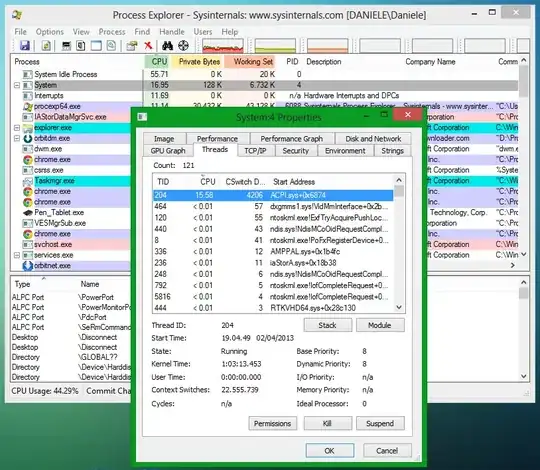
Process Explorer- Screenshot

By doing some research I found out that should be an issue with some drivers but I don't know how to figure out which one is causing this. (Please do not tell me to "upgrade" to Windows 7)

Chenmunka
  • 3,228
  • 13
  • 29
  • 38
dan_s
  • 603
  • 2
  • 6
  • 15
  • 3
    have you installed intel chipset drivers? ACPI.sys is the driver for the Automatic Configuration Power Interface, which handles a lot of low level details with device power. if its experiencing interupts, then it is likely that the driver is using your hardware incorrectly. – Frank Thomas Apr 02 '13 at 19:35
  • Yes, I installed Intel chipset drivers but you just reminded me that I had a strange behavior when installing "Intel ME Drivers": when installing other drivers there's always been some window popping out with some instructions (or a windows prompt) but when installing ME drivers the computer looked like it was working on something but nothing shown and so I do not know if they installed correctly or not. Could this problem be related also to ME drivers? – dan_s Apr 02 '13 at 19:42
  • interesting. yes, Intel ME is low enougn to cause an issue. do you even really need to remotely manage your bios? If not, remove it. – Frank Thomas Apr 02 '13 at 19:45
  • do you mean removing drivers? I uninstalled it from Device Manager and after rebooting the device automatically installs again with (I think) drivers included in Win8 and the problem persists. – dan_s Apr 02 '13 at 20:03
  • ahh. you could disable the device, but it may not be worth it. Diogo's response while not immediately effective has the ring of truth to it. – Frank Thomas Apr 02 '13 at 20:10
  • I would also add that I made a modification to the laptop: I removed the ODD and replaced it with the HDD, then I put an SSD in place of the HDD. But I think this have nothing to do with this issue, do you have other suggestions? – dan_s Apr 02 '13 at 20:27
  • In my case it happens after reboot and disappears only after shutdown and power on again (Foxconn H61MXL), whereas it doesn't happen with Linux OS on the same machine. – bartolo-otrit Mar 13 '15 at 09:23
  • I have similar issue with my Samsung Chronos 7 NP700Z5C-S03SG after upgrading to Windows 10 (it happened last time when I updated to Windows 8 too). In the end, I solved it by installing "Intel Rapid Storage" driver available from here: http://www.samsung.com/sg/support/model/NP700Z5C-S03SG. (Not enough reputation to post an answer) – Hery Aug 12 '15 at 12:45
  • It was definitely the chipset driver for me on an Asus all-in-one – Keith Banner Aug 10 '18 at 04:29

2 Answers2

25

I had similar issue with Dell E6540, 4 cores, one core permanently at 100%, process: System, thread: acpi.sys. Thanks to @ThePosey I tried to turn off Device Manager -> Network Adapters -> Intel(R) Ethernet Connection I217-LM. Process usage immediately dropped to 1%. When turned on -> one thread started to work at 100% again. Then I noticed that when I switched Power Options -> Power Plans, CPU usage characteristic changed (one core 100% -> 80%, other core 0% -> 50%, depended on the selected profile). Then I researched the problem further and found out a solution: Network Connections -> Intel(R) Ethernet Connection I217-LM -> right click Properties -> Configure -> Power Management -> section Wake on LAN -> disable Wake on Magic Packet AND Wake on Pattern Match. Process usage immediately dropped to 1%, problem solved.

qedstar
  • 351
  • 3
  • 4
  • 2
    That's it! You made my day!! – jdehaan Dec 09 '14 at 10:44
  • Thanks a lot! Only sad that I spent several hours including learning to use "Windows Performance Analyzer" etc. etc. to solve this before I finally saw this, thanks again, it works for me to. – 244an Feb 26 '15 at 01:22
  • Confirmed on a Dell M6800 also with I217-LM Gigabit Ethernet. CPU usage from 16% to 0%. – LSerni Apr 02 '15 at 21:15
  • Confirmed Dell E6430 64-bit Win. Intel 82579LM Gigabit – Caveatrob Jul 28 '15 at 18:32
  • Confirmed Dell E6430 and Intel 82579LM Gigabit, running Windows 7. Thanks muchly! – Iain Fraser Dec 02 '15 at 09:44
  • Confirmed Dell M4800, Intel I217-LM Gigabit, Win 7, CPU usage 10% -> 0% – Dele Taylor Sep 05 '16 at 08:48
  • Confirmed HP Elitedesk - except for: I had to disable the properties in the 'Advanced Settings' tab on the Properties dialog. Disabling via checkboxes in Power Management didn't changes something. – Andreas Dolk Jan 11 '17 at 10:40
  • Yeah this fixes the issue but I NEED WOL, so I'm stuck! It sounds like an Intel problem on Windows! – rboy Sep 03 '18 at 16:48
4

I fixed it! The problem was the BIOS, I updated it after installing Windows 8 (it was a win8 specific update) but it looks like it contained some bugs. If someone have this problem and needs to revert the update here you can find some bios mods based on the original version but also the stock one: http://forum.notebookreview.com/sony/677079-sony-vaio-s-bios-mod-gt640m-le.html

Also: With the updated bios version I was not able to see my Bluetooth, now it's working. Thanks all for the help given.

dan_s
  • 603
  • 2
  • 6
  • 15
  • 3
    Had this same issue on a Dell Latitude E6430, Win 7 64 bit. In this case I used LatencyMon. It was a combination of about 10% of total CPU being used by intel ethernet power savings stuff so disabled all that. Then the remaining 10% usage I got rid of by updating the BIOS. I think it was 3 revisions behind A11 vs A14 which had some explicit ACPI stuff mentioned in the release notes. – ThePosey Mar 07 '14 at 14:56
  • My case for Samsung Chronos 7 was the 'Realtek High Definition Audio' driver that was the case. Disable that device in Device handler remove the CPU usage for acpi.sys. Uninstalled and removed the driver at same time, then installed it again from realteks homepage (used version R2.81). – Andreas Mattisson Jul 18 '17 at 15:20