82

I have 2 monitors connected to a NVIDIA GeForce GTX 660:

  • Left is 1920x1080 via DVI (Samsung SyncMaster 2443BW)
  • Right is 2560x1440 via DisplayPort and is set to Primary (Samsung SyncMaster SA850)

I often leave my computer running overnight (working on long render job, doing backups, etc) so I only power off my monitors manually. However, if I power off the primary monitor, it is disabled completely as if it were unplugged from the graphics card (i.e. icons are moved, open apps are moved and resized to fit on the new primary monitor). If I switch from DP to a DVI cable, this does not occur. It seems to be an issue when using DisplayPort.

Is there a way to disable the monitor from being disabled completely in Windows when I power it off physically?

I have found no relevant settings in either Windows Display settings, nor the NVIDIA control panel software.

Edit #1: I'm using an Oehlbach Transdata DP 510 cable.

Edit #2: Here is a screenshot of my NVIDIA Control Panel v7.2.710.0: enter image description here
Edit #3: Here are screenshots of my Monitor configuration:
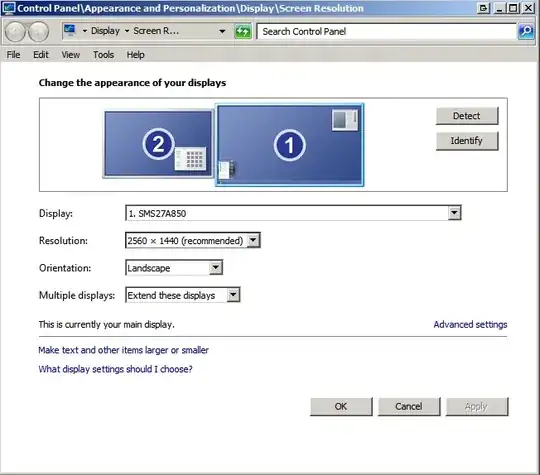
enter image description here

Clicking on Advanced settings reveals a Generic PnP monitor running at 59 Hz? 60 Hz is the only other option available.
enter image description here

Here is my secondary monitor which is connected via DVI:

enter image description here

Edit #4: If I open the "Screen Resolution" configuration panel and power the monitor off (via the power switch), this is what is shown:
enter image description here

It looks like I disconnected the monitor from the video card.

glenneroo
  • 2,258
  • 10
  • 38
  • 53
  • My guess is that this is not an OS level setting. What graphics card do you have? – user606723 Aug 11 '13 at 12:45
  • Are you using D-port to DVI converter? – VL-80 Aug 13 '13 at 19:01
  • Added graphics card to my post. Also no, no connectors, just a rather expensive DP cable from Oehlbach (which according to Amazon reviewers was necessary to support this high resolution). – glenneroo Aug 14 '13 at 17:51
  • 7
    This isn't an NVIDIA-only thing. It's a monitor hardware thing. Displayport, I believe, has a HPD pin ("hot plug detect"). I believe that what happens is that when the monitor turns off, it brings that pin low, which then causes Windows to detect the display as disconnected, and then disables it. I don't know why this doesn't occur with DVI (or maybe it can). I experience the same thing on Windows 8, AMD Radeon HD graphics, with Samsung SyncMaster950D displays, but only when connected via Displayport. – Ben Richards Aug 14 '13 at 18:04
  • 1
    Not sure, but it seems that Microsoft fixed this issue Windows 8.1. – mtm Sep 24 '13 at 09:06
  • 17
    Definitely not fixed in 10 – CJ Thompson May 06 '16 at 04:49
  • @mtm - did you have this problem before with a different version of Windows? – glenneroo May 07 '16 at 15:22
  • 4
    This is very annoying. I have three monitors connected to my computer. One of them is a big wall-mounted LCD TV, which I use (among other things) to watch films. When I do this at night, I turn off my other two ("normal") monitors. This used to work until today, when I replaced a DVI-connected ("normal") monitor with a DP-connected one. Now all my windows are moved from that monitor, and I have to restore all of them (almost 10) manually when I turn it back on... – Andreas Rejbrand Aug 20 '16 at 01:00
  • 6
    Heh. My HP Z24i monitor actually has a setting in the "Input Controls" section of its menus for "DP Hot-Plug Detection", with the ability to select either "Always Active" or "Low Power". Looks like at least some hardware manufacturers have started to clue in to the fact that this is annoying, and provided a solution. – FeRD Jan 18 '18 at 12:12
  • 1
    Still happening to me with Windows 10 as well - plus all 3 of my new monitors don't have an option to disable DDI. – glenneroo May 14 '19 at 19:07
  • 1
    problem still exists on Windows 11 – Lay Nov 22 '21 at 15:15

15 Answers15

32

DisplayPort acts as a PNP device, so turning off the monitor disconnects it from the computer as if it was removed and windows are moved out because Windows forgets this device, until it is turned on again and is "discovered".

One solution is to just let the screen go into sleep instead of turning it off. There are ways of programmatically forcing that, for example by using the monoff command in the free Wizmo utility to turn off all monitors.

Another solution for NVIDIA cards is detailed in DisplayPort Blanking / Screen Autodetect Problems by setting the monitor to use EDID information from a file instead of from the monitor, so auto-detect is not required.

This is done in NVIDIA Control Panel -> Workstation -> View system topology -> EDID source (for the monitor) -> Monitor... -> Export EDID.

Repeat this for each monitor. The topology should list the display as either EDID 'forced' or 'file'. See the linked article for more detail.

harrymc
  • 455,459
  • 31
  • 526
  • 924
  • 2
    I have the latest NVIDIA drivers but I don't have the Workstation option nor System Topology anywhere in my settings. – glenneroo Aug 14 '13 at 11:23
  • Please post a screenshot of your NVIDIA Control Panel, after checking in [NVIDIA Driver Downloads](http://www.nvidia.com/Download/index.aspx?lang=en-us) if the "Automatically find drivers for my NVIDIA products" does find the same download file that you currently have installed. – harrymc Aug 14 '13 at 12:49
  • Done and done and apparently I already had the latest version. – glenneroo Aug 14 '13 at 17:50
  • 12
    That workstation tab is probably limited to the Quadro series of cards, which is likely why you're not seeing it. Not sure if there's a workaround for the GeForce consumer series. – ernie Aug 14 '13 at 17:55
  • A *very* long shot: Could you use regedit to go to `HKLM\SYSTEM\CurrentControlSet\Enum\DISPLAY\{VESA_Monitor_ID}\{PnP_ID}\Device Parameters` and see if the EDID key is defined. If you aren't sure which is your monitor's entry, right-click the desktop / Screen resolution / Advanced settings / Monitor / Properties / Details / Device Instance Path. Check whether the EDID key exists both when the monitor is on and off. Mind, I'm not sure that this will be of any help - just investigating. – harrymc Aug 14 '13 at 19:41
  • Neither that registry key, nor any other of the (sub)keys/values in {VESA_Monitor_ID} section change when I power the monitor on/off. I could post a screenshot but I don't see any useful information in there. In "Screen Resolution" section my primary monitor disappears and the secondary becomes the new primary. – glenneroo Aug 14 '13 at 22:02
  • I can't see any "Screen Resolution" section on my end. I have profiled changing the Workstation tab and this has created a registry key at `HKEY_LOCAL_MACHINE\SOFTWARE\NVIDIA Corporation\NVControlPanel\RegisteredServers\WorkStationServer\ManageEDID`, so check if you have that. You could also have a look in `HKEY_LOCAL_MACHINE\SOFTWARE\NVIDIA Corporation\Global\NVTweak` entry named `NvCplTvLocaleAutoDetect` and try to set it to 0 and reboot. These are undocumented, so create at least a system restore point before starting. (It's hard to hack your computer at a distance.) – harrymc Aug 15 '13 at 06:39
  • Oops! By "Screen Resolution" I meant the standard Windows monitor configuration area if you right-click on the desktop. I didn't find anything under "RegisteredServers" except a Dummy value. I changed the 'NvCplTvLocaleAutoDetect' to 0 and rebooted, but my control panel still lacks any extra configuration items. Any other ideas? :) – glenneroo Aug 15 '13 at 12:28
  • [A] I meant to see if NvCplTvLocaleAutoDetect has an effect when you turn off the monitor. [B] I found that RegisteredServers only exists when a fixed EDID was declared as in my above link. I can post my own as a .reg file if you would like to try some hacking, but maybe not a good idea. [C] Another option is to hack a Quadro driver to work on your GeForce : see [this link](http://www.sonycreativesoftware.com/Forums/ShowMessage.asp?Forum=4&MessageID=853328). [D] Otherwise, we are left only with the solutions of (1) never turn off the monitor but make it sleep, or (2) don't use the DisplayPort. – harrymc Aug 15 '13 at 13:48
  • [A] No effect. [B] I just noticed I have `NVControlPanel\RegisteredServers2` (with Dummy value) but also `NVControlPanel2\RegisteredServers` which has various UUIDs (DisplayPanelServer, WorkstationServer, and some others) and under that a Key `Overrides` with some more UUIDs as keys. I could post my reg files for NVIDIA and Windows DISPLAY? [C] That sounds painful and annoying when new drivers come out. [D] I found [Dekisoft Monitor Off Utility](http://www.dekisoft.com/mou.php) which turns the screens off, but I haven't tested power usage if the screens are off or just in some sleep mode. – glenneroo Aug 15 '13 at 23:42
  • [B] There are several NvControlPanel2 in the registry and frankly fiddling with them can eat up a lot of your time with maybe no results because the GeForce driver may not use them, [C] This is probably the most promising direction but it does require time and determination, [D] I did recommend above the well-known and useful [Wizmo](https://www.grc.com/wizmo/wizmo.htm). The sleep solution is probably the only solution that can be quickly set up. – harrymc Aug 16 '13 at 05:54
  • Ok I finally got a power tester. Powered-on uses about 30 watts. After using Wizmo or Dekisoft to power the screen off, it only uses 1 watt! – glenneroo Sep 04 '13 at 21:09
  • 4
    The problem with the Wizmo solution is that if you try to turn off your display because you don't want your co-workers to see what you are doing while working remotely via TeamViewer, this solution is ineffective as logging in via TeamViewer wakes up the monitors. – bers Mar 27 '18 at 07:20
20

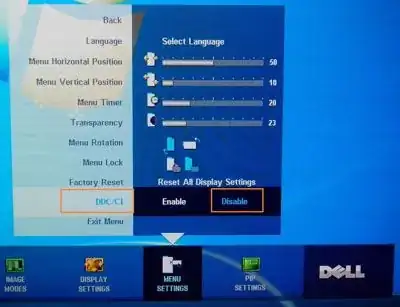
Disable the "DisplayData Channel Command Interface" (DDC/CI) in your monitor settings.
As a result Windows will not recognize if you turn off your monitor and your desktop icons stay as they should. I successfully tested this on a Dell monitor!

Wikipedia descripes DDC/CI as follows. I'll just leave it at that. There isn't much about it on the net.

[...] DDC/CI specifies a means for a computer to send commands to the monitor, as well as receive sensor data from the monitor, over a bidirectional link. [...] Some tilting DDC/CI monitors support an auto-pivot function, where a rotation sensor in the monitor enables the operating system to keep the display upright as the monitor is moved between its portrait and landscape positions.

Most DDC/CI monitors support only a small subset of MCCS commands and some have undocumented commands. Many manufacturers did not pay attention to DDC/CI in the past, but now almost all monitors support such general MCCS commands as brightness and contrast management.

http://en.wikipedia.org/wiki/Display_Data_Channel#DDC.2FCI

enter image description here

(or)

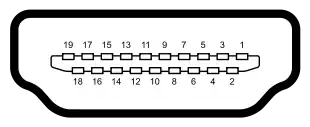
Switch from DisplayPort to HDMI and block pin #19 with electrical tape.
Unfortunately this is only possible if monitor and graphics card have additional HDMI ports.

Female end (monitor)                 Male end (Cable)

enter image description hereenter image description here

  • Pin 19: Hot Plug detect (all versions) and HEC Data+ (optional, HDMI 1.4+ with Ethernet)

DisplayPort also has a Hot Plug pin (pin #18), but I doubt someone is able to tape this specific pin since DP connectors are just too small.

nixda
  • 26,823
  • 17
  • 108
  • 156
  • 1
    Great answer. However, what are the detection implications with covering up pin 19? I.e., with pin 19 covered, what does Windows "see" as happened to the monitor (I'm guessing pin 19 isn't a signal pulled high while connected)? More importantly, what will happen when the system reboots, if pin 19 is still covered? Will Windows not see the monitor? – Coldblackice Oct 03 '13 at 05:15
  • 6
    I disabled DDC/CI but the monitor still goes undetected when switched off. Looks like loss of DisplayPort signal from a switched off monitor is the same as cable disconnect. – icelava Dec 30 '13 at 14:08
  • 7
    Note that switching from DisplayPort to HDMI is not an option for 4K resolution monitors running at 60 Hz, since the current HDMI standard doesn't have enough bandwidth to run at that resolution/refresh rate. There is also as far as I can tell no way to turn off DDC/CI on my Samsung 4K monitor. – Chiara Coetzee Dec 09 '14 at 13:00
  • If you're switching ports, switch to DVI; it might not do 4K 60fps but at least it can do 2.5K 60fps, and requires no modifications to cables. – RomanSt Sep 15 '15 at 18:52
  • 3
    I disabled DCC/CI .. but it still acts as a PNP for the display ports. I have a http://accessories.dell.com/sna/productdetail.aspx?c=us&l=en&s=bsd&cs=04&sku=210-AHSQ&dgc=SM&cid=11284&lid=472042138 and it only keeps the hdmi screens active after I power down. The DP and mDP all are removed from windows after I turn off the monitor. I'm not liking some of the sleep solutions and the other ones don't seem to be working - sad. – Blake Sep 03 '16 at 04:17
  • 1
    I just disabled pin 18 on my DisplayPort cable but my monitor was not recognized at all. Anybody else had luck with this approach? – icl7126 Jan 07 '17 at 09:05
  • 2
    DCC/CI didn't work for me. I didn't restart though. and it seems necessary for benq crappy software auto pivot to be able to auto rotate monitor. I guess I have to live with this mess for now – Dreaded semicolon Apr 18 '17 at 06:21
  • I can confirm that disabling DDC/CI solve the issue with DELL U2718Q and Windows 10 1809 (17763.104) – genuinefafa Oct 19 '18 at 20:50
  • @DCoetzee current HDMI versions (including macbook pro 2015 and up) support 60hz with HDMI output in 4k resolution – genuinefafa Oct 19 '18 at 20:53
  • On some monitors (Asus VG249), DDC/CI option is hidden under OSD Setup. – tom_mai78101 Jan 28 '22 at 00:40
  • I tried disabling DDC on Dell S2721DGF but didn't work. If you enable DDC, then Dell Display manager has a save/restore layout which seems to work. They have an auto restore which did nothing for me - manually restoring is the only thing that works. – Mrchief Jun 08 '22 at 01:12
6

I've run into this issue as well and I've decided to write a little utility to restore the position and sizes of the windows on each of the screens. I unfortunately have an AMD card so the Nvidia solutions don't work for me.

http://www.ninjacrab.com/persistent-windows/

Min
  • 184
  • 1
  • 4
  • Works great but seems to have a bug with restoring some programs e.g. Winamp when turning DP monitor back on. Still a **much** better solution than putting the screen in sleep mode, which is easily interrupted if I accidentally bump the mouse (or table or someone walks too hard, which has happened quite often since using *harrymc*'s solution over the last year). – glenneroo Oct 19 '14 at 15:04
  • Cool, I'll probably add logging to the next version and would love if you could send me over the trace so I can figure out what's going on and get it to work perfectly. Really glad it's helping you out. – Min Oct 20 '14 at 13:35
  • If you open source it on e.g. SourceForge I would gladly help contribute, assuming it's not written in some obscure language ;) Also I tried to contact you but there's no contact info on your webpage :( – glenneroo Oct 20 '14 at 19:35
  • Hey Glenn, I think I will go ahead and plop this on CodePlex, I totally welcome any support! I've also added a contact me form on my ninjacrab site so we can swap emails. – Min Oct 21 '14 at 06:36
  • 1
    This works some of the time for me. Some of the time it just doesn't work. It also doesn't solve the problem of the default audio device changing to the monitor audio any time a displayport monitor is detected again. – David Schwartz Oct 25 '16 at 05:17
5

This doesn't apply to all Samsung monitors but on my SyncMaster BX2031, I found that if I go to the monitor's built-in menu, go to Setup & Reset and set Magic Return to OFF, I don't have the issue. I think this is Samsung's attempt at saving on system performance by disabling an unused screen. However, I'm not entirely sure if this is the only function of the feature so be safe about it.

To clarify, on Samsung monitors go to [Menu -> Setup & Reset -> Magic Return -> off]

glenneroo
  • 2,258
  • 10
  • 38
  • 53
Francois
  • 51
  • 1
  • 1
4

Guys - This was my entire solution. I had to do all 3 of these things to get it to work.

  1. Update your Nvidia Drivers to the latest version and restart your computer
  2. Go into each monitor and turn off the DDC/CI ability (DISABLE IT)
  3. Follow these instructions: https://sites.google.com/site/ebobster/stuff/displayportblanking

This will work for you. I had to hack at this a while to figure this out. It's a combination of all of these things to get it to work properly. You might have to reload your EDI files more than once to get it to work but you can succeed. :)

There is no reason to disable pin 19 to get this to work if you follow my instructions.

user337743
  • 57
  • 1
  • 1
  • 3
    How do you do step 2? What is DDC/CI ability? Where do I disable it? BIOS? Control panel? More detail needed. Also in the instructions for step 3 which you linked, on that page on step 2, the "Workstation" tab isn't listed in my control panel. I am guessing it's only available on NVIDIA Quadro cards. – glenneroo Jun 23 '14 at 20:34
  • I followed steps 1&2, and it seemed to work for me. – Don Branson Feb 04 '15 at 22:36
  • 3
    @glenneroo: DDC/CI apparently is a feature of the monitor (as opposed to the OS/video card). I was able to access the DDC/CI setting via my Asus monitors menu going into "OSD Setup" – User Jul 26 '15 at 03:28
  • @User I also have an ASUS monitor (PA328Q) and DDC/CI was available in the On-Screen Display system settings. Just disabled it. Here's hoping! – bwerks Aug 07 '16 at 18:14
  • 1
    Tried out setting DDC/CI to off on my Asus PA328Q, didn't do the trick. Just abandoned DisplayPort...again...and used HDMI instead. I'll try again in 10 years on DisplayPort 1.4 and maybe they'll have fixed this by then. – bwerks Aug 07 '16 at 19:34
  • 4
    Step 3 isn't possible on NVIDIA GeForce cards because "View system topology" isn't available for the GeForce card line for some reason. – Keavon Jul 14 '19 at 09:50
  • 4
    "This will work for you." - No it will not guy. See above comments. – Ash Jul 18 '19 at 10:20
  • 1
    "This will work for you." if saying it would only make it so – Eric Guan May 10 '20 at 22:23
4

A "simple" registry change, taken from here. It works for me mostly. Programs snapped to the lower right corner are moved ~300px closer to the center on my 4k screen, but I can deal with it, especially since it means I won't have to install a 3rd party app:

Using Sysinternals ProcessMonitor I found that Windows was accessing the following Registry path:

HKEY_LOCAL_MACHINE\SYSTEM\CurrentControlSet\Control\GraphicsDrivers\Configuration

My system had three entries:

DELF003YY7707BR0MUL_30_07D7_6A^9A3774EB79DEE3E3E38496CC7DF4D936
QHD32000001_31_07D6_D5^63E1ABDD175E7871DCAEB710418A0F75
SIMULATED_8086_2A42_00000000_00020000_1010100^CDE365D1B3F0942F0CF38BFB8E127AB4

Under each is a tree called "00", two of the keys are PrimSurfSize.cx PrimSurfSize.cy

Under "00" was another branch also called "00", two of the keys are ActiveSize.cx ActiveSize.cy

The first two of the configs (ie DELF00... & QHD3...) the above keys were 1440x900, so they were not involved.

The third (SIMULATED...) were set to 1024x768.

I changed these to 1600x900 and the problem was solved.

Further I changed resolution (via control panel) to 1920x1080, the moving/resize issue returned, but the lower right corner was set to 1600x900, i.e. the SIMULATED... settings." Use MichealAtOz's advice but within all the folders that are labeled "00" or "01", (etc, I had 00 and 01) look for any settings that contain 1024, 768, or I 4096 in the data values at the end in parenthesis. Change the 1024 to the x resolution of your desktop (the first number in resolutions) and the 768 to the y resolution of your desktop. Change the 4096 number of "Stride" to whatever number there already is in a "00" or similar titled folder that already has (without you changing them) the desired desktop resolution numbers in primsurfsize.cx and ...y. Right click the name and choose modify, then select binary as the base to enter correct resolution values.

Andreas Rejbrand
  • 803
  • 2
  • 16
  • 33
DharmaTurtle
  • 191
  • 1
  • 7
2

I have the option to disable DisplayPort 1.2 on my Monitor's OSD. This resolved the issue for me.

mikezter
  • 183
  • 1
  • 5
1

For those using DisplayPort and has DVI input on monitor there is a hardware solution:
DP to DVI Akasa AK-CBDP15-20BK active adapter

I'm using two of them with my two Dell U2713HM 2560x1440 60Hz and AMD RX 480.

...still I can't believe I'm using new hardware to solve a software issue... shame on you Microsoft/nVidia/AMD!!!

icl7126
  • 611
  • 6
  • 14
  • As specified in my answer, it is not a software issue but rather a hardware issue. Monitor manufacturers are trying to be "green" by saving power, thus making the display disappear. I bet there are a certain percentage of people who therefore always have the display powered on, and disable the auto-sleep. Even a small percentage of such people would negate electricity saving gains. Monitor settings should have an option to keep the monitor connected. At least my Z24i monitor settings do have the setting. – juhist Jan 20 '19 at 20:03
  • 2
    @juhist It is definitely a software issue - Windows _software_ implements display hot-plug very, very poorly for lots of users. – NetMage Mar 19 '21 at 22:05
  • 1
    I bought a USB-C to DisplayPort cable and this resolved the issue for me! I have 1 screen with DP directly to the NVIDIA and the other screen via USB-C – lvmeijer Aug 02 '21 at 12:01
  • It's not a Windows issue either… – Jürgen A. Erhard Jan 01 '23 at 17:29
1

Not a fix, but a workaround. I noticed that if you minimize windows before the display is powered off and do not restore them until the display has returned, then the windows are not rearranged.

I leverage that fact to provide a 'seamless' experience for myself as I have documented here: http://thelamprechts.blogspot.com/2014/09/a-windows-workaround-to-maintain-window.html

shjibby
  • 29
  • 1
  • Instead of writing the same answer on two questions, you should probably use the [flag] button to suggest that one question is a duplicate of another. – Kevin Panko Sep 28 '14 at 05:34
  • 1
    _"I noticed that if you minimize windows before the display is powered off and do not restore them until the display has returned, then the windows are not rearranged."_ - So we need to run to the computer seconds before scheduled monitor power-off just to _"minimise windows"_? That's not really feasible. – Deleted Aug 19 '15 at 14:23
1

For me, I am on Windows 8 and my monitor (connected by DisplayPort) was automatically turning off every time I locked my PC, after a 60 second delay, which produced the issue described in this question. The other suggestions in this Q&A weren't workable for my monitor (Samsung 4K UHD 28” Monitor U28D590D). I was able to successfully work around it by following the instructions here to disable this behavior:

Microsoft Support: KB 2835052: Monitor powers off after 1 minute when PC is locked

In short, I ran this at the command line:

powercfg.exe /setacvalueindex SCHEME_CURRENT SUB_VIDEO VIDEOCONLOCK 3600
powercfg.exe /setactive SCHEME_CURRENT

This sets it to only turn off after one hour (3600 seconds), so now I can lock my PC when I walk away from it for just a few minutes without my windows getting jumbled. This does not directly address the question's original scenario (which involved manually turning off the monitor) but I thought others may find it helpful.

  • Thanks for your answer, but this question pertains explicitly to powering off the screen manually on Windows 7. There is a linked question (check the right sidebar) for Windows 8 which still has no accepted answer, you might want to post this over there. – glenneroo Dec 09 '14 at 19:14
  • I understand that it's not a direct response, but although this question mentions Windows 7 in tags, the exact same issue exists on Windows 8, simply because the behavior was inherited from Windows 7. The other question is essentially a duplicate and I believe any responses to it should be consolidated here. – Chiara Coetzee Dec 09 '14 at 23:31
  • 1
    _"This sets it to only turn off after one hour"_ - this is not really a solution. It arguably merely delays the _inevitable_ – Deleted Aug 19 '15 at 14:19
0

Same problem bothered me after I switched to DP monitors. I found a solution that works for me: instead of turning off the monitors by pressing the button on monitor, I turn off screen from windows. I'm using a lenovo PC and its Power Manager software has a feature to put a 'power off monitor' option if i rightclick desktop. I believe for other pc you can download a tool like NirCmd or Monitor Off to do that. When I turn off monitor in this way, my monitors would go to sleep mode but stay connected; And when I wake them up all the windows stay where they were.

lineil
  • 119
  • 3
0

I had exactly the same problem with my HP Z24i displays connected to the USB-C dock of my HP ProBook 430 G5. The displays disappeared when turned off. Not only that, but the displays also disappeared whenever I locked the computer and waited for 60 seconds. Also, sometimes the displays went to a permanent "amber" power state where not even pressing the power button of the monitor did anything and I had to manually remove the power cord, wait for 5 seconds for the capacitors to discharge and reconnect the power cord.

The solution is to adjust the settings of the monitor.

  1. Press the "Menu" button on the display twice to open the menu.
  2. Select Input Control...
  3. Select DP Hot-Plug Detection...
  4. Change from Low Power to Always Active
  5. Select Save and Return
  6. Select Save and Return
  7. Select Exit

I assume most displays have a similar setting.

Then, after doing these adjustments on all displays, I changed the Windows power plan to never turn off the displays. Whenever I walk away from the computer, I lock the computer and turn off all displays manually from the power button.

This is a hardware issue, not a software issue.

juhist
  • 1,876
  • 4
  • 14
  • 17
  • 3
    FYI, most monitors do not have a similar setting. – NetMage Mar 19 '21 at 22:04
  • I did the following and it works 1. Disable the "DisplayData Channel Command Interface" (DDC/CI) in your monitor settings. 2. Change the Windows power plan to never turn off the displays. 3. Turn off the display from the power button. I can still access the desktop (by teamviewer) as the profile is still there. – WLiu Nov 05 '21 at 07:15
0

Try to set D-port monitor as main display both in BIOS and Windows Display Settings.

Source: This article

VL-80
  • 4,475
  • 2
  • 28
  • 38
  • Good try, it's already set to primary in Windows and I have no such BIOS option because I'm not using on-board graphics. To quote from the article, "If you are using the onboard integrated graphics card of the M58p and M58, and want to use two external monitors. You should set the primary display to displayport and secondary display to vga in both the windows and bios environment." – glenneroo Aug 14 '13 at 17:54
0

Check the solution in the following post (Friday, September 16, 2011 8:28 PM): http://social.technet.microsoft.com/Forums/windows/en-US/8a9b5aa7-fe33-4e6d-b39b-8ac80a21fdc2/disable-monitor-off-detection-how#c6e69e04-c0a5-44e1-a87e-7d83efb38efd

This is a very long thread - if the above way does not work for you, maybe the following solutions there can help you?!

Chris
  • 182
  • 1
  • 2
  • 11
-2

Try this:

  1. Go to Control Panel> Power Options.
  2. Edit the plan you use by clicking Change Plan Settings.
  3. Once here click Change Advanced Power Settings.
  4. Once there, go to USB Settings, open the menu by clicking the +, and open the next menu named USB Selective Suspend Setting. Disable it.
  5. Once this is disabled, Windows 7 will no longer adjust your display setup when a display is turned off.

I just tested it, and it works for my double screen setup (HP ZDisplay Z23i 23" SCreens) with Win 7 and GeForce GT630.

Excellll
  • 12,627
  • 11
  • 51
  • 78