It's quite easy in OS X 10.6 Snow Leopard, by creating a new service. This is not supported in earlier versions of OS X. For example:
- Start Applications » Automator.
- Select "Service" for the template of the new Automator workflow.
- In the top of the right pane, select "Service receives no input in any application".
- Drag action "Run AppleScript" from the left pane into the workflow on the right pane.
- Replace the default with:
on run {input, parameters}
  tell application "Safari"
    activate
    open location "http://superuser.com/"
  end tell
  return input
end run
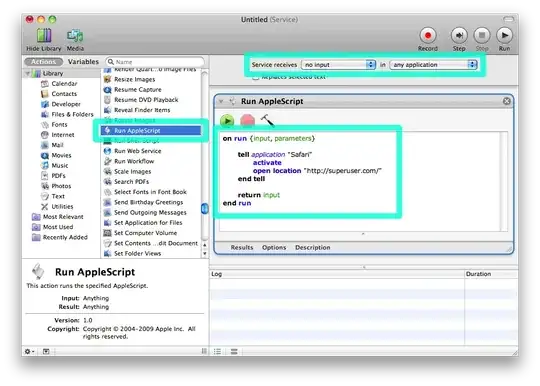
- Optional: click the Run button to test.
- Hit Cmd-S to save. The name you type will be the name in the Services menu. The workflow will be saved in
~/Library/Services.
Or, to have the default application open the file or location†:
To assign [a keyboard shortcut][3], in 10.6:
- Open System Preferences » Keyboard » pane Keyboard Shortcuts.
- Select "Services" in the left pane.
- Scroll down to General in the right pane.
- Double-click to the right of the Automator workflow you just created.
- Press the keys you want to use (and if applicable, remove existing associations if you get a warning "Shortcut used by another action"), and switch panes to ensure the new shortcut is saved.
Unfortunately, it seems that this way Services cannot be assigned a function key (the key is displayed but remains in "edit mode", and when clicking elsewhere, it's lost, which is different from assigning function keys to built-in things like Exposé, or when adding an application shortcut).
To assign a function key, there are two options:
- Assume that most applications have a Services menu, and hence will find the name like it appears there. So, if the service is named "Open Super User" then map the menu item Services » Open Super User:
- Open System Preferences » Keyboard » pane Keyboard Shortcuts.
- Select "Application Shortcuts" in the left pane.
- Select "All Applications" in the right pane.
- Add an entry for the exact name "Open Super User" and assign some function key.
- Or, use the command line:
Find its hexadecimal keycode: F1 = \UF704, F2 = \UF705, ..., F6 = \UF709, F7 = \UF70A, etc.
Prefix that with any combination of @ for Command, ^ for Ctrl, ~ for Option, and $ for Shift.
Open Terminal. If the name of the service is Open Super User, then to map that service to F1, run:
      defaults write pbs NSServicesStatus -dict-add \
        '"(null) - Open Super User - runWorkflowAsService"' \
        '{ "key_equivalent" = "\UF704"; }'

  Or for Command-Shift-F12:

        '{ "key_equivalent" = "@$\UF70F"; }'
To make all running applications aware of the change you made using Terminal:
- Close System Preferences if that was already running.
- Find your new service in System Preferences » Keyboard » pane Keyboard Shortcuts like described above.
- Disable and re-enable its checkbox to make every application aware of the change.
† There must be some AppleScript version of this as well, but I'm no expert... Anyone?


