0

We have a range of public Windows 7 computers. The computers are always on. When the users are logged on, the screen must not go off and the computer must not sleep.

However, when the user disconnects, we would like the screen to switch off.

We had a look to gpedit parameters but didn't find any suitable option. How can we do this?

Thanks

Maxbester
  • 219
  • 3
  • 5
  • 17
  • How are they logged on? At the console, or by RDP? – Ƭᴇcʜιᴇ007 Apr 09 '14 at 15:05
  • No they physically log on. They come to the room and enter their logins and passwords. – Maxbester Apr 09 '14 at 15:08
  • When you looked at the group policies, what did you actually try? Do you have Windows 2008+ domain controllers? If so, did you try anything with the Group Policy Preferences user-level Power Options/Plans? If so what did you try? What were the results? – Ƭᴇcʜιᴇ007 Apr 09 '14 at 15:19
  • If possible, I prefer not to change anything related to the domain controller. I tried GPedit > Computer configuration > Admin templates > System > Power settings... But nothing meet my need. – Maxbester Apr 09 '14 at 15:27
  • Maybe the simplest way is to call a script at log off that turns the display off. [Here is a similar question](http://superuser.com/questions/321342/turn-off-display-in-windows-7-without-additional-software). – Maxbester Apr 09 '14 at 15:31
  • I was talking about Group Policy Management -> User Configuration -> Preferences -> Control Panel Settings -> Power Options. I was asking about the version of the DC so that I could determine if you had GPP available or not. – Ƭᴇcʜιᴇ007 Apr 09 '14 at 15:39

3 Answers3

2

I found the simplest and efficient way of doing this. I will use Powercfg.

When a user logs on, a script will be launched with the following command:

POWERCFG -Change -monitor-timeout-ac 0

When a user logs off, a script will be launched with the following command:

POWERCFG -Change -monitor-timeout-ac 1
Maxbester
  • 219
  • 3
  • 5
  • 17
0

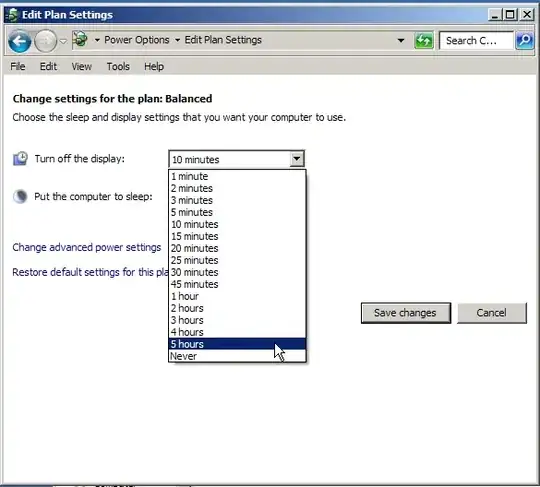
You should be able to change these settings in Control Panel -> Power Options -> "Choose when to turn off the display" on the sidebar.

You can set it so that the computer will never enter sleep mode but still have the display turn off after a certain period of time (up to five hours).

Unless I misunderstood your question, it looks like these settings would meet your needs.

enter image description here

PFitz
  • 2,478
  • 1
  • 17
  • 24
  • Well this is not exactly what I asked. A user can be logged on for 8 hours long. He may not touch the screen or the keyboard but watch sometimes programs that run. I am looking for a setting that allow the turn off of the display only when nobody is logged on but I'm not sure it exists... – Maxbester Apr 09 '14 at 15:19
0

Assuming that they are all currently setup to work correctly while logged in you can do this to enable the screensaver while not logged in.

To change the logon screensaver follow the MSDN guide:

Change the logon screen saver

  1. Click Start, click Run, type regedt32, and click OK.
  2. Locate thefollowing registry key: HKEY_USERS\.DEFAULT\Control Panel\Desktop
  3. In the Details pane, double-click the SCRNSAVE.EXE string value item.
  4. In the Value data box, type the path and name of the screen saver, and then click OK.

Important Make sure that you specify the path correctly to the screen saver. If the screen saver is located in %SystemRoot%\System32, the explicit path is not required.

Enable the logon screen saver

To enable the logon screen saver, follow these steps:

  1. Click Start, click Run, type regedt32, and then click OK.
  2. Locate the following registry key: HKEY_USERS\.DEFAULT\Control Panel\Desktop
  3. In the Details pane, double-click the ScreenSaveActive string value item.
  4. In the Value data box, replace the number 0 with the number 1, and then click OK.
krowe
  • 5,493
  • 1
  • 24
  • 31