6

I don't think this should be difficult, but I'm pulling my hair out trying to do it.

I am trying to make a chart of age vs BMI. I have a column with age and a column with BMI. The table looks something like this:

-------------
| Age | BMI |
-------------
|  5  |  13 |
|  6  |  22 |
|  5  |  21 |
|  7  |  15 |

There are more columns, but that isn't important right now. I want the BMI to be on the Y axis (easy) and the age to be on the X axis (surprisingly difficult). If I use a line graph I can select the age to be x value using Chart Tools > Design > Select Data, but that does not stack the values. In other words, all of the age 5 data points would not be aligned vertically. The x axis for my example above would look like this:

-----------
|  |  |  |
5  6  5  7

If I sort my table by age I would get something like this:

-----------
|  |  |  |
5  5  6  7

If I try to make a scatter plot I get the same results.

I have tried the suggestions in the thread below, but they all give me the same thing. Please help.

Map one column to x axis second to y axis in excel chart

Pat
  • 105
  • 2
  • 2
  • 5
  • Not really clear here. I just created a chart from your data that stacks once I moved the Age data to the x-axis - assuming the additional data is in additional columns. Can you please explain the additional data? A more full example set would be useful. – Julian Knight Apr 09 '15 at 16:31

1 Answers1

5

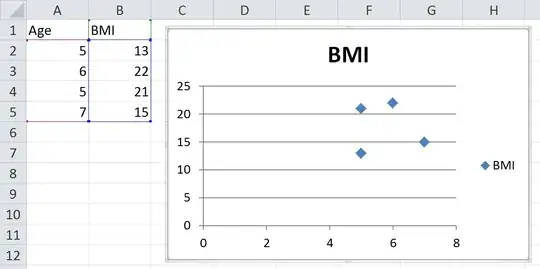
Here are the steps I followed to get the image below.

  1. Recreate your example data in the range A1:B5
  2. Select the range A1:B5
  3. On the Insert ribbon, I clicked Scatter (in the Charts group) and chose the first option

The result is shown below. I have taken no other steps to alter the chart in any way and it seems to be exactly what you want. You problem might have arisen if you started with a line chart and then tried to modify it from there. Try creating a brand new chart and see what it spits out.

Screenshot

Engineer Toast
  • 4,955
  • 1
  • 20
  • 33
  • This worked. Thank you. Apparently I just need to isolate the columns. – Pat Apr 09 '15 at 18:51
  • yes it doesn't work if you select the names of the datapoints also... is it possible to give the points labels in any way? – Cerveser Aug 16 '17 at 14:22
  • @Cerveser It worked for me exactly as described above. I run Win7 with Excel 2013. It may act differently on other setups. Regarding adding labels: Yes, you can do that. Scatter charts allow labels for Series Name, X Value, Y Value, or even any text you want if you type in a range and then select it as "Value from Cells" in the data labels properties. If you have a specific question about getting them to work and can't find the answer elsewhere, please ask it by clicking the [Ask Question](https://superuser.com/questions/ask) button. – Engineer Toast Aug 16 '17 at 22:50