Note: This is an updated version of the U&L answer that pLumo linked to.
PulseAudio makes it possible to redirect audio to an application as though the sound were coming from the microphone. Fortunately, this can be done with a GUI, too.
Prerequisites:
If you do not already have PulseAudio Control (pavucontrol) on your computer, you will want to install this. It can be done via the Terminal like this:
sudo apt install pavucontrol
Configuring PulseAudio:
Open PulseAudio Control:

Click the "Input Devices" tab, then select "Monitors" from the bottom filter:

Click on the "Recording" tab. You will likely see the list is empty:

Now comes the part where we redirect audio to an application. To do this, we must have something that is actively using the microphone. For the sake of this example, I will be using a video call performed within a browser, but this will work with any application that can use the microphone, from Audacity to OBS to Zoom.
From the application that you would like to communicate with, begin the call. Your microphone can be muted during this process.
The "Recording" tab in PulseAudio Control will now show the application that is using the microphone:
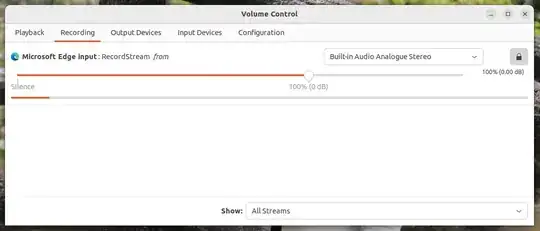 Note: The bar under "Silence" will now move to indicate it is picking up sound.
Change the "from" selection from the current microphone to "Monitor of Built-in Analogue Stereo". This may be named slightly differently on your system, but the value will start as "Monitor of ...":

Use espeak-ng (or any other application) to send sound:
espeak-ng "Here we have a basic message that will be heard locally as well as over the call."
Confirmed working during call earlier today.
If you use pico2wave, you will need to run two commands to have this work:
pico2wave -w out.wav -l en-US "Here is another basic message that will be heard locally as well as over the call."; aplay out.wav
Things to Know:
- all sounds from the computer are sent across the call when this mechanism is active, so any notification dings will be heard loud and clear by people on the call
- using the mute button during a call seems to work exactly as expected, which can resolve the distraction issue caused by the previous point
- your hardware microphone will not be active when this is running, so people will not hear you cough, type, or take a sip of coffee


