After I upgraded my notebook to ubuntu 12.04, I found that I can not save my power settings. Every time I set the screen brightness to 70%, it restored to 100% next time. I can't find a save button on the new power setting panel(I am sorry for I can not post a screenshot right now). Can anyone tell me how to save this setting? Thanks.
Asked
Active
Viewed 2.8k times


6 Answers
19
Check brightness levels by running this command as root:
cat /sys/class/backlight/acpi_video0/max_brightness(my laptop max brightness is 20)
Set you screen brightness to minimum and check current level by evoking next command
cat /sys/class/backlight/acpi_video0/brightness(my laptop min brightness level is 0;)
Edit
/etc/rc.localand add beforeexit 0the following line:echo YOUR_VALUE > /sys/class/backlight/acpi_video0/brightness
From now on this brightness level will be set every time you start your computer.


-
The directory with the brightness setting could have a different name. In my case (ThinkPad T540p, Ubuntu 14.04.3) it is: `/sys/class/backlight/intel_backlight/`. – pabouk - Ukraine stay strong Nov 29 '15 at 14:59
-
Works on startup but not after hibernate or suspend. Ubuntu 16.04 – Craicerjack May 30 '18 at 14:28
16
if you just wana change and save the screen brightness only, you can use xbacklight
sudo apt-get install xbacklight
after installing, type command to set the screen brightness easily
xbacklight -set `num`
the num is percentage of your screen brightness.
An easier way to set brightness and contrast
sudo setpci -s `00:02.0` F4.B=`XX`
to set brightness, 00:02.0 is your VGA device code.XX is hexadecimal form 00 to FF
use lspci command to find out your VGA device code.
xgamma -gamma `X`
to set contrast,X from 0 to 1

Rahul Virpara
- 11,610
- 11
- 38
- 50

Teifi
- 1,262
- 2
- 12
- 14
-
Oh, currently I just want to save my screen brightness settings. Thanks, Teifi. :) – Boris Jun 02 '12 at 16:25
-
2I can`t believe there is no GUI for this. Ubuntu should be linux for human beings. Thanks for the tip! – umpirsky Nov 04 '12 at 19:15
-
Beware about using setpci for this. For details see http://askubuntu.com/questions/66751/how-do-i-set-default-display-brightness – Stéphane Gourichon Nov 07 '13 at 06:00
8
Personally I prefer starting with the brightness I had the last time I used my computer. Here is how I got that functionality:
First create a file to store your screen brightness between sessions:
cd /etc/init.d
sudo touch prev_brightness
sudo chmod o+w prev_brightness
Then create a script that stores your current screen brightness when shutting down into the file you created in the previous step:
sudo touch save_screen_brightness
sudo chmod +x save_screen_brightness
sudo gedit save_screen_brightness
Put this into the file you just opened:
#!/bin/sh
cat /sys/class/backlight/acpi_video0/brightness > /etc/init.d/prev_brightness
Now we need to make the script run every time we shut down or reboot the computer:
sudo ln -s /etc/init.d/save_screen_brightness /etc/rc0.d/K99save_screen_brightness
sudo ln -s /etc/init.d/save_screen_brightness /etc/rc6.d/K99save_screen_brightness
Finally we need to load the value we stored when starting the computer:
sudo gedit /etc/rc.local
Put this, before exit 0, into the file you just opened:
cat /etc/init.d/prev_brightness > /sys/class/backlight/acpi_video0/brightness
That's it!

Emil Lunde
- 611
- 1
- 5
- 10
-
Thanks, the solution worked like a charm although there is a slight pause before the previous settings are retained. – Vesnog May 01 '14 at 21:49
3
Using Ubuntu 12.10 the solution Hevilath gave didn't work for me. No matter what I did with rc.local it wouldn't run.
I tried to add
echo 5 > /sys/class/backlight/acpi_video0/brightness
before the exit 0 and it was not being called. I added some logging statements to /etc/rc.local and /etc/init.d/rc.local and nothing was being run at all.
This should be working because Upstart still runs the older System V scripts at the appropriate times for backwards compatibility.
So I read up on how to write an Upstart script from here.
I figured since System V is on its way out, I should learn about Upstart.
I wrote a simple script to set the brightness on my two monitors and it works without issue.
Check it out here.
All you have to do is copy the file into your /etc/init/ directory using sudo. It should just work unless the brightness value is being echo'ed to the wrong file in case it is a simple change.
Hope this helps


1
gksudo gedit /usr/local/bin/brightness_changer.py
Paste below code,
#!/usr/bin/python

import dbus
bus = dbus.SessionBus()
proxy = bus.get_object('org.gnome.SettingsDaemon',
                       '/org/gnome/SettingsDaemon/Power')
iface = dbus.Interface(proxy, dbus_interface='org.gnome.SettingsDaemon.Power.Screen')
iface.SetPercentage(70)
Save it. Then issue command,
sudo chmod 755 /usr/local/bin/brightness_changer.py
Open Startup Applications,
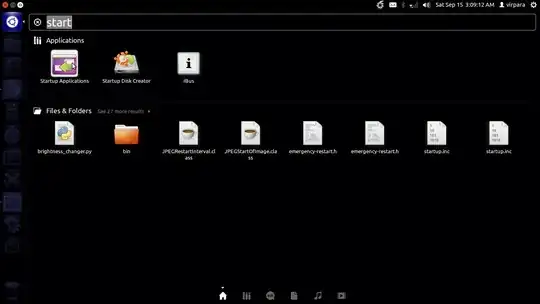
Click Add,

Give path as /usr/local/bin/brightness_changer.py in command and Save it.
Now whenever you login, brightness will be set to 70.
Rahul Virpara
- 11,610
- 11
- 38
- 50
-
I think your program might be better suited for Bash, but I like you answer and I like Python. – Sepero Nov 19 '12 at 12:57
-
@virpara: I was using your script and it used to work. But it doesn't work anymore with Gnome 3.10. I couldn't find org.gnome.SettingsDaemon.Power.Screen with dconf. Any ideas? – Swarnendu Biswas Oct 20 '13 at 03:52
0
I'm using a HP all-in-one PC. And I cannot make xbacklight to be executed in rc.local, which the reason needed to be explored.
So I just put the
xbacklight -set 0
command into StartUp Applications and it helps reduce the screen brightness after login.

zybernav
- 1