11

Background Research

I am attempting to update the progress bar within the Unity launcher for a simple python/Gtk application created using Quickly called test; however, following the instructions in this video, I have not been able to successfully update the progress bar in the Unity launcher. In the Unity Integration video, Quickly was not used, so the way that the application was structured was slightly different, and the code used in the video does not seem to function properly without modification in a default Quickly ubuntu-application template application.


Screenshots

Here is a screenshot of the application icon as it is currently displayed in the Unity Launcher.

Blurry Application Icon Without a Visible Progress Bar

Here is a screenshot of the kind of Unity launcher progress bar functionality that I would like (overlayed on mail icon: wiki.ubuntu.com).
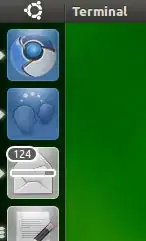
Unity Launcher Progress Bar Functionality


Project Code

A .zip file containing the project files can be found here.


Expected Behavior

I would expect the above code to show a progress bar that is 75% full overlayed on the icon for the test application in the Unity Launcher, but the application only runs and displays no progress bar when the command quickly run is executed.


Problem Investigation

I believe that the problem is that I am not properly getting a reference to the application's main window, however, I am not sure how to properly fix this problem. I also believe that the line: self.launcher = Unity.LauncherEntry.get_for_desktop_id("test.destkop") may be another source of complication because Quickly creates .desktop.in files rather than ordinary .desktop files, so I am not sure if that might be causing issues as well.

Perhaps, another source of the issue is that I do not entirely understand the difference between .desktop and .desktop.in files. Does it possibly make sense to make a copy of the test.desktop.in file and rename it test.desktop, and place it in /usr/share/applications in order for get_for_desktop_id("test,desktop") to reference the correct .desktop file?


Related Research Links

Although, I am still not clear on the difference between .desktop and .desktop.in files, I have done some research on .desktop files and I have come across a couple of links:


Edit

After running python setup.py build and then navigating to /build/share/applications and moving the built test.desktop file to ~/.local/share/applications, and finally executing quickly run, only a question mark for an icon is being displayed, with no visible progress bar.

Question mark for application icon displayed


Edit 2

After further investigation of the built .desktop file, it turns out that the line: Icon=/usr/share/test/media/test.svg within the .desktop file was pointing to an icon file called test.svg which did not exist.

In order to resolve this problem, I created a new folder called test in /usr/share/ using the command sudo mkdir test and then created another folder inside of the test folder called media using the command sudo mkdir media, and then I moved the test.svg icon file located in my Quickly project directory at test/data/media/test.svg to /usr/share/test/media/. The .svg icon for the application now displays properly in the Unity launcher bar and in the alt-tab view, however there is still no visible progress bar as shown in the screenshot below.
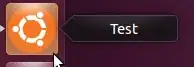
Only application icon displayed


Edit 3

As @dobey, pointed out, there was a typo in the code of the TestWindow.py file at the line:

self.launcher = Unity.LauncherEntry.get_for_desktop_id("test.destkop"),

where test.destkop, should be test.desktop.

I changed this typo and no visible changes occurred when the application was executed using quickly run. However, after adding the line print('Integrating with launcher') to add_launcher_integration() there was no corresponding output in the terminal when the application was run, indicating that the problem seems to be that add_launcher_integration() does not seem to be called correctly when the application starts.


Edit 4

After further investigation, it turns out that add_launcher_integration() is in fact called when the application starts. With the addition of the line:

os.system("clear")

prior to the line

print("Integrating with launcher")

the message "Integrating with launcher" now displays in the terminal.

However, there is still no progress bar visisble in the Unity launcher bar.


Edit 5

After rebuilding the Quickly project by executing python setup.py build and moving the built .desktop file within the Quickly project located at /build/share/applications/ to ~/.local/share/applications, the application icon and the progress bar now displays properly in the Unity launcher bar. A screenshot of the launcher integration can be seen below.

Application icon and progress bar displayed

Kevin Gurney
  • 203
  • 3
  • 13

1 Answers1

9

The .desktop file has to be installed in the location where the bamf library knows about it.

You should be able to test by copying the built .desktop file (which should be created from the .desktop.in), into your ~/.local/share/applications folder, and running update-desktop-database ~/.local/share/applications, though running this command may not be needed if your application does not handle any MIME types.

The difference between the .desktop and .desktop.in is that the .desktop.in is set up for being translated, and is processed by intltool during build, to have the translations inserted, creating the .desktop file from the .desktop.in file.

Also I just noticed a typo in your code:

self.launcher = Unity.LauncherEntry.get_for_desktop_id("test.destkop")

Notice the "destkop" vs. "desktop" that it should be. Perhaps this is it, if it's not a re-typing error. Assuming your code is actually being run, this is a problem. If it isn't run, then that's the problem. You can add a print('Integrating with launcher') to the add_launcher_integration function to see. It should appear on the terminal when run.

dobey
  • 40,344
  • 5
  • 56
  • 98
  • When is the built .desktop file created? Is it built when quickly run is executed, and where is it located? – Kevin Gurney Jul 02 '12 at 14:58
  • I don't use quickly, and don't know when exactly it would build it, but normally with a standard python library/application, using setup.py with DistUtilsExtra, it would happen when running "./setup.py build" or setup.py command which also runs build. – dobey Jul 02 '12 at 15:04
  • I managed to successively run python setup.py build. So, now do I simply move the test.desktop file into ~/.local/share/applications and the progress bar should simply be displayed when I execute quickly run? – Kevin Gurney Jul 02 '12 at 15:17
  • I built the python project and then moved the built .desktop file to ~/usr/share/applications and then ran update-desktop-database ~/.local/share/applications like you suggested, but now I am only getting a question mark for an application icon as shown here: http://i.stack.imgur.com/RWYud.png. – Kevin Gurney Jul 02 '12 at 15:28
  • What does the Icon= line in the test.desktop file say? – dobey Jul 02 '12 at 15:38
  • Icon=/usr/share/test/media/test.svg – Kevin Gurney Jul 02 '12 at 15:43
  • Ok, I created a folder in /usr/share called test, and then I created another folder called media inside of the test folder and moved the test.svg file from my quickly project located in test/data/media/ to /usr/share/test/media/, and the icon now dispklays in the launcher. However, there is still no visible progress bar as shown here: http://i.stack.imgur.com/EPxGb.png. – Kevin Gurney Jul 02 '12 at 15:56
  • Is the code you pasted in the question all the code? Are you running a GLib or Gtk main loop? – dobey Jul 02 '12 at 17:41
  • I am simply using the default files which are created with the execution of the command quickly create ubuntu-application test. This includes several python files, which I did not edit. – Kevin Gurney Jul 02 '12 at 17:47
  • I have included all of the Quickly ubuntu-application template files located in the test folder as well as the setup.py file above in case they are useful to diagnosing the problem. – Kevin Gurney Jul 02 '12 at 19:09
  • Ah! Thank you for pointing out the typo! I changed the typo and nothing seems to have changed. However, I added print('Integrating with launcher'), like you suggested, and there was no message printed, indicating that add_launcher_integration() does not seem to be properly executed when the application is run. How might I go about diagnosing the problem further? – Kevin Gurney Jul 02 '12 at 19:25
  • I'm not sure. It seems that maybe the finish_initializing is not being called. It seems as though the code should be using a .ui file for loading the GUI, but I don't see the code loading one anywhere. Does running your applications show the "TestWindow" window at all? – dobey Jul 02 '12 at 19:48
  • Yes, the TestWindow is shown when the application starts, and I believe the loading of the .ui file may be taken care of by the code located in the test_lib folder of the Quickly project. I didn't include the code inside of the test_lib folder above because I thought it might be too much extra code that might not be related, but I could include the code above if that would help to investigate the problem further. – Kevin Gurney Jul 02 '12 at 19:56
  • It appears upon further investigation that add_launcher_integration() is in fact being called because I called os.system("clear") before print('Integrating with launcher') and the message "Integrating with launcher" now displays in the terminal. However, there is still no progress bar visible. Any idea why the progress bar is still not being displayed? – Kevin Gurney Jul 02 '12 at 19:58
  • I have included a .zip file containing all the project files above. – Kevin Gurney Jul 02 '12 at 20:09
  • Can you remove the large blocks of code now then? The question is extremely long. Thanks. – dobey Jul 02 '12 at 20:39
  • Yes, I am sorry about that. – Kevin Gurney Jul 02 '12 at 20:40
  • I rebuilt the Quickly project by running python setup.py build and moved the built .desktop file to ~/.local/share/applications/ and now the icon and the progress bar displays properly! Thank you so much for all of your help! – Kevin Gurney Jul 03 '12 at 14:12
  • hey guys - if you need to have a conversation - please can you break this out into a chat room. Otherwise, please, where you can, update your Q & A with what you have found. Thanks. – fossfreedom Jul 03 '12 at 14:32