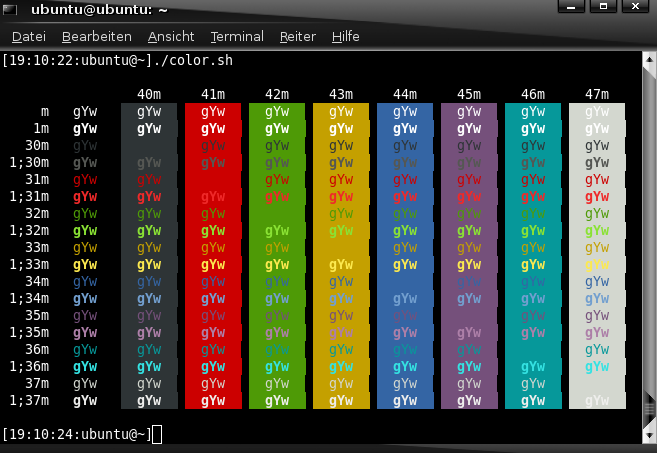
How can I get the bash to look colored like this?

How can I get the bash to look colored like this?
Open ~/.bashrc in text editor and uncomment line:
#force_color_prompt=yes
to be:
force_color_prompt=yes
save then execute source ~/.bashrc

I came up with this solution:
copy this and add it at the end of .bashrc file:
PS1='\[\033[1;36m\]\u\[\033[1;31m\]@\[\033[1;32m\]\h:\[\033[1;35m\]\w\[\033[1;31m\]\$\[\033[0m\] '
save the file and restart bashrc:
source ~/.bashrc
For a full list of available colors and further options look up these links:
A version that is a bit more 'general' - should work with a varied environment:
(depends on terminfo)
Insert this in your $HOME/.bashrc:
function fgtab {
  echo "tput setf/setb - Foreground/Background table"
  for f in {0..7}; do
    for b in {0..7}; do
      echo -en "$(tput setf $f)$(tput setb $b) $f/$b "
    done
    echo -e "$(tput sgr 0)"
  done
}

# The prompt in a somewhat Terminal -type independent manner:
cname="$(tput setf 3)"
csgn="$(tput setf 4)"
chost="$(tput setf 2)"
cw="$(tput setf 6)"
crst="$(tput sgr 0)"
PS1="\[${cname}\]\u\[${csgn}\]@\[${chost}\]\h:\[${cw}\]\w\[${csgn}\]\$\[${crst}\] "
Then execute source ~/.bashrc.
After that, fgtab will display a color table with numbers. Those numbers are for tput setf n and tput setb n where 'n' is the number, 'f' stands for 'foreground' and 'b' stands for 'background' color.
tput sgr 0 will reset foreground and background colors to default.
And as you can see, changing the colors used for the prompt becomes really easy (just edit the same number in $HOME/.bashrc as you wish).
Add an $(tput setb n) in $cname if you wish to have ALL of the prompt with background n.
I've been having trouble making "force-color-prompt" to work in Ubuntu 20 using Kitty/Putty.
But notice the following code in the default Ubuntu 20 .bashrc file: case "$TERM" in xterm-color|*-256color) color_prompt=yes;; esac
So in Kitty, go to
Then change "Terminal-type string" from "xterm" to "xterm-color" and viola!

If you install the minimal Ubuntu you don't get the default .bashrc that has the values for colors and some other stuff. This is the default .bashrc you can use.
# ~/.bashrc: executed by bash(1) for non-login shells.
# see /usr/share/doc/bash/examples/startup-files (in the package bash-doc)
# for examples

# If not running interactively, don't do anything
case $- in
    *i*) ;;
      *) return;;
esac

# don't put duplicate lines or lines starting with space in the history.
# See bash(1) for more options
HISTCONTROL=ignoreboth

# append to the history file, don't overwrite it
shopt -s histappend

# for setting history length see HISTSIZE and HISTFILESIZE in bash(1)
HISTSIZE=1000
HISTFILESIZE=2000

# check the window size after each command and, if necessary,
# update the values of LINES and COLUMNS.
shopt -s checkwinsize

# If set, the pattern "**" used in a pathname expansion context will
# match all files and zero or more directories and subdirectories.
#shopt -s globstar

# make less more friendly for non-text input files, see lesspipe(1)
[ -x /usr/bin/lesspipe ] && eval "$(SHELL=/bin/sh lesspipe)"

# set variable identifying the chroot you work in (used in the prompt below)
if [ -z "${debian_chroot:-}" ] && [ -r /etc/debian_chroot ]; then
    debian_chroot=$(cat /etc/debian_chroot)
fi

# set a fancy prompt (non-color, unless we know we "want" color)
case "$TERM" in
    xterm-color|*-256color) color_prompt=yes;;
esac

# uncomment for a colored prompt, if the terminal has the capability; turned
# off by default to not distract the user: the focus in a terminal window
# should be on the output of commands, not on the prompt
#force_color_prompt=yes

if [ -n "$force_color_prompt" ]; then
    if [ -x /usr/bin/tput ] && tput setaf 1 >&/dev/null; then
    # We have color support; assume it's compliant with Ecma-48
    # (ISO/IEC-6429). (Lack of such support is extremely rare, and such
    # a case would tend to support setf rather than setaf.)
    color_prompt=yes
    else
    color_prompt=
    fi
fi

if [ "$color_prompt" = yes ]; then
    PS1='${debian_chroot:+($debian_chroot)}\[\033[01;32m\]\u@\h\[\033[00m\]:\[\033[01;34m\]\w\[\033[00m\]\$ '
else
    PS1='${debian_chroot:+($debian_chroot)}\u@\h:\w\$ '
fi
unset color_prompt force_color_prompt

# If this is an xterm set the title to user@host:dir
case "$TERM" in
xterm*|rxvt*)
    PS1="\[\e]0;${debian_chroot:+($debian_chroot)}\u@\h: \w\a\]$PS1"
    ;;
*)
    ;;
esac

# enable color support of ls and also add handy aliases
if [ -x /usr/bin/dircolors ]; then
    test -r ~/.dircolors && eval "$(dircolors -b ~/.dircolors)" || eval "$(dircolors -b)"
    alias ls='ls --color=auto'
    #alias dir='dir --color=auto'
    #alias vdir='vdir --color=auto'

    alias grep='grep --color=auto'
    alias fgrep='fgrep --color=auto'
    alias egrep='egrep --color=auto'
fi

# colored GCC warnings and errors
#export GCC_COLORS='error=01;31:warning=01;35:note=01;36:caret=01;32:locus=01:quote=01'

# some more ls aliases
alias ll='ls -alF'
alias la='ls -A'
alias l='ls -CF'

# Add an "alert" alias for long running commands.  Use like so:
#   sleep 10; alert
alias alert='notify-send --urgency=low -i "$([ $? = 0 ] && echo terminal || echo error)" "$(history|tail -n1|sed -e '\''s/^\s*[0-9]\+\s*//;s/[;&|]\s*alert$//'\'')"'

# Alias definitions.
# You may want to put all your additions into a separate file like
# ~/.bash_aliases, instead of adding them here directly.
# See /usr/share/doc/bash-doc/examples in the bash-doc package.

if [ -f ~/.bash_aliases ]; then
    . ~/.bash_aliases
fi

# enable programmable completion features (you don't need to enable
# this, if it's already enabled in /etc/bash.bashrc and /etc/profile
# sources /etc/bash.bashrc).
if ! shopt -oq posix; then
  if [ -f /usr/share/bash-completion/bash_completion ]; then
    . /usr/share/bash-completion/bash_completion
  elif [ -f /etc/bash_completion ]; then
    . /etc/bash_completion
  fi
fi