24

I installed Oneiric on a clean system, and found that the font tab is gone from the Appearance settings. This is a problem, because by default the text in Ubuntu is too large.

I changed the text from normal to small in the Universal Access settings, but then it was way too small.

I also tried it this way, but it doesn't appear to have any effect.

How can I get back the fine control and change my DPI from 96 to 90?

Bart van Heukelom
  • 2,195
  • 2
  • 22
  • 31
  • You might be able to start the settings program "by hand". – Martin Ueding Sep 03 '11 at 13:09
  • see also: http://askubuntu.com/q/45572 – Takkat Sep 03 '11 at 13:42
  • Since Ubuntu 14.04 there is a setting for the Screen DPI Scaling: http://askubuntu.com/a/462023/294881 – user294881 Jun 19 '14 at 08:07
  • @BartVanHeukelom: Please explain, why do you want to change the FONT DPI and not the whole SCREEN DPI? as @user294881 said, this is possible now in `System Settings`->`"Displays"`->`"Scale for menu and title bars"` [Screenshot](http://askubuntu.com/a/485408/34298) – rubo77 Jun 19 '14 at 18:42

6 Answers6

22

Gnome Tweak Tool

This is a common issue on the forums - the move to gnome3 has dumped many of the customisation features that were available in gnome2.

One GUI tool that exists in Software Center is gnome-tweak-tool - its a partial solution to allow you to customise some aspects of fonts.

The "Text scaling factor" is the option you are interested in - its unfortunate that it is a sliding bar so you will not be able to enter the actual DPI value. Click on the sliding bar and use the left/right arrow keys to decrease/increase the font size. enter image description here

dconf-editor

Using dconf-editor which is available in the dconf-tools package allows you to set the "Text Scaling Factor" numerically i.e. changing the default value by fractions of numbers (1.2, 0.9 etc) changes the overall screen font size:
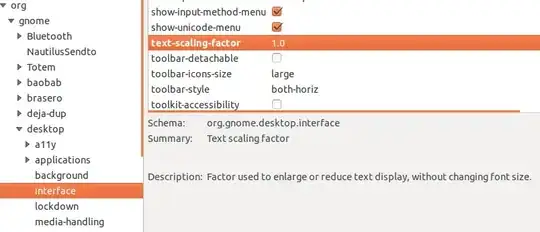
enter image description here

Universal Access

If you just want to adjust the text size universally without need detail you can do this from the universal access tool:

enter image description here

Jorge Castro
  • 70,934
  • 124
  • 466
  • 653
fossfreedom
  • 171,546
  • 47
  • 376
  • 404
  • This doesn't change the DPI, does it? It looks like it just adjusts font sizes to compensate. – ændrük Feb 10 '12 at 14:35
  • Its the closest that I found - I haven't found anything closer to the old gnome-2 functionality.... unless you know of something? - doesnt appear to be anything in precise either :( – fossfreedom Feb 10 '12 at 14:55
  • Appendix: Nowadays one can use Ubuntu Tweak. – Bart van Heukelom Jul 04 '12 at 15:01
  • Where in Ubuntu Tweak is that setting? – Olathe Jun 12 '13 at 02:12
  • You can also adjust individual fonts with gnome-tweak-tool; notably you'll want to increase window title font which is unaffected by Text scaling factor. – Beni Cherniavsky-Paskin Nov 17 '13 at 05:10
  • This is not the best answer anymore. see @user294881 s Answer below – rubo77 Jun 19 '14 at 09:01
  • @rubo77 - they are two separate questions - one for the FONT DPI - and the other is for the SCREEN DPI. – fossfreedom Jun 19 '14 at 09:31
  • 1
    But what for should you change the FONT DPI? this only causes a lot of problems, see: [Why are all HTML form elements huge with a system-wide font-scale factor 2.0?](http://stackoverflow.com/q/23783899) - so I guess, 99,9% of all users want to change the SCREEN DPI – rubo77 Jun 19 '14 at 09:33
  • @rubo77 - if you want to discuss pop into the general chat-room - not via comments – fossfreedom Jun 19 '14 at 09:34
  • Thank you! This actually helped me on setting GDM's DPI! (login to the GDM account via sudo or su > `export $(dbus-launch)` > `GSETTINGS_BACKEND=dconf gsettings set`) – Xerz May 30 '16 at 20:13
7

Just open gconf-editor Install gconf-editor, navigate to the key /desktop/gnome/font_rendering/dpi and adjust to values you need.

enter image description here

Takkat
  • 140,996
  • 54
  • 308
  • 426
  • 2
    gconf-editor is applicable to gnome shell only. If you want to change DPI for unity shell, use **dconf-editor** . (It comes with dconf-tools) The procedure is same as detailed above. – AIB Oct 14 '11 at 13:35
7

If the key text-scaling-factor is missing from gconf-editor, check alternatively:

 gsettings list-schemas | grep org.gnome.desktop.interface
 gsettings list-keys org.gnome.desktop.interface
 gsettings get org.gnome.desktop.interface text-scaling-factor
 gsettings set org.gnome.desktop.interface text-scaling-factor 0.9

(replace 0.9 with the desired value).

user28234
  • 81
  • 1
2

Did you try setting DisplaySize in xorg.conf?

I added to /usr/share/X11/xorg.conf.d a file with the size in mm, let's see how it works:

Section "Monitor"
  Identifier "myMonitor"
  DisplaySize 223 125
EndSection
Zanna
  • 69,223
  • 56
  • 216
  • 327
piotr5
  • 88
  • 1
  • 8
1

There is a new option Scale for menu and title bars in System Settings > Displays in Ubuntu 14.04 as described in this Ask Ubuntu answer, to set system-wide scaling factor.

Zanna
  • 69,223
  • 56
  • 216
  • 327
user294881
  • 31
  • 1
  • 5
0

On Pop!_ OS (which also uses GNOME shell) I had to set scale to 200% for HiDPI to work. This may be equivalent on other systems. I've got a 24 inch monitor set to 3840x2160 and it system wide font-rendering was blurry (not HiDPI or Retina like) unless scale was 200%.

Zanna
  • 69,223
  • 56
  • 216
  • 327
urubuz
  • 101
  • 2