117

What is the recommended way to change the first day of the week to Monday (instead of Sunday, as in the screenshot below)?

alt text

I couldn't find anything related in Clock Preferences, nor in System -> Preferences, or System -> Administration.

This probably has something to do with tweaking locales, so here's (possibly relevant) output from locale:

LANG=en_US.utf8
LC_CTYPE="en_US.utf8"
LC_NUMERIC="en_US.utf8"
LC_TIME="en_US.utf8"
...
LC_ALL=

NB: I want to keep English as the UI language both in GNOME and on command line. Dates are currently displayed like this (e.g. ls -l): 2010-10-06 15:32, and I also want to keep that as it is.

Flimm
  • 40,306
  • 22
  • 94
  • 154
Jonik
  • 7,098
  • 12
  • 36
  • 44
  • 1
    There is a very good explanation on how to do this at ubuntu forums! Check out this link and you'll get it done in 2 minutes. [http://ubuntuforums.org/showthread.php?t=813945](http://ubuntuforums.org/showthread.php?t=813945) – Antonis Oct 11 '10 at 16:02
  • +1, that works (after logging out & back in; `killall gnome-panel` wasn't enough). However, someone in the thread pointed out that: "While this is useful and will do the trick temporarily, it will only work until the "locales" package is updated or reinstalled, because then this file will be overwritten/replaced with a new one from the locales package". I also found another solution, which I'll post shortly... – Jonik Oct 12 '10 at 14:50
  • 2
    [prometheus's answer to a similar question](https://askubuntu.com/a/201391/315347) suggest adding `first_weekday 2` and `first_workday 2` in the `LC_TIME` section in `/usr/share/i18n/locales/`. – Paul Rougieux Sep 19 '17 at 10:07
  • They should align to the iso by default. – Benjam May 24 '20 at 12:37

12 Answers12

86

Here's another solution, also from Ubuntu Forums. I think this is somewhat cleaner and more robust: it doesn't involve customizing Ubuntu's locale files (only settings that you're supposed to edit).

Gnome calendar applet adheres to your locale settings. In Ubuntu, you can assign locale components by editing the file /etc/default/locale. Here is what I've got there:

LANG="en_US.UTF-8"
LC_TIME="en_GB.UTF-8"
LC_PAPER="en_GB.UTF-8"
LC_MEASUREMENT="en_GB.UTF-8"

Which means: I want software messages in American, but time, paper size and units in British i.e.weeks starting with Mondays, A4, metric.

Props to artm who posted that!

Of course, LC_TIME="en_GB.UTF-8" is the relevant setting to get weeks to start on Mondays.

You need to log out and back in for the change to take effect.

Jonik
  • 7,098
  • 12
  • 36
  • 44
  • Both locale-based solutions (this and [what Antonis suggested](http://askubuntu.com/questions/6016/how-to-set-monday-as-the-first-day-of-the-week-in-gnome-calendar-applet/6024#6024)) happily affect other similar situations too, for example the output of `cal` command-line tool! – Jonik Oct 12 '10 at 15:09
  • 4
    Of course, the above is a **system-wide** solution. To configure this on a **per-user** basis, see [Victor's answer](http://askubuntu.com/questions/6016/how-to-set-monday-as-the-first-day-of-the-week-in-gnome-calendar-applet/69288#69288). – Jonik Nov 01 '11 at 10:22
  • 12
    Any way to reload it without rebooting? – wdev Nov 15 '12 at 09:49
  • 3
    For me, using Xubuntu 14.04, the system-wide solution did not work: after rebooting, the week in the panel's clock (the xfce clock) still began with Sunday even after rebooting. [Victor's per-user solution](http://askubuntu.com/questions/6016/how-to-set-monday-as-the-first-day-of-the-week-in-gnome-calendar-applet/69288#69288) did work, though. – Teemu Leisti Dec 17 '15 at 09:57
  • 1
    This doesn't seem to work with `fr_CA.UTF-8` on 14.04 or 16.04. – wjandrea May 18 '17 at 05:29
  • 3
    `en_GB.UTF-8` locale should be pre-generated before setting `LC_TIME` it like this (`sudo dpkg-reconfigure locales`). – Neurotransmitter Feb 18 '18 at 11:39
  • 1
    This may not be the ideal solution, since it changes not only the first day of the week but also all other properties of `LC_TIME`... – jII Aug 02 '19 at 16:56
  • Didn't work for me (Ubuntu 20.04), and actually triggered a bug at re-log-in. – ThCollignon Mar 27 '22 at 18:15
  • **WARNING:** This has the side-effect of renaming your `Trash Bin` to **`Rubbish Bin`** – Zoltán Apr 02 '22 at 08:58
28

The best solution for me is to do this on a per-user basis in my own home directory. That way I don't have to edit a system-wide file. (Of course if you want this setting for all of the users on your system you are obviously forced to edit system files.)

What I do is edit the file ~/.xsessionrc to contain the line "export LC_TIME=en_GB.utf8". That's it.

Victor
  • 595
  • 6
  • 12
  • 3
    Seems like putting that line in my `.bashrc` also has done the trick, which is nice, although I didn't expect that. I guess gnome sources that file or possibly `.profile` when it boots up? (My `.profile` sources `.bashrc`.) My `.xsessionrc` is gone, so it must work. – Victor Feb 02 '12 at 18:17
  • 2
    This doesn't appear to work for me anymore with GNOME 3.6. What I've done instead is place the line `export LC_TIME=en_GB.UTF-8` in a file called `.gnomerc` in my home directory. That seems to have done the trick. – Victor Nov 28 '12 at 22:45
15

The time and date formats in Ubuntu (tried 12.x) are controlled by the locale settings. First you need to find out the current locale being used to control your time and date settings. Open a terminal and enter the following command.

locale | grep LC_TIME

You should see a result that looks something like

LC_TIME=en_US.UTF-8

Change to the locale directory and copy the current locale file to create a new custom file. Adjust the for your locale.

cd /usr/share/i18n/locales
sudo cp en_US en_US_custom

Now edit the new custom file.

sudo gedit en_US_custom

And change

first_weekday 1

to

first_weekday 2

Then make the change in /etc/environment to point to your new custom file.

sudo gedit /etc/environment

Add a line like this to the bottom of the file making sure to adjust it for the custom locale file you want to use.

LC_TIME="en_US_custom.UTF-8"

Source: http://tuxtweaks.com/2008/12/change-the-week-start-day-in-ubuntu/

Ondra Žižka
  • 3,668
  • 5
  • 35
  • 43
  • 2
    Why should one prefer this approach to [editing /etc/default/locale](http://askubuntu.com/a/6457/928) (which is simpler)? – Jonik Nov 08 '12 at 12:30
  • 1
    Because in my case, editing /etc/default/locale didn't work. This did. – Ondra Žižka Nov 10 '12 at 11:18
  • 1
    `killall unity-panel-service` after the changes to apply this without reboot. – Andrejs Cainikovs Mar 26 '14 at 13:13
  • 2
    [prometheus's answer on a similar question](https://askubuntu.com/a/201391/301745) is related, but mentions you need to run `sudo locale-gen` after modifying the locale files; that did it for me. – wjandrea May 18 '17 at 06:04
  • In Ubuntu 16.04 LTS this approach doesn't work – Viktor Aug 18 '17 at 05:54
  • #wjandrea mentions prometheus's solution, which helpfully indicates that you may have to ADD the line "first_weekday 2" if there is no pre-existing line "first_weekday..." to modify. – django Aug 28 '18 at 04:27
  • So, this works nicely for me in Ubuntu 18.04 LTS (just to update Viktor's comment above, from 2017-08-18). – Dɑvïd Aug 26 '20 at 11:09
14

On Ubuntu 12.04 (and later versions I suppose), the easiest way seems to be: System Settings > Language Support, then click on Regional Formats tab and choose from the drop-down list.
In my case I chose "English (Ireland)" which gave me Monday as first day in the calendar, "correct" number formats and currency, and other goodies :)
If you don't find the right option there, you might need to install a language (the other tab of the same window).

Kamal
  • 250
  • 2
  • 4
  • 1
    Top two solutions did not work for me, but this one did! Thanks a lot! (Ubuntu MATE 18.04, for the record) – egor83 Aug 07 '20 at 15:50
6

Based on this page, the settings should go in .pam_environment or .profile https://help.ubuntu.com/community/EnvironmentVariables#A.2BAH4ALw.pam_environment

My default .profile is sourcing .bashrc so I added these lines to my .bashrc since I already have it under source control.

#Change first day of week to Monday
export LC_TIME=en_GB.UTF-8
#Change to metric system
export LC_MEASUREMENT=en_GB.UTF-8

I'm running 14.04.1

enter image description here

UPDATE: 01/15/16 Ubuntu 14.04.03

Having these lines in my .bashrc stopped working earlier this year. Moving the same lines to either .pam_environment or .profile does work. This is a user setting, not system-wide.

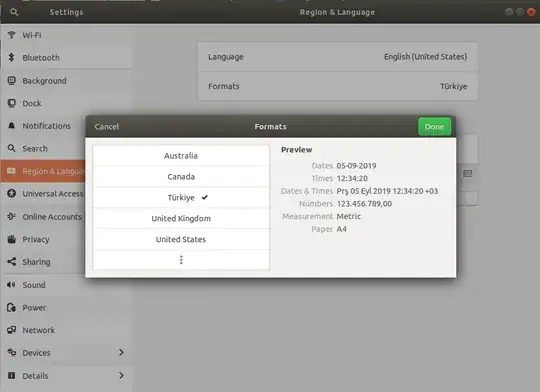
5

For me the easiest way was to update formats in Region & Language Go to Settings->Region & Language and choose your format.

The system will force you to logoff and login to reflect the changes.

settings>Region&Language

Simon Sudler
  • 3,771
  • 3
  • 20
  • 33
user1882540
  • 59
  • 1
  • 1
5

For me the advice at https://wired-mind.info/post/528 worked.

Edit the file /usr/share/i18n/locales/en_US

sudo nano /usr/share/i18n/locales/en_US

Find this section:

week 7;19971130;7 

first_weekday   1 

first_workday   2

Set first_weekday to equal 2.

Save and exit the file, then perform:

sudo locale-gen

In my case locale-gen regeneration was important to start to see the change.

Pizza
  • 1,388
  • 3
  • 15
  • 27
Max
  • 159
  • 2
  • 4
3

This is already a very old topic, I added this answers as reference to future readers looking for the same problem but want a way with less hacking

Use en_DK as locale.

This locale was developed as an official way of writing English in Denmark but it is used outside Denmark, as some sort of generic continental European English locale. It solves the most annoying problems with en_US and does not require any modification of system files. If a more fine tuned solution in desired - the other answers are excellent.

Simson
  • 141
  • 4
  • Thanks for the +1 today it reminded me I knew how to fix this problem I have had on this new computer I had for a few weeks. – Simson Sep 01 '21 at 01:38
1

Setting first_weekday in locale

First, determine which time locale is in use. The system wide setting in /etc/default/locale may or may not be overwritten in ~\.pam_environment.

$ cat ~\.pam_environment
…
LC_TIME=en_IE.UTF-8
…

Here, the locale en_IE.UTF-8 appears to be in use. Now, edit the locale source file with administrator privileges. The editor vim is used here, but this can be replaced by, say nano.

$ sudo vim /usr/share/i18n/locales/en_IE

Add the following lines and save the modified locale source file.

first_weekday  2
first_workday  2

Finally, regenerate the locale files with the following command:

$ sudo locale-gen

Log out and in again for this change to take effect.

Serge Stroobandt
  • 4,838
  • 1
  • 45
  • 58
1

I just want to note, that the default user folder for setting the locale is: ~/.config/locale.conf. It may be different if $XDG_CONFIG_HOME is set to something else. As pointed out earlier, the system config /etc/default/locale is used as a fallback value.

Setting LC_TIME="en_GB.UTF-8" is sufficient. You do not need to set the other variables in order to get the week starting day correct.

NicoHood
  • 121
  • 2
0

None of the answers worked for me perfectly. Changing "/etc/default/locale" did not work at all. In settings I did not have my needed format. And after changing ".pam_environment", my "LC_TIME" changed to default "C" locale. I tried "sudo locale-gen", but it did not generate my necessary locale. So I had to force it with command "sudo locale-gen lv_LV.UTF-8". And after restart everything started to work correctly.

DMG
  • 61
  • 1
  • 4
-1

Just open the terminal in the folder: /etc/default

and use: sudo update-locale LC_TIME="en_GB.UTF-8"

and restart

source: -first answer and -https://www.thomas-krenn.com/en/wiki/Configure_Locales_in_Ubuntu