5

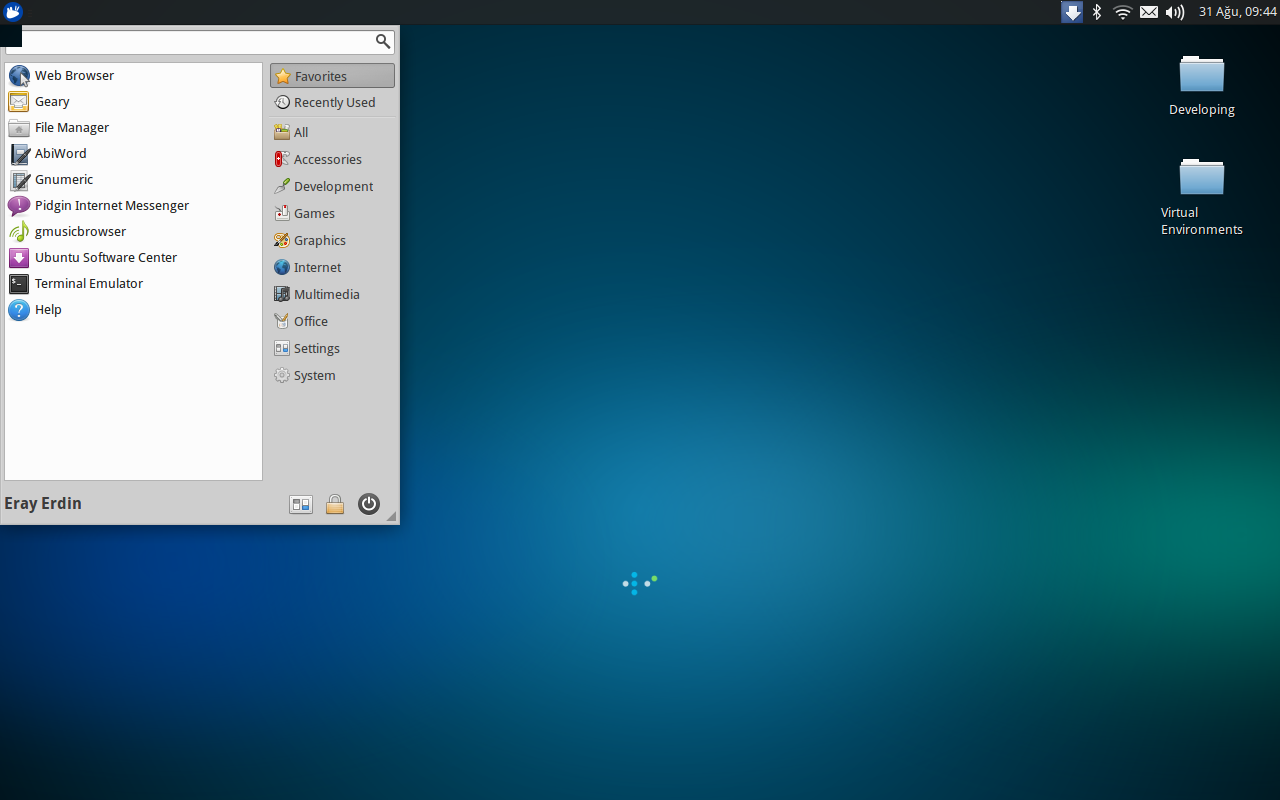
A strange black square appears at the top-left side of the screen. I log in, it does not appear until I open Whisker menu, but whenever I open it, it simply appears and stays at the top of all application windows.

It is not a functional problem but it is getting annoying. This is the screenshot while Whisker menu is open:
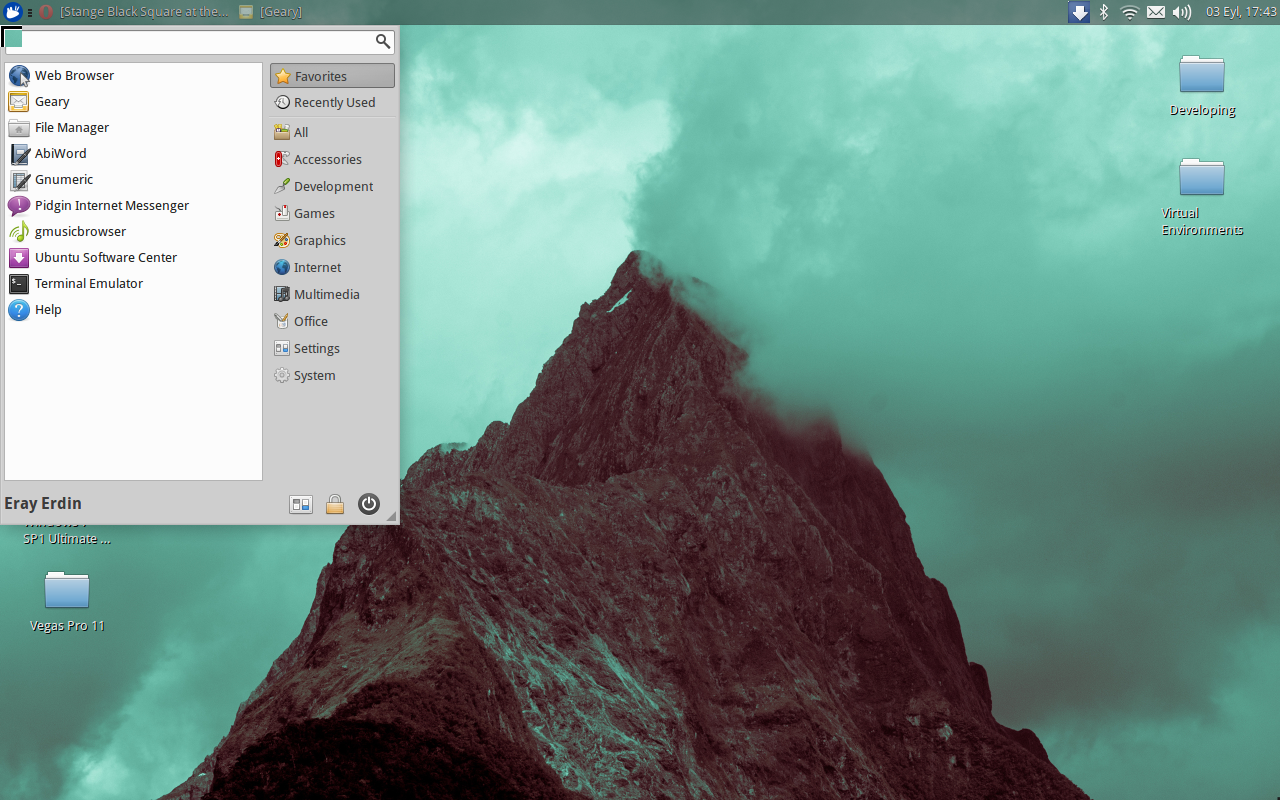
It might sometimes imitate the wallpaper, ss:
Zanna
  • 69,223
  • 56
  • 216
  • 327
Eray Erdin
  • 330
  • 1
  • 4
  • 16
  • Could it be a tool tip of some sort? – Minix Sep 01 '15 at 07:48
  • It does not seem so, will not fade out while I'm busy with other applications. It stays black, but can change color in time like this: http://i.hizliresim.com/EqAv0v.png . This is actually color of the wallpaper, I don't know why this happens. – Eray Erdin Sep 03 '15 at 14:44
  • Are you using Thunar as your file manager? – Minix Sep 04 '15 at 16:42
  • Yes. I use Thunar. – Eray Erdin Sep 04 '15 at 20:33
  • this happened to me on Ubuntu 19.10, Zac's solution fixed the problem – Pafnucy May 16 '20 at 08:45
  • I do not use Ubuntu now @Pafnucy (now I use Manjaro KDE). Remi's solution worked for me in the past and I think it's easier to script it (because it does not deal with window id which changes on each rebot), it can be launched it on login. Since both works, I'm not quite sure which one to accept after years later. You say you solved your problem but if any googler has this problem, can they try out [this script](https://pastie.io/vonkjf.bash)? If this solves anyone's problem, I can accept Remi's as accepted answer. – Eray Erdin May 16 '20 at 13:54

3 Answers3

6

Xubuntu 12.04.5 user here, I launched xwininfo command from a shell, and point to the black rectangle, it says:

xwininfo: Window id: 0x240007d (has no name)

launching command xkill -id 0x240007d did close the black rectange.

The window id is not the same every time: this time wininfo shows an id of 0x360007b.

Moreover, I played an openGL game and the rectangle is no more black, but shows a bit of game graphics.

Zac
  • 201
  • 3
  • 12
2

Try in a terminal

xfconf-query -c xfwm4 -p /general/use_compositing -t bool -s false
xfconf-query -c xfwm4 -p /general/use_compositing -t bool -s true

The square disappears, but you need to do after each reboot of the computer.

I found this solution on another forum. I don't understand why that works.

David Foerster
  • 35,754
  • 55
  • 92
  • 145
Remi
  • 21
  • 2
1

There's another permanent solution to this issue.

If you install another Ubuntu with desktop environment (like Kubuntu) and then install Xubuntu and completely uninstall the old environment, the black square will not appear.

Eray Erdin
  • 330
  • 1
  • 4
  • 16