What are the steps to install the Spelling Check and other language supports for LibreOffice. For example spanish, french, italian, etc..
Asked
Active
Viewed 3e+01k times


10 Answers
113
This is apparently managed at the system level. Go to the Language Support menu in the System Settings menu and add the languages you want to support. After that restart LibreOffice and you will see that the spellchecker for example will give you the option of using the newly installed languages.


-
1Ok I was into old school way of looking for the language support packages. This saves me a lot of hazzle. Thanks. – Luis Alvarado Oct 25 '11 at 23:37
-
Worked for me, but is it possible from the command line? Other command line solutions proposed failed for me. – Ciro Santilli OurBigBook.com Aug 12 '13 at 09:58
-
6@cirosantilli, did you try the other "command-line" answers below?, for example: `sudo apt-get install myspell-es` or `aspell-es` or `hunspell-es` – alfC Aug 12 '13 at 22:15
-
5does not work that way for most languages in Ubuntu 14.04 with LO 4.2 – Dec 12 '14 at 09:59
-
3Comment from [Andre Blecha](http://askubuntu.com/users/364465/andre-blecha): a note of caution: the system will download language dependent files such a help and documentation for ALL your applications installed. This may be disc-space and time consuming. – Fabby Jan 04 '15 at 12:53
-
it still doesn't work on `Tools` -> `Language` -> `For all Text`. I just see there two languages and not the languages I installed. The majority of SW is designed for English or American people, and they speak only English, and rarely speak another language besides English. An american developer cannot imagine that a person (like me) may speak and write in six languages: Portuguese that writes mostly in English and lives in the Netherlands. – João Pimentel Ferreira Oct 08 '17 at 17:56
-
@JoãoPimentelFerreira that is not true, Linux distros are very considerate to support multiple languages simultaneously. My solution worked last time I checked. – alfC Oct 08 '17 at 19:23
-
@alfC try to install three languages in Ubuntu as stated here, and then go to LibreOffice on `Tools` -> `Language` -> `For all Text` – João Pimentel Ferreira Oct 09 '17 at 19:39
-
@JoãoPimentelFerreira I did install three dictionaries, English, Spanish and French and `Tools -> Language -> For XX` shows me three options. I am using LibreOffice 5.3.6.1. Perhaps your current version has a bug? I also installed the dictionary via `hunspell-en`, `hunspell-es`, `hunspell-fr`. – alfC Oct 10 '17 at 00:46
-
@alfC What do you mean by "I did install three dictionaries"? Did you install them on `System Settings` -> `Language` like you suggest in this post? Or did you use another method directly in Libreoffice? My version is 5.4.2.2 – João Pimentel Ferreira Oct 10 '17 at 19:27
-
ok, now I get, one must go to `Tools` -> `Language` -> `For all Text` -> `More` to get the other languages. Thank you `:)` – João Pimentel Ferreira Oct 10 '17 at 19:39
-
@JoãoPimentelFerreira I see them without clicking More... It took restarting LO a few times to work. – alfC Oct 11 '17 at 03:59
-
It seems that to be able to select the document language (tools->language->for all text->givenLang) I had to reboot my computer (linux debian), maybe restarting only the display manager would have been enough – Philippe Gachoud Feb 15 '18 at 10:38
-
Where is the "System Settings" menu? That doesn't seem to exist in Writer for LibreOffice 5.3. – HelloGoodbye May 03 '18 at 11:07
-
@HelloGoodbye, yes, it is not in LO, it is in the global Ubuntu Settings. – alfC May 03 '18 at 14:58
-
1This answer didn't work for me (using kubuntu 20.04 beta). I already had my system in spanish, I had to run `sudo apt install myspell-es` and it worked ok – opensas Apr 21 '20 at 03:04
42
The command:
sudo apt-get install aspell-<language pack>
will do the trick
For example, the spanish dictionary is:
sudo apt-get install aspell-es
The command:
sudo apt-get install aspell-<language pack>
will do the trick
For example, the spanish dictionary is:
sudo apt-get install aspell-es
In Kubuntu the package is called myspell-es

German Attanasio
- 623
- 6
- 6
-
That's specifically for the spell-checker though, right? That doesn't actually give you the thesaurus or other features in the language, does it? – Eliah Kagan May 30 '12 at 16:24
-
-
3recently I had a similar problem with Evolution email, in that case the solution was to do a similar thing but with hunspell instead, `sudo apt-get install hunspell-es` – alfC Sep 04 '12 at 23:42
-
To list all available dictionaries sudo apt-cache search aspell – Philippe Gachoud May 26 '14 at 09:56
-
12Installing `aspell` dictionaries didn't work for me (Kubuntu 16.04, LibreOffice 5.1.4.2), but installing `myspell` did the job. – datka Nov 05 '16 at 20:46
-
38
If you can't install system packages, you can install a spell checking dictionary extension manually. You'll need to restart LibreOffice.
US English Dictionary available here: extensions.libreoffice.org.
Instructions for installing extensions:
- Download an extension and save it anywhere on your computer.
- In LibreOffice, select Tools → Extension Manager from the menu bar.

- In the Extension Manager dialog (Figure 2), click Add.

- A file browser window opens. In Add Extension(s) dialog, you can find the extension's files in your system folders. The extension's files have OXT file extension.

- Find and select the extension you want to install and click Open.
- If this extension it is already installed, you'll be prompted to press OK to confirm whether to overwrite the current version by the new one, or press Cancel to stop the installation.

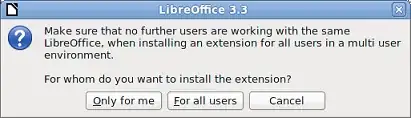
- After, you are asked whether to install the extension only for your user or for all users.
- If you choose Only for me option, the extension is installed only for your user (the extension will be stored in your user profile and other users will not have access to it).
- If you choose For all users, you must have system administrator rights. In this case, the extension is installed in LibreOffice system folder and will be available for all users.
- In general, choose Only to me, that doesn't require administration rights on the operating system.
- After, you may be asked to accept a license agreement.

- Use Scroll Down button to read the license agreement. At the end of license text, the Accept button will be enabled.
- Click Accept to proceed the installation.
- When the installation is complete, the extension is listed in the Extension Manager dialog.

Instructions stolen from libreoffice.org

Janus Troelsen
- 2,668
- 23
- 24
-
worked like a charm. the only thing that i had to do was to add the oxt extension to the file because the extension manager not seeing the extension file. sorry for the bad english. – Engels Peralta Aug 05 '14 at 21:35
-
Libreoffice should really make this process simpler. – Ciro Santilli OurBigBook.com Dec 14 '17 at 17:23
16
To install Spanish spellchecker on Libre-Office, You need the next package:
sudo apt-get install myspell-es

Guille_C89
- 161
- 1
- 2
-
3+1. For me `aspell-nl` was **not** working, but `myspell-nl` **was** working – Jasper de Vries Nov 07 '13 at 08:44
-
3For German, unlike expected from the above example, the package name is `myspell-de-de`. – orschiro Feb 02 '16 at 12:32
-
`sudo apt install myspell-nl` yields `Note, selecting 'hunspell-nl' instead of 'myspell-nl'` – Serge Stroobandt Feb 24 '19 at 08:42
14
For Ubuntu 12.04 and German (Austria), installing the hunspell package solved my problem:
sudo apt-get install hunspell-de-at
Remember to restart LibreOffice Writer after installing the package!

pygrac
- 321
- 3
- 3
12
Only hunspell is needed
If only an additional spell check dictionary is needed, without files for an additional user interface (UI) language, then open a command line terminal and type:
sudo apt install hunspell-xx
where xx is the ISO 639-1 two-letter language code.
On some occasions, the language code needs to be supplemented with either a ISO 3166-1 alpha-2 country code as in hunspell-en-gb and hunspell-de-ch or a three or more letter abbreviation for specialist dictionaries as in hunspell-en-med for English medical terms.
All available hunspell dictionaries are listed using the command:
apt search hunspell
Restart LibreOffice to make any new dictionary available for spell checking.


Serge Stroobandt
- 4,838
- 1
- 45
- 58
-
2Got svenska (swedish) by "sudo apt install hunspell-sv-se" in ubuntu 20.04 with libreoffice 6.4.6.2 AND tools->options-Language settings->Writing aids marked with Hunspell SpellChecker. Restart libreoffice and svenska is available when Tools->Spelling is selected. – Christer Jan 05 '21 at 11:16
5
sudo apt-get --install-suggests install libreoffice-l10n-fr
This will install:
hunspell hunspell-fr-comprehensive hyphen-fr libreoffice-help-fr
  libreoffice-l10n-fr mythes-fr
It was supposed to install libreoffice-grammarcheck-fr but for some reason the package is not available on my install of linuxmint

abumalick
- 596
- 1
- 6
- 7
-
Still working as of Ubuntu 18.04. To see available language packs, type `sudo apt-get --install-suggests install libreoffice-l10n-` and press the "Tab" key to see autocomplete suggestions. – tanius Oct 28 '18 at 23:40
-
1Still working as of Ubuntu 19.04. This is the best command-line answer as it works for whatever spellchecker system you are using under the hood (myspell, hunspell etc.). – tanius Jan 01 '20 at 20:26
3
There is also a very popular extension supporting up to 20 languages which may also detect not only typos but some grammar mistakes and "false-friends". The extension is called LanguageTool.

math
- 1,428
- 4
- 17
- 35
-
Best answer in my opinion. LO specific, many languages included (as originally asked), updated extension, not system-wide, doesn't require root, not an "apt-get install" guessing game. – berbt Nov 23 '15 at 09:56
-
1You need to install the "libreoffice-java-common" package for this to work (otherwise it fails with an UNO / java / NoClassDefFound error) – Grey Panther Aug 10 '16 at 15:29
1
Ensure that the document language is correct, e.g. "English (USA)" and not {en}
On LibreOffice Write 7.1.4, I received a .docx document for which spellcheck wasn't working, even though everything worked fine when I created a new document from scratch.
The solution was to go:
- Tools
- Language
- For All Text
- English (USA)
Before doing this, I could see that the selected language was a bogus {en} under "For All Text". After I selected "English (USA)", {en} disappeared as a choice completely, and spellchecking started working.
So this indicates that {en} was some bogus value that was not properly imported by LibreOffice. This is likely a bug, I'll report it if I ever manage to produce a minimal .docx example from word that I can share.

Ciro Santilli OurBigBook.com
- 26,663
- 14
- 108
- 107
1
You need to apply changes system wide in-order to reflect it in LibreOffice, Go to System Settings, Select your language preferences to get the language pack not just for LibreOffice but for your system.

suresh
- 11
- 1