Is there a way to tell nano to automatically show line numbering each time I open a file?
Asked
Active
Viewed 7.8e+01k times
430


-
16`set linenumbers` in nanorc does the trick – somethingSomething Jul 21 '18 at 11:26
-
11CTRL+3 then SHIFT+3 will show line numbers CTRL+3 then SHIFT+3 will hide the line numbers – AATHITH RAJENDRAN Sep 28 '19 at 05:10
-
5Starting from nano 2.7.1 you can open file with `-l` (`--linenumbers`) flag to display lilne numbers beside the text. – Mikhail Oct 09 '19 at 09:31
-
2`ALT` + `SHIFT` + `#` will work in ubuntu – Akhil S Sep 30 '21 at 13:46
-
3Best way is probably to edit the Nano config file: the example config file is located at `/usr/share/doc/nano/examples/sample.nanorc`. Copy this file to your `~/.nanorc` and start editing from there. – Danijel Dec 23 '21 at 10:26
-
For all the `.nanorc` options see [NANORC](https://www.nano-editor.org/dist/latest/nanorc.5.html). – Danijel Aug 29 '22 at 10:54
-
Better yet: install the [`micro` editor](https://micro-editor.github.io/). It is a CLI tool with mouse support. Shows line numbers automatically. Download the executable with `curl https://getmic.ro | bash`. – Gabriel Staples Jan 18 '23 at 16:39
-
1@GabrielStaples JEEZ! Thats PRETTY good. – Luis Alvarado Jan 18 '23 at 16:48
-
1@LuisAlvarado, one thing that annoys me is how slow Ctrl + C is to copy inside `micro`. If you figure out a way to speed it up, [leave a reply here](https://github.com/zyedidia/micro/issues/1569#issuecomment-1387390921). – Gabriel Staples Jan 18 '23 at 17:01
7 Answers
423
The keyboard combination to display the current line number whilst you are using nano is CTRL+C.
Alternatively, to display the line & column number position you could just use the -c parameter when launching nano i.e:
nano -c [filename]
To make this permanent, nano uses a configuration in your home folder ~/.nanorc
Thus to display line numbers always when using nano...
nano ~/.nanorc
(don't worry if its empty - this file doesn't exist by default)
type set constantshow
N.B. the deprecated syntax set const is shown in the animation
Save
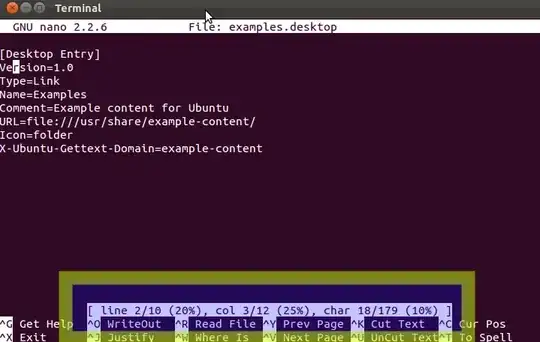

Since you are using line numbers remember you can use ALT+G to jump to a specific line number.

fossfreedom
- 171,546
- 47
- 376
- 404
-
If you are in a tty, an alternative to CTRL+C is F11 and an alternative to ALT+G is F13 (which doesn't exist on my keyboard) or Ctrl+_ (Ctrl+Shift+-). – Radu Rădeanu Jun 03 '14 at 12:15
-
17Note that `-c` might not behave the way people are expecting. It won't prefix each line with the number (like `less -N`), it just makes the status box at the bottom of the screen permanent. – Ian Dunn Sep 05 '16 at 18:03
-
11I agree with @IanDunn, this is the wrong answer. Add `set linenumbers` instead (only works in recent versions). – xjcl Sep 17 '19 at 15:35
-
The permanent solution listed here no longer works in ubuntu 16.04+. Does anyone have an updated solution to permanently activating this setting in Ubuntu 16.04+ ? – DanRan Feb 23 '20 at 01:18
-
@DanRan why it should not work? The post has high vote so it might work... the better the answer the higher the vote? Welcome to the SE Network. – Timo Apr 27 '21 at 18:30
-
A more linux style permanent solution is `echo set constantshow>> ~/.nanorc` – Timo Apr 27 '21 at 18:32
144
Accidentally found nice shortcut: Alt+#, which in some keyboard layouts can be done with Alt+Shift+3.


avila
- 563
- 1
- 6
- 21

Gregor Godler
- 1,451
- 1
- 8
- 3
-
3
-
2
-
27Add `set linenumbers` to `.nanorc` to make it permanent. If the shortcut doesn't work try `Modifier key + #`. – Chupo_cro Mar 16 '18 at 14:35
-
-
@Gregor Godier Thanks alot this is great with `set linenumbers` in nanorc – somethingSomething Jul 21 '18 at 05:51
-
New versions can be downloaded from here: https://www.nano-editor.org/download.php – kurdtpage Aug 07 '18 at 12:29
-
Stumbled across this keyboard shortcut when making a typo and was pleasantly surprised :D – siliconrockstar Aug 15 '18 at 14:50
-
-
-
`Ctrl + 3` then `Shift + 3` toggles line numbering, for those who can't get it to work. – Shayan Mar 12 '21 at 13:38
-
5
-
110
According to the man page for GNU nano 2.9.3 (also verified on version 4.8) , you have two options for automatically opening with line-numbers shown and one for toggling them on/off once nano is open:
Command Line Flags
You can use the -l or --linenumbers flags.
       -l, --linenumbers
              Display line numbers to the left of the text area.
e.g.
nano -l foo.txt
nano --linenumbers foo.txt
Via the config file(s)
Alternatively, according to the man page for nanorc, you can add set linenumbers in ~/.nanorc, $XDG_CONFIG_HOME/nano/nanorc or ~/.config/nano/nanorc.
INITIALIZATION FILE
       nano will read two configuration files: first the system's  nanorc  (if
       it exists), and then the user's nanorc (if it exists), either ~/.nanorc
       or $XDG_CONFIG_HOME/nano/nanorc or ~/.config/nano/nanorc, whichever  is
       encountered  first.  See nanorc(5) for more information on the possible
       contents of those files.
       set linenumbers
          Display line numbers to the left of the text area.
So the contents of my ~/.nanorc file are simply:
 1 set linenumbers
 2
Via a key bindings
Not exactly what the OP was asking for, but for completeness you can also toggle line number on/off via the default keybinding (as of v4.8) of Alt+N.
Alternatively you can rebind this key via the man file mentioned method:
REBINDING KEYS
       Key bindings can be changed via the following three commands:

          bind key function menu
                 Rebinds the given key to the given function in the given menu (or in all menus where the function exists when all is used).
The format of key should be one of:

          ^X     where X is a Latin letter, or one of several ASCII characters (@, ], \, ^, _), or the word "Space".  Example: ^C.

          M-X    where X is any ASCII character except [, or the word "Space".  Example: M-8.

          Sh-M-X where X is a Latin letter.  Example: Sh-M-U.  By default, each Meta+letter keystroke does the same as the corresponding Shift+Meta+letter.  But when any Shift+Meta bind is made, that  will
                 no longer be the case, for all letters.

          FN     where N is a numeric value from 1 to 24.  Example: F10.  (Often, F13 to F24 can be typed as F1 to F12 with Shift.)

          Ins or Del.

       Rebinding ^M (Enter) or ^I (Tab) is probably not a good idea.  On some terminals it's not possible to rebind ^H (unless --raw is used) because its keycode is identical to that of the Backspace key.

       Valid function names to be bound are:

...

linenumbers
            Toggles the display of line numbers in front of the text.
Regarding alternate config files:
In response to comments about alternate config files, from the description of man nanorc:
During startup, nano  will  first
       read  the system-wide settings, from /etc/nanorc (the exact path might be different on your
       system), and then the user-specific settings,  either  from  ~/.nanorc  or  from  $XDG_CON‐
       FIG_HOME/nano/nanorc or from ~/.config/nano/nanorc, whichever is encountered first.
I would not typically advise others to change the system-wide config file, unless you have a good reason to do so, as it will likely be overwritten during any updates, and is not likely to be included in system backups, which typically only include the home directory.
Using with sudo
As noted by a commenter, this may not work as expected if you have to use sudo with nano, e.g. sudo nano myFile. This is because when you use sudo you are doing whatever comes after sudo as the "super user", thus the name (super user do ..). If you edited your non-super user config file (e.g. ~/.nanorc or /home/myUserName/.nanorc) this will not be run when you use sudo as you are not running nano as myUserName any longer. Thus, you have a few options.
- The simplest is just to use the
-lflag and it will work as is. - Copy the contents of your
~/.nanorcto/root/.nanorcas this represents the home directory for the super user. Assuming you have your./nanorcfile setup as you like, and you don't already have a/root/.nanorcfile then you can just runsudo cp /home/myUserName/.nanorc /root/. Note this will overwrite any existing nanorc file in/rootand you must replace myUserName with your actual user name. I didn't test, but I'd guess you can't use the tilde operator, i.e ``sudo cp ~/.nanorc /root/as it would likely interpret this to be/root` rather than your username as again, you're telling it "super user do cp from home directory".

Pablo Bianchi
- 14,308
- 4
- 74
- 117

topher217
- 1,377
- 1
- 9
- 12
-
-l works. However, note that instead of /home/
/.nanorc your file may be at /etc/nanorc – Chiwda Dec 28 '20 at 10:09 -
@Chiwda I guess you can (didn't verify), but I'd guess anything you change in /etc/nanorc will be overwritten upon any updates, and isn't included in a common backup scheme, thus the recommendation to use the user-config one in your home directory instead. – topher217 Dec 30 '20 at 07:33
-
If the file doesn't exist in the home directory, can I just make a copy of /etc/nanorc into home and that will override /etc/nanorc? – Chiwda Jan 01 '21 at 06:59
-
1@Chiwda, you shouldn't have to copy anything. Just a blank file with 'set linenumbers' on the first line should be fine. As spec'd in the man file, nano will "first read the system-wide settings, from /etc/nanorc" ... then read your user defined one, thus no need to provide the same settings twice. – topher217 Jan 04 '21 at 10:55
-
Note that this will not show linenumbers if you have to `sudo nano` a file. (Unfortunately, I have no solution for this) – WoodrowShigeru Aug 07 '21 at 11:53
-
1@WoodrowShigeru thanks for pointing that out. I've updated the answer accordingly. See the new last section on this. – topher217 Aug 07 '21 at 12:54
28
Compile Nano from source:
git clone git://git.savannah.gnu.org/nano.git;cd nano;./autogen.sh;./configure;sudo make install
Then add the following to your .nanorc file:
set linenumbers
You can use Meta+# to turn line numbers on and off from within Nano.

Kevin Bowen
- 19,395
- 55
- 76
- 81

0x777C
- 480
- 5
- 14
-
Actually like that. See you did 2 commits, was the 2nd one, (size increase..) because of the 1st one? – doug Jul 04 '16 at 23:10
-
-
I do like this better than set const or now set constantshow so took the liberty to put in a ppa using 2.6.2 release for ubuntu 16.04. If you wish me to credit or whatever differently let me know.. https://launchpad.net/~mc3man/+archive/ubuntu/nano-lined – doug Aug 07 '16 at 22:29
-
Oh cool, thanks for that! I don't mind getting or not getting credited, it just makes me happy to see people finding something I did useful, besides most of the code there belongs to the maintainers of nano, not me. – 0x777C Aug 08 '16 at 11:21
-
1Sweet. I've submitted a request to merge this into nano at nano's savannah page: https://savannah.gnu.org/bugs/index.php?49217 – Max Burns Sep 28 '16 at 18:54
-
Don't worry, I'm already working with Benno on merging this: https://lists.gnu.org/archive/html/nano-devel/2016-09/msg00061.html – 0x777C Sep 29 '16 at 09:32
-
This has been merged upstream and will be available in the next release of Nano https://lists.gnu.org/archive/html/nano-devel/2016-10/msg00074.html – 0x777C Oct 21 '16 at 19:14
-
-
this implies that you have to compile from source to set `set linenumbers` – somethingSomething Jul 21 '18 at 11:25
-
2
-
3In my case, set linenumbers is enough, without recompiling nano from source – realtebo Apr 09 '19 at 10:37
14
If nano -c filename does not work, use nano filename then Ctrl +_. It will ask you for the line number to go to.

amc
- 7,022
- 7
- 39
- 51

Brian Kevin Calmes
- 157
- 1
- 2
-
1
-
That's because you are effectively zooming out with `Ctrl`+`-`. Instead you need `Ctrl`+`Shift`+`-` to get the underscore. – Rijumone Apr 19 '20 at 10:59
8
It's 2021. The OP's question is still valid, but many of the answers here are for an older version of nano. I'm not presenting this answer as "the last word" - only as an update.
The default screen of nano consists of five areas. From top to bottom these are: the title bar, a blank line, the edit window, the status bar, and two help lines.
Where to display line numbers?
Line numbers may be displayed in one of two places:
- the edit window
- the status bar
The status bar display simply updates the line number (and column) of the cursor/insertion point as it's moved about in the edit window. Line numbers in the edit window are positioned in the left margin. It is possible to display the line number in either or both the edit window and the status bar.
Display line numbers in the edit window:
There are several methods (this is not necessarily a complete list):
Before the file is opened:
Edit/create the file
~/.nanorcwith the following line:set linenumbersWhen the file is opened:
Use the
-loption innano:$ nano -l <myfilename>After the file is opened:
Toggle line numbers "on" and "off" w/
alt-shift-#:altshift#
Display line numbers in the status bar
Before the file is opened:
Edit/create the file
~/.nanorcwith the following line:set constantshowWhen the file is opened:
Use the
-coption innano:$ nano -c <myfilename>After the file is opened:
Toggle line number display in the status bar "on" and "off" w/
alt-shift-C:altshiftC
Summary
These all work as of today: Ubuntu 20.04, nano --version = GNU nano, version 4.8, although there are minor discrepancies in the documentation.
Pablo Bianchi
- 14,308
- 4
- 74
- 117

Seamus
- 554
- 1
- 7
- 18
-
`set linenumbers` did not work for me in `nano` `version 2.8.3`. Command is not found and gives an error upon start. – bomben Jul 31 '21 at 17:22
-
1@bomben: As I said in the first paragraph, time marches on, and `nano` seems to be a rudderless ship, changing direction seemingly at random. Please feel free to edit this answer. – Seamus Jul 31 '21 at 21:46
6
If you have already opened the file with nano you press
Ctrl+w+t
(not simultaneusly, press control and w, then without letting go control and letting go w, press t)
This command will require column and line, you enter them this way:
10,23 (enter)
and you will end up in line 10 character 23.
If you are at the top of the file and you only want to find the line:
Ctrl+w+t and then 10
If you are at a acertain line and you want to find the column:
Ctrl+w+t and then ,23
If you haven't opened the file yet, you can do this:
nano +10,23 file (enter)
and the file will open with cursor in the line 10, chanracter 23, so you can try also:
nano +10 file (enter)
nano +,23 file (enter) (Note that this will send you to the character 23 of the first line only)

Andrés Chandía
- 169
- 1
- 5
-
This may be the correct way to find the line in the terminal however it does not answer the question on how to make it automatically show on opening. – DnrDevil Jan 27 '16 at 21:10
-
This is the only thing that worked for me to find a line number....none of the above worked in my instance of nano. – Uncle Iroh Feb 15 '17 at 17:08
-
-