72

I'm giving training to a large group of people remotely and will be covering a number of application shortcut keys.

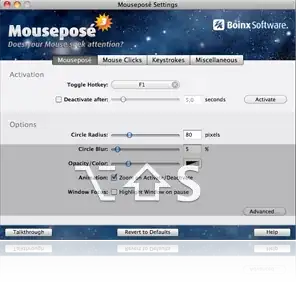
I've seen MousePose's on-screen display of keystrokes; is there a way to get this same effect but for key presses?

MousePose Screenshot

I do not need anything fancy, just key presses displayed on screen where they can be captured by meeting software during a screen share.

I haven't been able to figure this out myself.

music2myear
  • 40,472
  • 44
  • 86
  • 127
richardtallent
  • 1,272
  • 3
  • 12
  • 20
  • 1
    If this question is off-topic on Super User, can people at least write what of the stack-exchange sites is appropriate for this question? – sdbbs Sep 28 '20 at 07:22
  • @sdbbs Possibily https://softwarerecs.stackexchange.com – tejasvi88 Jan 17 '21 at 11:14

9 Answers9

38

KeyPosé is a free alternative to MousePosé for Windows. You can see it in action in the screencast.

Here is a sample screenshot:

alt text

Russ
  • 384
  • 3
  • 7
John T
  • 163,373
  • 27
  • 341
  • 348
  • @richard you're more than welcome! – John T Feb 04 '10 at 16:46
  • 5
    I think it has some issues. You cannot change the position where you display the keys, sometimes the grey zone keeps showing even if you're not pressing a key, also the win/super key isn't displayed. Combinations which involves more than two keys pressed, like ctrl+alt+c, are displayed in a weird way, like first CTRL, then ALT (I suppose it should display CTRL+ALT) and finally CTRL+ALT+C. Is better than nothing, but I think there are better options. – Alter Lagos May 06 '14 at 22:50
  • Doesn't register Tab keys for some reason... – laggingreflex Oct 14 '16 at 13:45
  • Doesn't register WIN combinatoins, did not show CTRL+SHIFT+ESC. Meh. – Ev0oD Oct 27 '16 at 09:46
  • This program doesn't work for me. – NounVerber Oct 16 '17 at 18:51
  • 1
    Use Carnac below. I tested both and Carnac gives you various visual options. https://github.com/bfritscher/carnac/releases/tag/v3-beta – Avatar Nov 19 '17 at 07:50
  • KeyPosé is not configurable in any way and only displays last character typed (would be nice to see some history). Also the linked screencast requires you download a player. – Lqueryvg Mar 17 '18 at 10:50
  • 1
    link provided is old and to a potentially unsafe ZIP, here is the source: https://github.com/AxDSan/KeyPose – OzBob Dec 10 '18 at 06:04
  • It does not register Windows key. – dzieciou Jun 16 '19 at 17:42
34

I highly recommend Carnac The Magnificent. It's nicely executed, nicely designed and open sourced on GitHub project that really solves this problem well.

A keyboard logging and presentation utility for presentations, screencasts, and to help you become a better keyboard user.

Screenshot

There is a fork with visualization of mouse input here: https://github.com/bfritscher/carnac/releases

rburte
  • 1,313
  • 12
  • 16
  • Interesting, but not as beautiful rendering as KeyPosé. – Basj Sep 05 '17 at 19:19
  • The project page provides only a `carnac.application` file, the youtube video https://www.youtube.com/watch?v=qSUDfzUkwnc shows a `Carnac.exe`. Just later I realized that I can launch `carnac.application` in Windows and it downloads and installs the program. I found the zip/exe also here: https://github.com/downloads/Code52/carnac/Carnac.zip – Avatar Nov 19 '17 at 07:41
  • 2
    @Basj Carnac is much more "beautiful" than KeyPosé (which only shows the letters as plain text). With Carnac you can change the appearance of the keys shown (font size, opacity, colors). – Avatar Nov 19 '17 at 07:48
  • @KaiNoack I mean the default style of Carnac is not as stylish / minimalist as Keyposé. The default design should be improved ;) – Basj Nov 19 '17 at 10:27
  • How can I change the position of the keystroke display area? I can seem to find any documentation. – jdhao Apr 19 '19 at 04:18
  • 1
    @jdhao Double-click the Carnac icon in the notification area, then you can customize the location on screen. You can then save/set defaults etc. – rburte May 16 '19 at 16:58
  • This should be the accepted answer. well done thank you for the reference – Abraham Putra Prakasa Jul 19 '20 at 12:51
  • This shows modifier keys *after* the entire shortcut is finished. – tejasvi88 Jan 17 '21 at 11:33
  • Just FYI: KeyPosé currently has 90 stars while Carnac has 2.9k, so it seems like the more popular option (not saying the better one) – gebbissimo Oct 19 '22 at 06:45
10

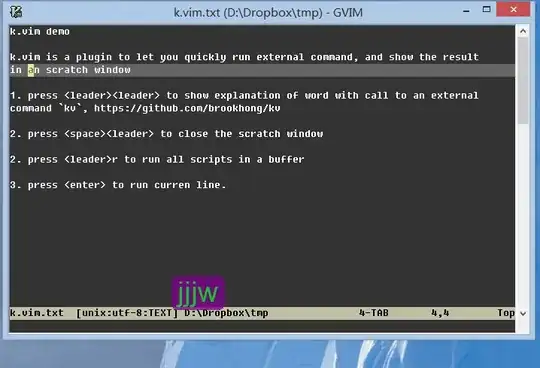
I would like to share my tool -- keycastow.

https://brookhong.github.io/2014/04/28/keycast-on-windows.html

enter image description here

Journeyman Geek
  • 127,463
  • 52
  • 260
  • 430
brook hong
  • 409
  • 4
  • 5
7

I've written an AutoHotkey_L script for this purpose.

To run it, use AutoHotkey_L (direct dl), it's FOSS. Also, with AutoHotkey you can compile script to EXE (simply Ahk2Exe.exe /in DisplayPressedKeyOnScreen.ahk/outDisplayPressedKeyOnScreen.exe ).

It can display pressed keys OSD-like or standard Tool-tip near mouse cursor. Also, it displays mouse button clicks and wheel scrolling.

(note that frame & blurring is done for illustration purposes, the script itself only displays text w/o any disturbances) Screenshot

Heres's the script (copy and paste to notepad, save as DisplayPressedKeysOnScreen.ahk):

#NoEnv
#SingleInstance force
#InstallKeybdHook
#MaxHotkeysPerInterval 500

;This work by LogicDaemon is licensed under a Creative Commons Attribution 3.0 Unported License.

Global IdleDelay, LargeDisplay

IdleDelay:=3000

LargeDisplay:=1
; 0 = Tooltip near mouse pointer
; 1 = Big pane at screen bottom

;TrayTip %A_ScriptName%, Чтобы выйти`, нажмите правую клавишу Windows
TrayTip %A_ScriptName%, To Exit`, press the Right Windows logo key.

InputHook := InputHook("BCL1qMV*", "", "")
InputHook.KeyOpt("{All}", "INV")
InputHook.OnKeyDown := Func("OnKeyDown")
InputHook.OnKeyUp := Func("OnKeyUp")
InputHook.OnEnd := Func("RegisterKey")
Loop {
    InputHook.Start()
    InputHook.Wait()
}

return

RWin::
    ExitApp

~*LButton::
~*RButton::
~*MButton::
~*XButton1::
~*XButton2::
    MouseTooltip(SubStr(A_ThisHotkey, 3), 1)
    return

~*LButton Up::
~*RButton Up::
~*MButton Up::
~*XButton1 Up::
~*XButton2 Up::
    MouseTooltip(SubStr(A_ThisHotkey, 3, -3), 0)
    return

~*WheelDown::
~*WheelUp::
~*WheelLeft::
~*WheelRight::
    MouseTooltip(SubStr(A_ThisHotkey, 3), 1)
    MouseTooltip(SubStr(A_ThisHotkey, 3), 0)
    return

MouseTooltip(mbuttons, state){
    RegisterKey(mbuttons, state)
}

TooltipOff:
    If LargeDisplay
        Gui Hide
    Else
        Tooltip
    lastStatesText := {}
    return

OnKeyDown(inputHook, VK, SC) {
    RegisterKey(inputHook, 1, VK, SC)
}

OnKeyUp(inputHook, VK, SC) {
    RegisterKey(inputHook, 0, VK, SC)
}

RegisterKey(inputHook, kstate := 1, VK := 0, SC := 0) {
    local
    global IdleDelay, lastStatesText, inputString
    static keyStates := {}, prevKey, lastPressed, prevState, repeated := 0
         , KeyMappingToName := { (Chr(27)): "Escape"
                               , (Chr(32)): "Space"
                               , (Chr(10)): "Enter" }
         , SkipRepeat := { "LShift": ""
                         , "RShift": ""
                         , "LControl": ""
                         , "RControl": ""
                         , "LAlt": ""
                         , "RAlt": ""
                         , "LWin": ""
                         , "RWin": "" }
         , StringEndKeys := { "{Enter}": ""
                            , "{Escape}": ""
                            , "{Tab}": ""
                            , "{Up}": ""
                            , "{Down}": ""
                            , "{PgUp}": ""
                            , "{PgDn}": "" }
    
    If (VK || SC) {
        singleKey := GetKeyName(Format("vk{:02x}sc{:02x}", VK, SC))
    } Else If (!IsObject(inputHook)) {
        singleKey := inputHook
    }
    textKey := StrLen(singleKey) == 1 ? singleKey : "{" singleKey "}"
    keyStatesText := ""
    For key, state in keyStates
        If (state && key != singleKey)
            keyStatesText .= key "+"
    keyStates[singleKey] := kstate
    If (kstate && lastPressed == textKey && keyStatesText == lastStatesText) {
        If (!SkipRepeat.HasKey(singleKey))
            repeated++
    } Else {
        If (kstate) {
            If (repeated) {
                inputString .= (repeated > 4 || StrLen(lastPressed) > 1) ? "×" . repeated+1 : StrRepeat(lastPressed, repeated)
                , repeated := 0
            }
            If (keyStatesText != lastStatesText || StringEndKeys.HasKey(lastPressed))
                inputString := textKey, lastStatesText := keyStatesText
            Else If (StrLen(inputString) < 15)
                inputString .= textKey
            Else
                inputString := "…" SubStr(inputString, -15) textKey
            lastPressed := textKey
        }
    }
    ShowKeys((lstate ? keyStatesText : lastStatesText) . inputString . (repeated ? ("×" . repeated+1) : (kstate ? "↓" : "↑")))
    prevKey := singleKey, prevState := kstate
    
    SetTimer TooltipOff, % -IdleDelay
}

ShowKeys(text) {
    global GUIx, GUIy, GUIw, GUIh
         , blkOsdCtrlName, blkOsdCtrlName2
         , MonitorLeft, MonitorRight, MonitorBottom, MonitorTop
    
    If (LargeDisplay) {
        CoordMode Mouse, Screen
        MouseGetPos MouseX, MouseY

        InitLargeDisplay(MouseX, MouseY)
        
        If ((!GUIy) || (MouseX >= MonitorLeft && MouseX <= MonitorRight && MouseY >= GUIy && MouseY <= (GUIy+GUIh)) ) {
            If (MouseY < (MonitorTop + (MonitorBottom - MonitorTop) / 2) )
                GUIy := MonitorBottom - (MonitorBottom - MonitorTop) * 0.2
            Else
                GUIy := MonitorTop + (MonitorBottom - MonitorTop) * 0.2
        }
        
        GuiControl Text, blkOsdCtrlName, %text%
        GuiControl Text, blkOsdCtrlName2, %text%

        Gui, Show, x%GUIx% y%GUIy% NoActivate
    } Else {
        Tooltip % text
    }
}

InitLargeDisplay(MouseX, MouseY) {
    global GUIx, GUIy, GUIw, GUIh
         , blkOsdCtrlName, blkOsdCtrlName2
         , Monitor, MonitorLeft, MonitorRight, MonitorBottom, MonitorTop
    static guiInitialized := False
    ;Initializing GUI / reinitializing after changing monitor
    ;modded func originated from http://www.autohotkey.com/board/topic/8190-osd-function/

    If ( (   MouseX < MonitorLeft
          || MouseX > MonitorRight
          || MouseY < MonitorTop
          || MouseY > MonitorBottom)
        || !guiInitialized) { ; mouse is outside of last screen GUI was positioned at
        ;80 SM_CMONITORS: Number of display monitors on the desktop (not including "non-display pseudo-monitors"). 
        SysGet monCount, 80
        Loop % monCount
        {
            SysGet Monitor, Monitor, %A_Index%
            If (MouseX >= MonitorLeft && MouseX <= MonitorRight && MouseY >= MonitorTop && MouseY <= MonitorBottom) {
                found := true
                break
            }
        }

        If (!found) ; mouse cursor not found on any screen, fallback to default monitor
            SysGet Monitor, Monitor
        
        GUIx := MonitorLeft
        , GUIw := MonitorRight - MonitorLeft
        , GUIh := (MonitorBottom - MonitorTop) * GUIw * 0.00003
        If (GUIh > ((MonitorBottom - MonitorTop) * 0.3))
            GUIh := (MonitorBottom - MonitorTop) * 0.3
        
        opacity:="230"
        , fname:="Tahoma"
        , fsize:=GUIh * 0.65 ; really, pixel = 0.75 point, but with 0.75 lowercase letter with lower part (like "g") will get cut
        , fcolor:="cccccc"
        , bcolor:="222222"
        , fformat:="600"
        
        If (guiInitialized)
            Gui Destroy
        Gui +LastFound +AlwaysOnTop +ToolWindow -Caption
        Gui Margin, 0, 0 ;pixels of space to leave at the left/right and top/bottom sides of the window when auto-positioning.
        Gui Color, ffffff ;changes background color
        Gui Font, s%fsize% w%fformat%, %fname%

        ; 0x80 = SS_NOPREFIX -> Ampersand (&) is shown instead of underline one letter for Alt+letter navigation
        Gui Add, Text, c%bcolor% Center +0x80 w%GUIw% h%GUIh% BackgroundTrans VblkOsdCtrlName, tesT test test
        Gui Add, Text, c%fcolor% Center +0x80 w%GUIw% h%GUIh% BackgroundTrans VblkOsdCtrlName2 xp-3 yp-3 , tesT test test
        
        WinSet ExStyle, +0x20 ; WS_EX_TRANSPARENT -> mouse klickthrough
        WinSet TransColor, ffffff %opacity%

        guiInitialized := True
    }
}

StrRepeat(str, cnt) {
    If (cnt<1)
        return ""
    o := str
    Loop % cnt-1
        o .= str
    return o
}
LogicDaemon
  • 1,983
  • 2
  • 20
  • 36
  • I tried to start "DisplayPressedKeyOnScreen.exe" on Win7 64bit. I get the error message `Windows cannot access the specified device, path, or file. You may not have the appropriate permissions to access the item.` Is the exe-file a standalone? Or do I have to install AutoHotkey beforehand? – Avatar Jun 26 '14 at 21:43
  • @EchtEinfachTV I'm sure it's standalone. Also, I just downloaded and successfully launched it on Win 8.1 32-bit. Can we compare MD5? Mine is d788516439ed743b3553eb3ae7b9082c, and file size is 332 288 bytes. – LogicDaemon Jun 27 '14 at 09:11
  • The file that I downloaded from your [link above](https://www.dropbox.com/s/2t69kbj7serro7z/DisplayPressedKeysOnScreen.exe) shows me MD5: D788516439ED743B3553EB3AE7B9082C and file size 332 288. So it should be the exact same file. It is also weird that after the error message in Windows 7, the virus scanner Panda Cloud popped up, moving the 'malicious' file to quarantine. – Avatar Jun 27 '14 at 09:25
  • @EchtEinfachTV then apparently it's antivirus denied access to file when you tried to launch it, that's why you received Windows message that you can't access it. Though I dunno why it blocks, you can check: it's standard autohotkey binary joined with plaintext (but reformatted) script source. – LogicDaemon Jun 28 '14 at 07:38
  • @EchtEinfachTV sorry, it's not plaintext. It's compreseed with [mpress](http://www.matcode.com/mpress.htm), which was included with AutoHotkey. Anyway, you can dowload standalone autohotkey binary ([exe.zip](http://ahkscript.org/download/ahk-u32.zip)) and drag-and-drop script on it to launch, just to see if that script will fit you. If so, you can either to keep it this way (just create a shortcut with «"path-to-ahk\autohotkey.exe" "path-to-script\script.ahk"» in "Object" field) or compile it yourself (takes 1 min to dl & install autohotkey and 5 sec to compile). – LogicDaemon Jun 28 '14 at 07:59
  • Dropbox removed it. – Aminadav Glickshtein Sep 10 '15 at 11:12
  • 1
    @Amina ty, I guess that's accidental move of dropbox folders by me. Will fix my post. – LogicDaemon Sep 19 '15 at 13:49
  • Can this AHK script be amended so that it track artifical keyboard entry, from say WinController Android App? I looked in the AHK docs but could not find anything. – Steve Waring May 26 '17 at 18:36
  • @SteveWaring currently, to get pressed key, it uses [Input operator](https://autohotkey.com/docs/commands/Input.htm), docs on which say: «by default, artificial input is also captured». Replace «Input SingleKey, L1 V M I B,» to «Input SingleKey, L1 V M B,», it should work. – LogicDaemon May 27 '17 at 04:36
  • @SteveWaring also, remove «, "P"» from each GetKeyState. For example: «GetKeyState("LControl", "P")» → «GetKeyState("RControl")» – LogicDaemon May 27 '17 at 04:39
  • Is there anyway to make this a function that shows text passed into the function so it can be used in my own scripts to show window of action my script performs on screen – JasonDavis Jan 12 '18 at 17:52
  • @JasonDavis actually display is done by function, `ShowKeys()`. It needs init though, that's in auto-execute section of the script inside `If LargeDisplay {…}` block. – LogicDaemon Jan 12 '18 at 21:09
2

You can use the on screen keyboard to show key presses that comes with windows. When you type on your physical keyboard the on screen one highlights said key.

Unfundednut
  • 7,070
  • 4
  • 28
  • 54
2

I have written a small Windows app called QiPress. It has controls to change the look-n-feel, display or ignore certain key-groups, even add static text (your own name or company name for example). Positioning is possible by disabling click-through and click-dragging the pop-up. There are other features which you probably may not require, but it covers mostly what you want.

fishfin
  • 21
  • 1
  • 4
    currently 30 USD – miroxlav Sep 05 '17 at 19:16
  • To clarify on the versions: Free Version: For personal, non-commercial use. Some advanced features disabled (like various language keyboards, multiple monitors, joystick display etc.). No time limitation. Paid Version: For all uses. All advanced features enabled. No time limitation. – fishfin Jan 12 '18 at 07:18
  • Why is it password protected? Virustotal says it is a virus. – Xel Naga Jan 03 '21 at 09:22
  • This is because exes are not allowed in my hosting account file system. Also, the common exe was both x86 and x64/amd64 compatible, and I found that because of x86 compatibility, there was some signature in the exe which caused issues with anti-virus. 2 months ago I removed x86 compatibility, and VirusTotal seems to be okay with it, you can try again now. More details on virus false-positives are also on the website. – fishfin Mar 11 '21 at 04:49
1

PointerFocus can display your keystrokes.

Indrek
  • 24,204
  • 14
  • 90
  • 93
Dan
  • 11
  • 1
1

Presentation Pointer is a best alternative to MousePosé for Windows. It provides Pointer Effect, Mouse Clicks Effect, Keystrokes and even allows you to draw freely on the screen but not lock the screen. That's really an advantage of the program.

Garvey
  • 11
  • 1
0

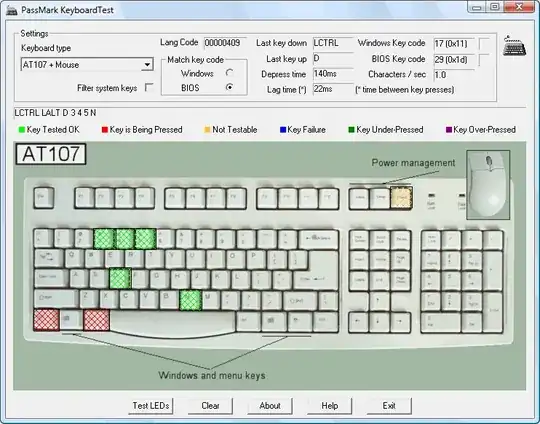
You can use PassMark KeyboardTest (Free 30 day evaluation, then US$24.00 to purchase.)

enter image description here

FYI:

Franck Dernoncourt
  • 20,384
  • 48
  • 186
  • 322