When I connect to my Windows 7 desktop computer via Remote Desktop (MSTSC.exe), the options under the Start Menu are "Log Off" (the default), "Lock", and "Disconnect". How do I restart (or shutdown)?
Asked
Active
Viewed 3.4e+01k times
139


-
r u an admin on the workstation? – tonyr roth Apr 06 '10 at 17:15
-
Yes, I am an admin. – gdunbar Apr 06 '10 at 17:41
-
for your reference, I've added the normal method to do this as an anser. – Marcus Adams Apr 06 '10 at 21:24
-
possible duplicate of [How do I enable reboot in Windows 7 for Remote Desktop sessions?](http://superuser.com/questions/377243/how-do-i-enable-reboot-in-windows-7-for-remote-desktop-sessions) – Peter Mortensen Jun 17 '13 at 07:19
-
3@PeterMortensen that question is a duplicate of this one (this one was posted *two years before that one*!). – Breakthrough Jun 17 '13 at 12:42
-
The other one is specifically about adding the option to the Start menu (vs. `shutdown /r`). – Ƭᴇcʜιᴇ007 Jun 18 '13 at 04:10
-
+1 for asking. using Windows 10 ... for me, KyleMit's technique, below, is the cleanest. – gerryLowry Oct 06 '17 at 15:29
5 Answers
151
Open a command window (or Windows Key + R) and type the following...
...to restart:
shutdown /r /t 0
...to shutdown:
shutdown /s /t 0


-
13/r does a reboot /t sets the number of seconds. if you want to shutdown without rebooting and turn the computer off as well use an /s – Kravlin Apr 06 '10 at 17:00
-
18be careful of /s somebody will need to be local to powerup the workstation! – tonyr roth Apr 06 '10 at 17:16
-
4
-
8This answer would probably have a lot more upvotes if everyone who did wasn't immediately logged off. – user1526247 Jul 22 '16 at 18:30
-
-
@dolphonebubleine ... Windows 10 ... KyleMit's technique, below, is a more normal log off if that is your preference ... first one sees "Restarting..." which eventually disappears. – gerryLowry Oct 06 '17 at 15:33
-
@tonyrroth yes.. i can not call my RDP after this. Seems like I need local guy :( it was win server 2012. Far awaaaaaaaaaaaaaaaaay from my me – Bianca Aug 25 '20 at 07:40
71
The answer Marcus Adams gave also has a keyboard shortcut: Ctrl+Alt+End. You do have to be in full screen and/or have the RDP session set to Apply Windows key combinations on the remote computer. This effectively sends a Ctrl+Alt+Del to the remote computer (so it's handy to know for other occasions/uses too). From there, as Marcus said, you can get to Restart, Shutdown, etc. from the little red power button icon in the lower right corner.
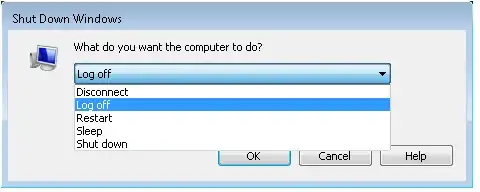
Alternatively, you can click once on the Desktop (or the Taskbar) of the remote computer, then press Alt+F4 and you get the old-fashioned pop-up with all the shutdown options in the drop down.
Update: as noted in the comments, Ctrl+Alt+End in Windows 10 only gives you the option to Disconnect. You can't Restart or Shutdown from there. I also can't find a Windows Security option in the Start Menu... But no worry, as mentioned the Alt+F4 method still works, and I use that exclusively now (I remote in for work every day, and also manage multiple machines at home).

sliderhouserules
- 1,244
- 10
- 7
-
8`Alt+F4` is my favorite method to do this. Gives you the option to disconnect, restart, shutdown, etc.. `Ctrl+Alt+End` doesn't work with Windows 10. Well, it works, but doesn't give you the option to restart. – dub stylee Aug 03 '15 at 22:49
-
Couple of notes. First, Win 10 (at least as of 20H2) will obey the CAE command as a CAD now (not sure when that changed). Second, I found myself where Windows Explorer had crashed so no taskbar (Win + R wouldn't work). CAE gave me the ability to reboot when I got stuck. – Machavity Apr 06 '21 at 15:26
57
From Ways to shutdown/restart your computer via Remote Desktop
Another trick is to click on the desktop and type Alt + F4. This will call up the shutdown dialog, where you get the usual shutdown options like "Shut down", "Shut down without installing updates", "Restart", "Stand by", and "Hibernate".

KyleMit
- 5,992
- 7
- 46
- 61
14
Start button, then Windows Security. Click the little red shutdown icon, and you'll see the "Restart" option.
You use the Windows Security option for XP and Vista also. The restart option is deliberately removed from the normal location to prevent accidents.

Marcus Adams
- 336
- 2
- 6
-
(depending on domain settings) this works from XP to 8. Near the Logoff option in the start menu there is the "Windows Security" item. Clicking it will open a screen or dialog similar to the one you get locally after pressing ctrl-alt-del, that is: the logoff, restart, shutdown, Task Manager, change password options etc.... – David Balažic Jun 30 '14 at 18:04
-
-
This works even when special keystrokes are being intercepted by the local machine (eg when running Citrix in a browser). – Neil Mayhew Apr 05 '18 at 16:35
0
If it is Windows Server but not desktop, you can issue below command:
sconfig
Then enter number
13) Restart Server
14) Shut Down Server
15) Exit to Command LineEnter number to select an option:

Ivan Chau
- 1,413
- 10
- 18