14

By default, I RDP from my personal PC to my work laptop, in order to make use of all my monitors without needing to resort to a KVM.

On my old laptop, it would remember the position of windows between RDP sessions, provided that I had not logged into the machine physically between sessions. This new laptop, however, forgets the window positions on each connection and forces my windows all onto the main monitor.

It does span multiple monitors, and I'm able to use them fine during the session, but once I end it and reconnect, it resets every time.

I'm using the same shortcut I used with the old laptop (I use a USB-C ethernet dongle on the laptop with a static IP assigned on the router), so the settings should all be the same.

How can I stop the laptop from resetting the screens on every reconnection.

Obsidian Phoenix
  • 447
  • 2
  • 4
  • 16
  • This may be useful : Upon logging in, right-click the taskbar and choose "Show windows side by side". It will separate out the windows, not necessarily in the same way you had it, but still easier than dragging windows around. – Christopher Hostage Dec 11 '19 at 22:34
  • For those of us trying to understand the solutions presented, could you clarify which system is the host (ie: server), and which system has "all my monitors"? On initial reading, it would seem like you're using your "work laptop" as the remote server, and the personal PC as the local machine with multi monitors on which to display the desktop locally? (Puzzled because that's the reverse of the common scenario of a work desktop with multi-monitors as server, and accessing it remotely using laptop, ) – gwideman Feb 08 '20 at 21:57
  • @gwideman Your initial read was correct: I'm using my personal PC (which has multiple monitors), as the RDP client, to remote onto to my work laptop, as the RDP host. I work remotely, and doing this saves me the hassle of dealing with a KVM and extra cables. – Obsidian Phoenix Feb 10 '20 at 10:49

4 Answers4

16

I think this is a bug courtesy of the latest [two] windows updates (1903 as is listed in the tags in the original post.. but also the more recently released 1909) because I had the same exact issue that was resolved by rollback to 1809.

I have a 12 monitor local computer and rdp into a host computer with only 1 monitor with the use all local monitor option and I was, prior to updating from 1809 I was able to use all 12 local monitors and it would remember the window locations between sessions prior to the latest windows update. Now it is like starting from scratch each time I connect via RDP even if there isn’t a local session between RDP sessions. Annoying AF. The first solution I came up with is to do a rollback to 1809.

I also had a second host that I also discovered had the same issue that too was upgraded from 1809 to 1909 but this host was past the 10 day rollback window. Since the rollback to 1809 resolved the issue with the first host I investigated further as to what was changed from 1809 to 1909 to try and find the root cause, and the issue seems to be the deprecation of the XDDM display driver and the forced use of WDDM.

Using GPO or registry modification to eliminate the forced use of WDDM also resolved the intersession windowing issue (amongst other things), without needing a rollback. See here for instructions on how to implement: Remote Desktop black screen

In [Local Group Policy Editor->Local Computer Policy->Administrative Templates->Windows Components->Remote Desktop Services->Remote Desktop Session Host->Remote Session Enviroment], set the Policy [Use WDDM graphics display driver for Remote Desktop Connections] to Disabled.
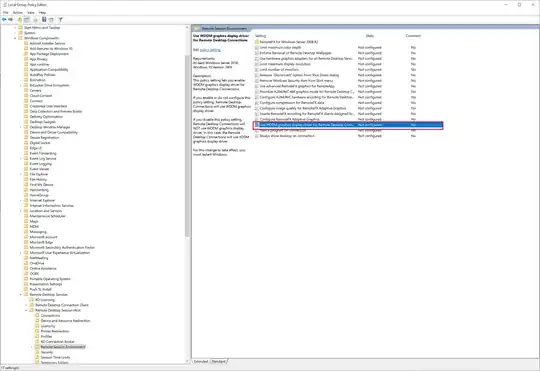
enter image description here

Alternatively, to use the modify the registry method, open the command prompt with administrator privileges and type

reg add “HKLM\SOFTWARE\Policies\Microsoft\Windows NT\Terminal Services” /v “fEnableWddmDriver” /t REG_DWORD /d 0 /f

See: https://answers.microsoft.com/en-us/windows/forum/all/windows-10-1903-may-update-black-screen-with/23c8a740-0c79-4042-851e-9d98d0efb539?page=1

Note that the machine must be restarted for this change to take effect.


Note: Some articles also claim KB452941 will solve various display issues related to the XDDM vs WDDM driver as well but it did not in my case.

John Wallstrop
  • 176
  • 1
  • 4
  • Your original answer was deleted because the answer was missing critical information from an external resource. Your answer still is missing that information. I have taken it upon myself, to assist you on this matter, and provide the required citation, quote, and relevant information from your external resource. You can improve your answer by providing the registry key for this particular group policy – Ramhound Dec 12 '19 at 09:44
  • Ok, appreciate the help, I’m new to SuperUser. Added the registry modification instructions and the source. – John Wallstrop Dec 12 '19 at 12:09
  • @JohnWallstrop This has solved my issue! Thank you for doing the legwork. – Obsidian Phoenix Jan 06 '20 at 14:26
  • 2
    worth noting that the machine must be restarted for this change to take effect – Brad Mace Apr 06 '20 at 15:22
  • Thank you! Just for anyone following, "host computer" is the machine you're remoting _into_. – Adam Spriggs May 29 '20 at 13:52
  • This regedit fix worked in my case... It was driving me insane – shakeel osmani Sep 15 '20 at 21:42
  • 2
    Windows 10 21H1 as completely removed XDDM and forces me to use WDDM. It ignores the `fEnableWddmDriver` registry setting. I'm not stuck with this issue again. Hoping someone else has a better fix than the registry setting. – Francois Botha May 26 '21 at 16:15
2

I found a tool on GitHub that stores the position of your windows. It restores them when you reconnect to RDP.

https://github.com/manutalcual/winredock

RDP has been freezing for me many times a day, and on my four screen configuration, having all my windows end up on one screen every time I reconnect has been very frustrating. Now when I reconnect I watch all of my windows move to the screens they were on before disconnecting.

Nacho
  • 21
  • 1
1

It sounds more like the RDP settings are off. If you have an RDP shortcut you use right click it and select edit, other wise when you open RDP click show options in the bottom left.

Click Display → Make sure "Use all my monitory for the remote session" is checked.

Save or just connect, but now you should utilize all your monitors.

Erick W
  • 31
  • 3
  • 3
    Thanks. Its _using_ my multiple monitors fine unfortunately. The issue is that it forgets the location of windows between sessions, and resets them all to the main monitor – Obsidian Phoenix Oct 04 '19 at 16:37
0

I found a solution that worked for me without changing the WDDM setting: How can I swap primary and secondary display during an RDP session?

  1. Open RDP and set the display to a single monitor (your primary monitor).
  2. Connect to the remote host and if needed, login.
  3. Disconnect from the remote host.
  4. Open RDP and set the display to all monitors.
  5. Connect to the remote host again.
Posco Grubb
  • 175
  • 1
  • 9