0

I'm trying to remove some "special" icons from showing in Windows 10's Desktop Folder (note: not the Desktop View). There is a similar question (Unable to remove/hide icons from desktop folder), but the answer is incomplete - it only provides a way to remove 3 of the icons (Homegroup, Network, and Library), but omits a solution for Control Panel, This PC, and the User's folder.

Some notes:

  • To reproduce, hit Win+E to open an Explorer window, then navigate back/up until you get to the desktop, like: enter image description here
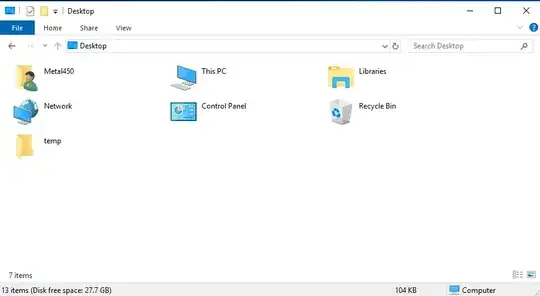
  • If I attempt to delete i.e. Control Panel from this window, it prompts "Are you sure you want to delete these icons from your desktop? To restore it later, go to Personalization in Control Panel." Confirming the deletion does nothing.

  • All of these items are already unchecked under Personalization->Themes->Desktop Icon Settings (and all of the items are not shown on the Desktop View - again, this question is about the Desktop Folder, not the Desktop View).

  • If you're wondering why this matters: I navigate extensively via the keyboard, where hitting the letter that begins the name of a file/folder highlights it in the current window. These unused/unwanted clutter-icons often result in navigating to the wrong folder accidentally - i.e. I'm working in Win Explorer, I back up to the desktop, and want to enter a folder like "Cloud" - so I hit "C,Enter." Which causes it to go to Control Panel (which doesn't even come before Cloud alphabetically - Windows just sticks this & all the other 'special' icons at the top of the list, out of alphabetical order).

Thanks for your help!

J23
  • 201
  • 4
  • 10
  • The desktop folder is a special folder, and these icons are too. You cannot delete them, but you can hide them. I can't remember where in Settings you can select what icons to show on the desktop though, that's why this is a comment, not an answer. – LPChip Oct 29 '19 at 12:47
  • You're probably thinking of Personalization->Themes->Desktop Icon Settings. Per above, they're already disabled there - it only affects the Desktop View, not the Desktop Folder. – J23 Oct 29 '19 at 12:50
  • You could be right. I don't think you can change what icons appear there. But I bet it is possible to get a workaround for what you're trying to do. Such as opening Explorer in a different folder. Though you can't get that to work if you use WIN+E. But you can mark folders as favorite and get them at the top. Keep in mind, that although this is called desktop, it is actually the root folder. – LPChip Oct 29 '19 at 12:53
  • It is possible, @Metal450 , to completely clean both the "_Desktop View_" and the "_Desktop Folder_". It is working in our current Software Installation, _For Great Success_. We do not know really _how come_ that it is really working, but it is. –  Oct 29 '19 at 13:32
  • @LPChip - actually it's not the root folder - it lives down under a folder like this: C:\Users\user\Desktop. It's a special case folder in Windows Explorer, as has been noted. As for a workaround solution - I would suggest creating a folder with a name like **AAA** and place all the working files & folders there. At the Desktop it is easy to get to it via keyboard ("aaa") and then it's easy to navigate to the desired object (e.g., file, folder, shortcut) with the keyboard. Unlike **Desktop**, the **AAA** folder won't get any special treatment from Windows so will behave as desired. – yosh m Oct 29 '19 at 14:16
  • @yoshm For Explorer it is the root. Yes it has a physical location on the disk, but if you navigate there, it shows as different files, and the control panel is not there. – LPChip Oct 29 '19 at 14:21
  • The user's **Desktop** folder is one of several content contributers to the _virtual_ folder and root of the shell [namespace](https://docs.microsoft.com/en-us/windows/win32/shell/namespace-intro), the **Desktop** folder of which the OP speaks. – Keith Miller Oct 29 '19 at 16:39
  • @LCChip: You can definitely change what icons appear - per the link in my OP, reg keys are given which can remove 3 of the 6; I'm just trying to figure out how to remove a few of the others. The workaround is less than ideal because I *do* access desktop files via the desktop as well, so if I stick them in some other folder...then they work via Explorer...but no longer on the desktop itself. Often I have many windows open at once, and can show the desktop directly with Ctrl+D - so using a subfolder rather than the real desktop fixes one problem but introduces another. – J23 Oct 30 '19 at 01:37
  • @DOBRESCU_Mihai: I'm not really sure what to make if your comment. You say it's possible...but offer zero information on how you achieved it... – J23 Oct 30 '19 at 01:38
  • @yoshm: Please see my comment reply to LCChip above – J23 Oct 30 '19 at 01:42
  • True. True. We have cleaned the "_Desktop Folder_" using the Regular Settings - by removing all of its Desktop Icons, @Metal450. We guess that the "_Desktop View_" is also completely empty due to the recent Clean ReInstallation Process that we have performed. In the Latest Version, the `Desktop` Folder is now part of the `OneDrive` Folder. Maybe this is why it is void. –  Oct 30 '19 at 09:14
  • Latest version of what? What is "Regular Settings?" This is extremely unclear - are you certain you actually understand the issue above...? :P – J23 Oct 30 '19 at 11:26
  • Hmm... I note that when I go to the actual desktop folder under C:\Users... those special icons do not appear - only when going to the "virtual" desktop at the root of the Explorer namespace (as mentioned by @KeithMiller). A quick search found this page: https://www.winhelponline.com/blog/show-hide-shell-folder-namespace-windows-10/ - I haven't the time to research it thoroughly yet, but it looks like you can find a solution to your problem from what that page teaches. – yosh m Oct 30 '19 at 15:15
  • In the Latest Version of the _MicroSoft_ _Windows_ **10** Operating System, @Metal450, the "_Desktop Folder_" that is reflected on the BackGround, behind all of the Static Software Applications, may be cleared by all of its Desktop Icons using the "_Desktop Icon Settings_" Dialog Box from the "_Themes and Related Settings_" Section of the "_Settings_" Static Software Application. This is what we meant through the ambiguous expression of _Regular Settings_. It is not a standard expression, but we hoped that it would be quite obvious. –  Oct 30 '19 at 15:50
  • Also, in the Latest Version of the _MicroSoft_ _Windows_ **10** Operating System, the "`C:\Users\DOBRE\Desktop\ `" Folder does not exist anymore, to our utter amazement. Instead, it has been moved to the "`C:\Users\DOBRE\OneDrive\Desktop\ `" Folder and it is completely empty, as it also has to reflect the emptiness of the "_Desktop Folder_". This is why the "_Desktop View_" is also empty in our Software Installation, inside the "_File Explorer_" Static Software Application. Is this the SetUp that you want, @Metal450? –  Oct 30 '19 at 15:55
  • @DOBRESCU_Mihai: Regarding your 1st comment, I explicitly stated in my OP that I'm not trying to clear the "desktop view," which is what you're referring to ("background behind all of the static software applications). I also stated that I've already tried Personalization->Themes->Desktop Icon Settings, which only affects the desktop view, which again is not what this issue is about. Re the 2nd comment, that's not the case on my copy of Windows, in which the Desktop folder is still in the expected location (side note: I've never seen any other reference to this standard folder being moved...) – J23 Oct 31 '19 at 01:28
  • @yoshm: Oooh, now that post was promising!! The best option seemed to be the 'nuclear approach' of the 'AllowedEnumeration' key, which is supposed to block everything everywhere (at the very least, as a proof-of-concept). However, even with this key, Control Panel STILL remained. This makes me feel like maybe it actually is unsolvable, if the key that's supposed to nuke everything still leaves one thing. Ultimately I read through & tried every solution given by that article, as well as every one linked to from it...but still couldn't find anything that gets rid of Control Panel... :( – J23 Oct 31 '19 at 01:29
  • If it is _that_ important to you, @Metal450, to have a nicely cleaned _Desktop_ Folder/View Couple, then maybe it is the right time to wait for a chance to cleanly reinstall your machine. We have basically done nothing particular, other than the _Regular Settings_ - as we were calling them - of getting rid of all of the possible Desktop Icons. Also, the _MicroSoft_ _Windows_ _OneDrive_ Cloud Files Service Provider Software Installation has been set up with its Default Settings. We guess that the movement of the _Desktop_ Folder inside the _OneDrive_ Folder has wiped them all, as you want them. –  Oct 31 '19 at 14:20
  • We have written a nice and detailed answer for you, @Metal450. Hopefully, this time it will all be much easier for you to understand. –  Oct 31 '19 at 18:20
  • @DOBRESCU_Mihai: Unfortunately, just "reinstalling clean" doesn't solve this - those items are all there by default. And as stated, the OneDrive folder layout is not the case on my system at least (I have all OneDrive and cloud-bloat disabled - so, no OneDrive). I should mention that I do fresh installs frequently in VMs for software testing, and in all cases those virtual folders are still there. – J23 Nov 02 '19 at 07:36
  • How about renaming Control Panel so to Xylophone or some such? Would this solve the keyboard navigation issue? Create the registry key `HKCU\Software\Microsoft\Windows\CurrentVersion\Explorer\CLSID\{26EE0668-A00A-44D7-9371-BEB064C98683}` and set its **(Default)** value to any label you want. – Keith Miller Nov 04 '19 at 21:46
  • @KeithMiller Ooh, now that's thinking outside the box! I like it! Not *quite* the clutter-free solution I'd hoped for, but definitely the best I've seen so far, as it's the only option I've seen that does indeed take care of the keyboard nav thing :) – J23 Nov 06 '19 at 01:23
  • Should I post a more complete version of this as an answer? – Keith Miller Nov 06 '19 at 18:17
  • Sure, and I'll accept. *Strictly* speaking it doesn't actually hide the icons as desired, but it does solve my problem, & something tells me it's the closest we're gonna get. So...I appreciate the answer :) – J23 Nov 07 '19 at 12:38

1 Answers1

0

The quest for obtaining a clean desktop has been a long one, indeed, for most of us. It has started with a simple question that is pointing precisely to some simple settings that are just removing all of the desktop icons.

The settings for removing desktop icons

As if it were that simple. The removal of other desktop icons, for instance temporary folder desktop icons such as the one produced by the Backup and Sync from Google Static Software Application, has been described in this question. With no work-around at hand, basically the solution of that question has been the uninstallation of the Backup and Sync from Google Static Software Application that has produced the discontinuation of the maintenance of its temporary folder desktop icon.

The result has been a nice empty green desktop view, as it happens to be called. Please note that the Task Bar is set to automatically hide itself after a certain delay.

The empty desktop view

This is indeed a great victory in our quest.

Now, for some unknown reason, the Microsoft Windows 10 operating system has the tendency of crashing from time to time. This has some good side-effects. Each clean reinstallation procedure brings new and exciting features into the world of the personal computer super user.

In the latest version of the Microsoft Windows 10 operating system, some things appear to be changed.

The latest version of the _Microsoft_ _Windows_ **10** operating system

For some unknown reason, the desktop folder does not reside any longer inside the user home folder.

Some items inside the user home folder

A reactionary change indeed. Paths such as C:\Users\DOBRE\Desktop\ are not available anymore.

Instead, the OneDrive folder contains the desktop folder now.

The _OneDrive_ folder containing the desktop folder

In an amazing turn of events, the Microsoft corporation has decided to turn toward paths such as C:\Users\DOBRE\OneDrive\Desktop\ that are really opening new visions for all of us.

And this is how we have got to have yet another clean and relaxing desktop folder, with nothing else inside of it.

The clean and empty desktop view

So the answer to this question is the performing of yet another clean reinstallation procedure.

Edit: Just to keep it nice and clean, we have also performed the same kind of regular settings that were needed in order to clear the Home Screens of our Google Android Software Installations.

The Tablet Personal Computer is still running the Google Android Oreo Operating System.

The Tablet Personal Computer Home Screen

The SmartPhone is running the Google Android Pie Operating System.

The SmartPhone Home Screen

Even though they are different Operating Systems, the nice white button with its six blue solid disks on it of the Microsoft Google Android Launcher Mobile Software Application is nicely mimicking the Start button of the Microsoft Windows Operating System.

  • Interesting that it does that with OneDrive enabled. However, I do not use OneDrive (or any of Microsoft's cloud features) - thus this is not really a solution in my case. I seek only to hide/disable those folders from my local machine, but not at the cost of allowing Microsoft to sync all my data to themselves... – J23 Nov 02 '19 at 07:42
  • Thanks, @Ramhound, for the correction. The _MicroSoft_ Version of the Corporation Name came from the ancient use of the _M.S.-D.O.S._ Acronym that is the shorthand for the _Microsoft_-_Disk Operating System_. Good catch indeed! –  Nov 04 '19 at 14:59