In GIMP, I have a green button GIF image: it shades from dark green to light green, against a transparent background. I would like to change it to blue, and keep the shading, so it shades from dark blue to light blue.
How can I do this?
If you load a GIF image, you likely have a paletted image. Make sure to change it to RGB first with: Image → Mode → RGB. Changing colors (including resize operations) won't work very well with palettes because Gimp limits its selection of colors to the colors defined in the palette.
I suggest rotating Hue in Colors → Hue-Saturation.
Given an initial image like this:
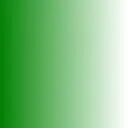
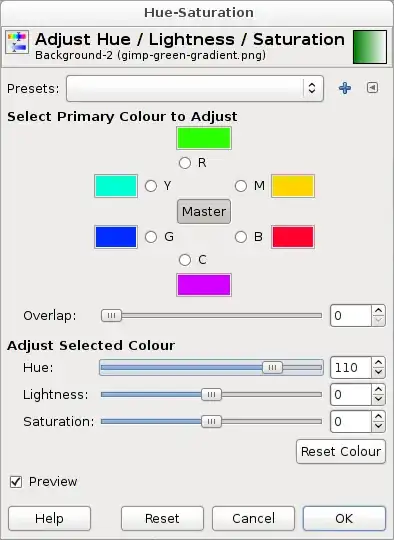
You change Hue first by clicking on Master and then dragging the Hue slider and then adjust Brightness and Constrast to your liking.
The result looks like this:
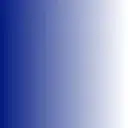
You can easily make it colder or warmer, darker or lighter, more or less saturated.


If you are using GIMP 2.8.2, you can simple use Colors -> Map -> Color Exchange.
Source: How can I swap colors with GIMP?
You're looking for menu Colors, and especially the function Colorize.


To change a color to another specific color to I suggest to use Colorify.
Suppose we want to change the blue color (#05adee) of the superuser logo into a green color near to #05ad27.


Using GIMP 2.8.6.

The first successful method I found to do the same sort of thing was to use ImageMagick, but with a different operator than the earlier-suggested --separate/-swap.
The different operator is either -recolor or -color-matrix, depending on ImageMagick version.
Specifically, because I knew a "master color" of the original image (green, in your case and mine) and I knew the "master color" in the desired result image (blue, in your case, orange in mine), I gave ImageMagick' -recolor/-color-matrix option a transformation matrix with values that reflected the differences in each of the RGB channels.
For example, in my case, the fully green color was R:141 G:198 B:63 and I wanted it changed to R:231 G:159 B:70. The rest of the colors wanted to be changed equivalently.
So that means I wanted new pixels' R value to be 231/141ths of the current red value. Green values to be 159/198th of the current values. And blue values to be 63/70ths of the current values.
So:
convert input.png -recolor "1.638297872 0 0 0 0.803030303 0 0 0 1.111111111" output.png
or
convert input.png -color-matrix "1.638297872 0 0 0 0.803030303 0 0 0 1.111111111" output.png
or
This seemed to work in a flash after fruitlessly spending a lot of time wrestling with Gimp/plugins and paint.net/plugins.


If you update the HUE with an existing image color the hue will be initiated with those levels... Need first to make a white #fff background. I did
Colors -> Colorize and set the HUE lightness to 100... this will remove any color from your image.
Then You can use Colors -> Colorify and apply the color You want.

I don't know how to do it in GIMP, but ImageMagick has functions to separate and combine color channels. See this page.
I was able to convert a green GIF file to blue with this command:
convert input.gif -separate -swap 1,2 -combine output.gif
I guess that 1 and 2 refer to green and blue channels, 0 is red.

On simple small graphics, I zoom in a lot and then change the colors myself using the brush.
Just change the brush size to 1 pixel.

Colors -> Components -> Channel Mixer


