The way file/folder names work on Windows is discussed over on Microsoft's website. However, that provides only a glimpse of the overall truth.
NB: I will not discuss the aspect of codepage issues which can arise from the way a "foreign" system accesses an NTFS volume. I think this is sufficiently covered in comments and the other answer. I will limit myself largely to the following two aspects:
As for the file system I will limit myself to NTFS, just like the question. Consider the following comment from the above linked website:
Do not end a file or directory name with a space or a period. Although the underlying file system may support such names, the Windows shell and user interface does not.
Now, we need to get some of the terminology straight first. We deal with various ... layers, is probably a suitable term:
- file system, e.g. NTFS
- NT object manager and other kernel facilities, but when it comes to names mostly the object manager
(if you want to look at it, use a tool like WinObj)
- Win32 subsystem (this is what the above statement refers to as "Windows shell and user interface")
- Another "meta aspect" would be the OS version, because supported path length can vary
A nice method to play around with this is a Samba share that pretends to be NTFS to the client-side. But a Windows NTFS volume will also do. We'll be on Windows and "play around" from the command line (hit Win+R and type cmd, then hit Enter).
Local NTFS volume
Suppose we wanted to create an invalid file name (notice the trailing dot?!):
echo NONSENSE > text.txt.
When attempting this, the result will indeed be test.txt, not test.txt.. The Win32 subsystem (csrss.exe) prevented us from doing stupid things. Hmm, interesting, huh?
Consider this other statement:
Do not use the following reserved names for the name of a file:
CON, PRN, AUX, NUL, COM1, COM2, COM3, COM4, COM5, COM6, COM7, COM8, COM9, LPT1, LPT2, LPT3, LPT4, LPT5, LPT6, LPT7, LPT8, and LPT9. Also avoid these names followed immediately by an extension; for example, NUL.txt is not recommended.
Hmm, NUL sounds like fun. We know that from being a substitute for /dev/null on unixoid systems, inherited from DOS times.
echo NONSENSE > NUL
Oh, right. It's a substitute for /dev/null, so the output will get swallowed. But do not use sounds so very tempting. So let's use the summed up information from a Project Zero blog article, section "Local Device".
Brief interlude: %CD%
If you're not too familiar with the classic Windows command line (cmd.exe), the special variable %CD% will give us the absolute path to the current working directory. Keep that in mind for the following section.
So if you were currently inside C:\test, the command echo %CD% would yield the output C:\test. It's a convenient shortcut for out experiments.
As we can glean from the Project Zero article, there are a number of ways to dodge path name conversions at the Win32 subsystem level. One such method is the prefix \\?\ which internally directly translates to \??\, which on newer Windows versions is identical to \GLOBAL??\. This is called an object directory (please don't confuse it with file system entities, despite the similar terminology!). Again, WinObj, and similar tools let you investigate the object manager name space.
Interlude: namespaces and terminal server "stuff"
Whoever has had a look into Windows NT history, and Windows 10 traces its roots back to NT, will remember a time when you had to separately license terminal services. I.e. the ability to connect to a single machine remotely with different users.
I think it was Windows XP which brought this finally for the masses by way of allowing to stay logged on with multiple user accounts simultaneously ("user switching"), and probably Windows 2000 or 2003 Server included this in the standard edition, even though CALs were needed beyond the minimum "seats" included by default.
This is where the distinction between \?? and \GLOBAL?? originates. \GLOBAL?? is the view of the "DOS" device names shared by all logon sessions.
\?? is nowadays seen in the symbolic link (again, not a file system entity!) called \DosDevices, which gives a clue as to its origin. This is where the "DOS" device names, such as C: or network drive mappings reside. On a modern system C: in turn would be a symbolic link to \Device\HarddiskVolume1 (or similar). That is then usually an actual device object which was created by some driver in the storage driver stack, in this case it should be the NTFS file system driver.
So when you double click C:\Windows\explorer.exe what happens internally is that the path gets converted:
- At the Win32 subsystem level the usual change will be to prepend
\??\.
- The object manager will then expand the
\??\C:.
- First
\??\ ends up in the "DOS" device namespace for your logon session (see remark below)
- Eventually the object manager figures out something like
\??\C: being equivalent to \GLOBAL??\C: which - as we saw above - is equivalent to \Device\HarddiskVolume1.
The object manager will then pass the remainder of the path \Windows\explorer.exe to the driver responsible for device object \Device\HarddiskVolume1, making sure the driver knows which device object was referenced. And that driver will know how inside its own namespace to handle that particular remainder of the path.
Remark: When you refer to \?? internally you end up with a view of your local logon session's "DOS" devices. This can best be explained with mapped network drives. Say you have a drive letter X: mapped for a remote share. And say you make use of "user switching" or this is running on a beefy terminal server where another two hundred users are concurrently logged on. We have two issues at hand in such a scenario. While the system drive (e.g. physical disk) may be shared by everyone, someone from sales may have mapped "the sales share" as X: and someone from development may have mapped "the development share". The same holds for a "drive letter" assigned via subst. This should explain why there cannot be a single global namespace for "DOS" device names, which fits everyone.
So our goal was to create a file (or directory) named NUL and the Win32 subsystem didn't let us. It simply swallowed the output and the file was never created in our working directory. Leveraging the information from the above linked article and the previous interlude, however, we can work around this by sidestepping those pesky path conversions at the subsystem level by issuing a:
echo NONSENSE > \\?\%CD%\NUL
As a reminder, %CD% expands to the absolute path of the current working directory and, assuming that's C:\test, the above command is equivalent to echo NONSENSE > \\?\C:\test\NUL.
And lo and behold, a quick dir proves the file was created. And if we try that with other "reserved" names, it works fine as well.
Please note that you can also use the actual native NT path form (\?? instead of \\?) for the same effect:
echo NONSENSE > \??\%CD%\NUL
Neat.
So how about we revisit the trailing dot attempt, but giving the full path without having the Win32 subsystem interfere?:
echo ILLEGAL TRAILING DOT > \??\%CD%\test.txt.
Voila, it works, as a quick dir /b proves:
C:\test>dir /b
CON
NUL
test.txt
test.txt.
Interlude: UNC (Universal Naming Convention) paths
This topic is handled in more detail over in that Project Zero article, but suffice it to say that there is a special form of path which looks quite similar to what we just used above: \\.\C:\Windows\explorer.exe would be an example.
Remember that whenever you're stuck on the logon screen, not remembering the local machine name of the machine, and it defaults to the domain of which it is a member? One easy way to refer to the current machine without even using its actual name is .\username, allowing to reference the user username on the current machine.
The . in \\.\C:\Windows\explorer.exe is to be understood similarly. In effect what you're saying is \\. on the current machine \C: on drive C: access path \Windows\explorer.exe ... and the different facilities of the OS tie into each other to make it happen.
Beware: UNC paths follow a different set of rules, which is why I only mention them. Read the linked article and the link to Microsoft documentation if you are interested in more details.
Now that we have finally created an "impossible" file test.txt., let's have a look at it, shall we?
C:\test>type test.txt
NONSENSE
What the heck? I clearly recall having echoed ILLEGAL TRAILING DOT into that file.
Ah, of course. Just like when we initially tried to create test.txt. the Win32 subsystem intervened again and "helpfully" converted our name to test.txt. So we're actually looking at \??\%CD%\test.txt instead of \??\%CD%\test.txt..
So this should do:
C:\test>type \??\%CD%\test.txt.
ILLEGAL TRAILING DOT
Much better. The problem is that not all programs will handle our sneaky sidestepping of the Win32 path name conversions as gracefully as cmd.exe. Suppose we wanted to open Notepad:
C:\test>notepad \??\%CD%\test.txt.
Dang, we get to see the following message box:
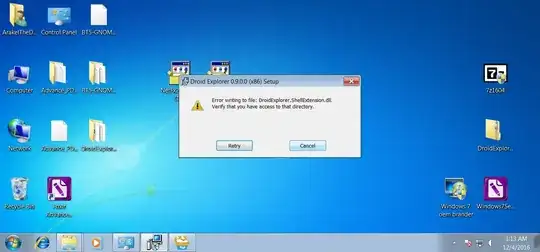
So while there are ways you can circumvent some of the restrictions imposed by the Win32 subsystem, the utility of these methods is limited and questionable.
Note: Readers who also develop software on/for Windows may recall that using the prefix \\?\ allowed to sidestep the MAX_PATH limit (used to be 260, basically 255 plus \\?\ and a terminating \0). Now you know why this allows us to make use of approximately 32767 characters. Since UCS-2 was replaced with UTF-16 (I think in XP), the path mangling at the object manager level is but one issue. Another is that in UTF-16 a code point may take up more than 16 bit (aka wchar_t or WCHAR), once you leave the BMP behind.
Anyway, the command line (cmd.exe) gives you all of the tools to access and get rid of files which you were able to create from Windows in the first place.
Linux/Samba share, pretending to be NTFS
Let's now depart from the local drive and consider a mapped network drive Z:, provided by Samba 4.x, which mimics an NTFS drive as far as Windows is concerned.

This experiment offers a few more insights, because we can create files according to the rules of the Linux side and don't have to be anxious about being unable to access them from the Windows side.
- The mapped drive is
Z: and we'll be in Z:\test on the Windows side
- On the Linux side the volume was formatted as btrfs
The Wikipedia article tells us all characters other than / and \0 (aka ASCII NUL character) are allowed! So this should be fun.
Here are some extravagant file names which should (or at least could) be hard to access on the Windows side, using Bash on Ubuntu 20.04 on the Linux side to create them:
:.txt (created with echo "$RANDOM" > \:.txt)???.txt (created with echo "$RANDOM" > \?\?\?.txt).txt (created with echo "$RANDOM" > .txt)*.txt (created with echo "$RANDOM" > \*.txt)\.txt (created with echo "$RANDOM" > \\.txt)".txt (created with echo "$RANDOM" > \".txt)>.txt (created with echo "$RANDOM" > \>.txt)<.txt (created with echo "$RANDOM" > \<.txt)|.txt (created with echo "$RANDOM" > \|.txt)
This should pretty much cover all bases, actually on second thought the emoji may not even be an issue at all. Forward slashes are also forbidden on NTFS, but that holds true for btrfs/POSIX/SUS as well.
Proof from the Linux side:
$ find -type f -printf '%P\n'
:.txt
???.txt
.txt
*.txt
\.txt
".txt
>.txt
<.txt
|.txt
Now let's see if and what we can access on the Windows side ...
Z:\test>dir /b
_2X68P~X.TXT
_2X68Q~5.TXT
_2X68Q~9.TXT
_2X68Q~B.TXT
_2X68Q~D.TXT
_2X68R~7.TXT
_2X68S~3.TXT
_67V3K~2.TXT
.txt
Screenshot as proof:
Ohhhhh! Right, the DOS heritage of Windows strikes again. NTFS - unless actively disabling it - has the ability to create so-called 8.3 short file names, conforming to the DOS file name requirements.
And that's how we are able to access the invalid file names regardless.
Conclusion
Now recall, the question was about an external, i.e. local, NTFS drive. This means the rules we just observed for Samba shares may not apply here.
Depending on the driver used to store these files (which could vary by Linux/macOS version, e.g. ntfs-3g or the third-party driver used, e.g. Paragon's driver) I see the following possible causes left after looking at the above experiments:
- the file name contained a
:, " or ? ... this seems the most likely to me, given I'd had accidentally copied and pasted ebook titles myself, containing these characters. We can pretty much rule out / and the other "forbidden" characters are at least less likely.
- the Windows and macOS side see the invalid name, attempt to look at the DOS 8.3 name, but none was generated. This somewhat depends on the exact Windows version and its configuration and since I have no macOS devices around, I cannot test that scenario either. Also, I am not sure whether on a Windows system where 8.3 names are enabled Windows would retroactively go and generate a 8.3 name if, say, the Linux side skipped that part. Because if I recall correctly the NTFS driver decides whether the respective record ("attribute") gets populated.
- the length of the path name was exceeded. I think exceeding the length of path segments is an impossibility, because NTFS doesn't let you store more than 255 16-bit values for a path segment, but the overall path length may also have been exceeded (see this link).
For the first scenario, I would recommend using fslint on the Linux side to sanitize the file (and folder) names. Other similar tools exist and YMMV, take a pick.
Hope this helps. It took long enough to dump my thoughts into writing.
Further reading


