2

I wish to know how to see the list of cross references in Microsoft Word. How can I see the things (tables, figures, etc...) that are cross referenced in one table or in one list?

My end goal is to ensure that I didn't miss a cross reference to one of the many tables in my document. Using a list of all cross-references I can check if there is any missing ones.

I have tried the following so far:

  • Looked through the menus and options of Microsoft Word, but I could not find a suitable function.
  • Searched the web for "list of cross references word" and "how to find in microsoft word a list of cross references". Unfortunately I mainly found the support page of Microsoft with instruction on how to create cross-references and other irrelevant results.
  • Looked at the suggested word add-in from this blog post. Unfortunately I was not able to download the free trial to try it out.
  • Adding an index field to each entry (as suggested in the blog post) would be too tedious as I already have many cross-references tables in the document.
E.s.
  • 35
  • 1
  • 7
  • 1
    When you couldn't find it, where did you look? Could you please [edit] your question to show what you've searched for? This helps others come up with a suitable answers. – Saaru Lindestøkke Nov 28 '22 at 15:12
  • @SaaruLindestøkke I searched in microsoft word but couldn't find it... in the options, etc. – E.s. Nov 28 '22 at 15:15
  • Looking through the menu's is a great first step! What I like to do as well, is to use a search engine (such as Startpage or Google) to see if others have had a similar issue before. If you e.g. search for "word how to create list of all cross references", do you find anything that works or doesn't work for you? Showing your research ensures that nobody comes up with something you've tried before and which didn't work. – Saaru Lindestøkke Nov 28 '22 at 16:05
  • @SaaruLindestøkke I have tried to search on google but didnt find an answer for my question otherwise I wouldnt have asked it – E.s. Nov 28 '22 at 16:40
  • Well, from your question or your comments it's not clear that you've searched on Google.Can you please [edit] your question to show *what* you've searched for? – Saaru Lindestøkke Nov 28 '22 at 17:38
  • @SaaruLindestøkke My question is clear and as I said I have already searched for it by typing relevant keywords such as "list of cross references", "how to find in word the list of cross references", etc... but no answer to my question. – E.s. Dec 01 '22 at 07:24
  • Weird, when I search for "list of cross references word" this is the first hit: https://wordribbon.tips.net/T002574_Creating_a_List_of_Cross-References.html Nowhere in your question did you mention that you've searched Google. Remember: the first step of asking a question, is doing research and showing the research you've done. – Saaru Lindestøkke Dec 01 '22 at 09:01
  • @SaaruLindestøkke Weird, unfortunately this what appears for me https://support.microsoft.com/en-us/office/create-a-cross-reference-300b208c-e45a-487a-880b-a02767d9774b#:~:text=Insert%20the%20cross%2Dreference,-In%20the%20document&text=On%20the%20Insert%20tab%2C%20click,)%20you're%20linking%20to. Also, your site says that there's no way in word to do it so my question still valid. Added that I am not here to take lessons about how to ask a question so please if you have an answer let me know otherwise thank u. – E.s. Dec 01 '22 at 11:47
  • Did you read the link I posted? I contains a link to a product which seems to do what you want, but I wouldn't know if it works for you as you fail to show any prior research for your question. Understandably you're not here "to take lessons about how to ask a question", but stackexchange comes with a [set of rules on asking questions](https://superuser.com/help/how-to-ask), so I'm afraid you can't fully avoid taking that lesson. If you want to solve your issue, that is. – Saaru Lindestøkke Dec 01 '22 at 12:14
  • @SaaruLindestøkke I think stackexchange comes with a set of rules to respect others which you dramatically fail at it. Added to that, I already did my research and I don't need to show you a report of it for you to believe it or not. Lastly, the propositions within the site you suggested do not work so I have clearly read it and the issue is not solved. I suggest a solution to your problem which is to respect others before claiming unreal things. – E.s. Dec 01 '22 at 16:37
  • I don't see why you feel direspected, I simply ask that you try to stick to the rule of "Sharing your research" as is stated in the manual on asking questions. I don't ask for a report, but trickling what research you've done in the comments is not going to help you find an answer faster. Why not [edit] your question and simply state what you've tried, what the outcome is, and *why* it didn't work? E.g. why does the proposition on the site not work? Is your Word version incompatible? Does it miss certain cross-references? – Saaru Lindestøkke Dec 01 '22 at 16:46
  • If you feel disrespected, feel free to flag the disrespecting comments for moderator attention. – Saaru Lindestøkke Dec 01 '22 at 16:46
  • @SaaruLindestøkke no need to edit the question and add so much unecessary details since it will be too long and the reader will be lost. Added that, the proposed add in the site does not work for me, I tried it and it didn't even download. Also, the other suggestion on the site is not practical because I have many tables in the document that are already cross referenced so it will take a lot of time to do it. Finally, obviously, I am not here to give you a lesson about respect! Maybe somewhere else! – E.s. Dec 01 '22 at 17:00
  • It's a pity you could not download the add-in, it seems to be exactly what you need. [Here you can find a download link](http://mailcatch.com/en/temporary-inbox?box=docs) and instructions on how to install the trial. If it works for you, you can post it as your own answer helping future users with the same problem. – Saaru Lindestøkke Dec 01 '22 at 17:23
  • @SaaruLindestøkke it is a pity the question has became an essay! – E.s. Dec 01 '22 at 17:42
  • While I see a clear difference between 7 lines of text and an essay, let's say complexity is in the eye of the beholder. It's your question, if you feel these additions are not useful you can always rollback the edits. – Saaru Lindestøkke Dec 01 '22 at 17:44
  • @SaaruLindestøkke obviously it is more than 7 lines and the complexity is not in the number of lines but in the unecessary details. I also know that I can delete those useless additions but it is ok for now, I don't seek attention! Also, it is a pity, the link you have sent me do not contain the download link nor the instructions! – E.s. Dec 01 '22 at 19:33

2 Answers2

2

If you are wanting a list of everything for which a cross-reference has been made in a document, there is no such thing.

You can search the document for Ref fields, though.

Every time a cross-reference is created to something like a heading, a hidden bookmark is created. You can look at those in the GoTo dialog but I doubt it will help you.

Here is a screenshot using the Find feature to find REF fields to hidden bookmarks.
screenshot

Here is the Insert bookmark dialog that lets you see hidden bookmarks in the list by checking the box.

screenshot

Here is the GoTo dialog that lets you go to the bookmarks. (Ctrl+G)

screenshot

This is in no way as simple as getting a list. As you can see, the names attached to the bookmarks are semi-random. In this case, the cross-references to the headings were made first and to the tables, second. No distinction is made between types of cross-reference or target in the name of the bookmark.

Of course, if the only cross-references are to tables, it simplifies things.

The Find feature, with field codes displayed, finds REF fields and gives you a count.

By going to each bookmark using the GoTo dialog, you could track which tables have been cross-referenced. (This will not, though, tell you that the cross-reference is still in the text, has not been deleted. To do that, you would need to check the REF fields for the bookmark.)

Workaround:

Manually add bookmarks to each Table Caption (i.e. naming the bookmarks Table01, Table02, etc.) and cross-reference to your bookmarks rather than to Tables. The bookmark is on the Caption, not the table. That way, you can see in the REF field that you have cross-referenced to a particular table, rather than a random number.

Find looking for "REF Table" with manually inserted bookmarks
Find looking for "REF Table" with manually inserted bookmarks

Here is the Insert Bookmark dialog with manually inserted bookmarks and hidden unchecked.

Insert Bookmark dialog

Cross-Reference dialog with manually inserted bookmark
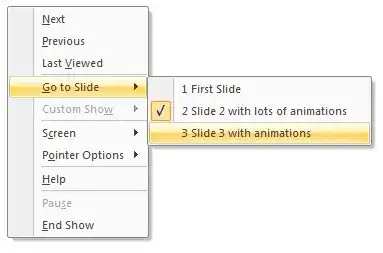
Cross-Reference dialog with manually inserted bookmark

This is after hidden was unchecked in the bookmarks dialog. This does give you a non-printable list of all cross-references to the manually added Table bookmarks. If a cross-reference had been accidentally deleted, it would not show up in this list.

To add bookmarks to Table Captions

You can use Advanced Find to look for all captions that have the word Table in them.
Advanced Find to look for all captions

Remember, you will want to select the entire caption (without the paragraph mark) to include in your bookmark. Insert bookmarks can be found under the Insert tab in the Links group.

Charles Kenyon
  • 4,283
  • 2
  • 8
  • 19
  • Thanks for your answer! In fact, I need that list to check that I didn't miss any table in my document since I have many many tables that I have done cross ref to them but I don't know if I missed a table without cross referencing it. Thus, by viewing the list of all cross referenced tables, I can check if there is any missing one. – E.s. Dec 01 '22 at 07:19
  • 1
    I've edited my answer to include screenshots and a cumbersome workaround. – Charles Kenyon Dec 02 '22 at 16:54
  • Although it seems too long for me but thank you very much! I wish Word had that option it will be so much easier to see the cross ref clearly! – E.s. Dec 02 '22 at 21:22
0

If you have a pattern, this can be quite easily achieved. For example, if the cross references always start with (see ...) then just press Ctrl-F and type "(see" in the search box. The list of matches is your table.

Edit

You can also save your document as RTF and look for

  1. bkmkstart for the bookmarks
  2. fldinst for the cross references
cup
  • 301
  • 1
  • 8