0

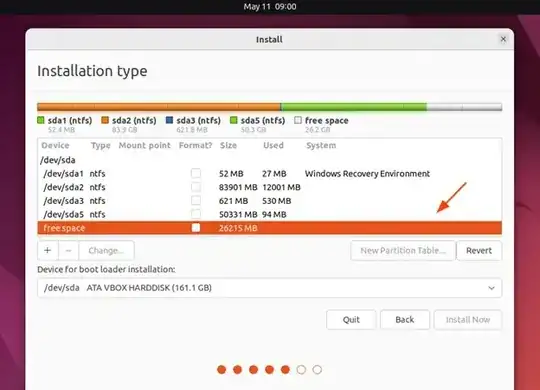
Please I am carrying out a dual boot of ubuntu on my windows 11 home. I have gotten to the part where I have to cjoose a partition for the installation. I do not see my partitions. Attached is a screenshot of what I see:

Screenshot:

enter image description here

Expected:

enter image description here

Partition screenshot:

enter image description here

When I "try" ubuntu instead of "install" it. This is the screenshot of my disk seems the file system is ataraid.

enter image description here

My laptop is a hp spectre x360 13 2020 version. Please help.

I have read numerous tutorials on ubuntu windows dual boot. The steps are:

  • Create USB live disk for OS
  • Partition hard disk
  • Boot using the live USB
  • Install OS into the partition

No one has explained what I should do in situations when the partition is not showing up

  • So there is Windows 11 Home, you want to keep it and install Ubuntu alongside, right? Please [edit] and add a screenshot of Disk Management in Windows (Win+R, `diskmgmt.msc`, Enter). Let us see what devices and partitions your Windows finds. – Kamil Maciorowski May 08 '23 at 08:15
  • Thanks @KamilMaciorowski I have done that now – Ononiwu Maureen Chiamaka May 08 '23 at 09:50
  • Hmm, some kind of RAID? – Tom Yan May 08 '23 at 10:02
  • Thanks for your contribution @TomYan I have updated with a screenshot that I think would help with that info. – Ononiwu Maureen Chiamaka May 08 '23 at 10:32
  • eems the file system is ataraid. ...... If you are sure of this, I don't think dual boot will work. Try a virtual machine instead. – John May 08 '23 at 12:16
  • Could be related to this: https://lore.kernel.org/linux-pci/20190620061038.GA20564@lst.de/T/ (I have no idea whether any version of the upstream kernel has actually incorporated the support.) (Also, I'm not sure if in this NVMe remapped case changing the SATA mode will also trigger the infamous "Inaccessible Boot Device" problem, if your laptop's UEFI firmware has an option for you to switch it.) (Or maybe it's a different case since your drive shows up. Do you know if your laptop actually ships two drives though? It seems unlikely to me especially when it looks like...RAID 1?) – Tom Yan May 08 '23 at 12:29

1 Answers1

0

So I have successfully dual booted my system. I disabled intel optane storage. I followed the steps in this guide: https://www.intel.com/content/www/us/en/support/articles/000024626/memory-and-storage/intel-optane-memory.html

For my case option 1 was what I used.

Note: Enabling it again after dual booting caused my computer to boot straight to Windows on start-up. I do not know if disabling it would revert the behavior but right now I am fine with going into boot options and choosing the OS boot manager I want.