My monitor is more than an arm's length away from me, so adjusting its backlight brightness is quite inconvenient.
Is there a way in Windows to adjust the backlight using the keyboard and/or mouse only. If so, how?
Asked
Active
Viewed 1.5e+01k times
48

GetFree
- 3,040
- 10
- 40
- 47
-
1If it is a notebook, you will have a combination to press example FN + F4 - birgher, FN + F3 dimmer. If it is a stand alone monitor.. the only way to change it is via the MENU options on the Monitor.. if its not there.. then there is no other way, but to boost the brightness and/or contrast on the graphics driver. – Piotr Kula Jan 23 '12 at 13:45
-
27This question has 33,000 views. Strong evidence that it is not off-topic. – Chris Dutrow Dec 17 '13 at 08:35
-
2Yeah, unfortunately common sense seems to have little place in many SE moderation decisions. – Kaypro II Jan 19 '16 at 06:44
-
4@ChrisDutrow Just because it's popular doesn't mean it's a good fit for our system. There are lots of useful questions that we don't accept because this style of Q&A isn't the right format for them. – Ben N Jan 20 '16 at 02:07
-
3Try Try either TwinkleTray or Monitorian. Both are actively developed in 2020: https://github.com/xanderfrangos/twinkle-tray https://github.com/emoacht/Monitorian – Cornelius Roemer Oct 26 '20 at 12:39
7 Answers
19
Update - 2015-10-30
ScreenBright seems discontinued, but as @wrongusername suggested, pangobright might be an alternative.
The solution I am using right now
I found enable DDC/CI option in my displays' settings. The ScreenBright program was able to modify it, although I think it's GUI is quite terrible and easy to break you custom settings. My screens also flicker a lot when changing brightness. Nevertheless, it has a commandline interface, which is much better. Especially when you create your own GUI (which is around 5 minutes in C#) or use plain Windows shortcuts.
Old setup
As a side note to the Dell brightness change - I can confirm that it also did work for me. My setup was:
- Dell Latitude laptop (5520 I believe)
- Dell Docking station (the extended version)
- 2xDell u2412m screens, connected via DVI
The laptop itself had a built-in GPU (Intel HD2500). In its software there was a tab called "monitor settings", iirc. It did indeed communicate with the displays and somehow change their built-in brightness settings. I weren't able to do much more (change profiles, for example), and it took quite a while to "initialize". There was also a 2-3 second delay between the setting of the brightness and actual change. I guess it was mostly due to the screens, which changed brightness gradually.
I've updated my PC to the regular workstation, and unfortunately I wasn't able to find similar setting in the NVidia control panel.
EDIT: It seems that my previous setup used DDC.


Bartek Banachewicz
- 333
- 3
- 13
-
-
A tip: You can create shortcuts in the Start menu and then edit them to add command line arguments like `-set brightness 10 contrast 50` and to assign hot keys to them. (That's a standard Windows shortcut feature.) I'm switching like that between my "profiles" (each is an icon in the Start menu). And yes, it takes a few seconds until it adjusts the screen, but it's still much faster than doing it trough those horrid monitor menus. BTW, never understood why no monitor gives us a few plain physical buttons that can be associated with my custom settings in the monitor's menu... – ddekany Nov 29 '14 at 12:34
-
The original author has discontinued this too BTW... and if you google for ScreenBright, beware, there are two independent applications with this name. The one with the sun icon is NOT what you want. The one with the gray stripes icon is. – ddekany Nov 29 '14 at 12:40
-
1Indeed, looks like [pangobright](http://www.pangobright.com/download.htm) is a suitable alternative, but I cannot add it as an answer since mods have closed this question – wrongusername Oct 30 '15 at 11:25
-
@wrongusername I'll edit it into my answer to increase visibility. Hope you don't mind the upvotes you might lose :( – Bartek Banachewicz Oct 30 '15 at 11:28
-
@BartekBanachewicz haha thanks! no worries, even if i could submit it as an answer it would be hard for others to find at the bottom of the page :P – wrongusername Oct 30 '15 at 19:17
-
1The malware analysis of PangoBright looks quite suspicious https://www.hybrid-analysis.com/sample/f5dec65d719b3a6eb14ee2a4f0c99f735927becbe5350b4d92b5fb965c1ff24b?environmentId=1. Several antiviruses are detenting something in it https://www.virustotal.com/en/file/f5dec65d719b3a6eb14ee2a4f0c99f735927becbe5350b4d92b5fb965c1ff24b/analysis/ – GetFree Jan 20 '16 at 01:55
-
-
If your monitor is Dell, I think that it is also possible to use [Dell DDM Monitor Application](http://www.dell.com/support/home/us/en/04/Drivers/DriversDetails?driverId=N2P0J), although it also uses DDC/CI. – BachT Aug 01 '16 at 22:35
-
-
-
ScreenBright actually controls the monitor's backlight using DDC/CI. PangoBright just overlays a dark shade over the entire screen without actually controlling the backlight. – Jesse Oct 08 '18 at 13:54
-
17
I found ClickMonitorDDC from a recommendation on Superuser:
softMCCS from ddc-ci.com allows lots of control but it's too low level technical for regular use.
Just to control brightness and contrast I'm using http://clickmonitorddc.bplaced.net (Windows).
answered Mar 15 '15 at 23:09 aland
Desktop LCD monitor which allows backlight to be controlled in software
ClickMonitorDDC is a portable freeware tool to adjust brightness or contrast of a DDC compatible monitor
http://clickmonitorddc.bplaced.net/
It's the most user-friendly application that I've tried.
You can quickly jump to any brightness and contrast number that is a multiple of 5, and then finely adjust.
There are also hotkeys, and command line commands.
e.g.
b20 c30
Brightness 20 contrast 30.
ClickMonitorDDC also allows you to jump to a volume.
With the default Windows 10 volume control, it's hard to see the exact volume number that you will jump to.
ClickMonitorDDC has 20 volume buttons that are each a multiple of 5, and they go from 0 to 100.
I also tried this recommendation in combination with ClickMonitorDDC:
Flux v3.10 has additional functionality to control actual brightness using hot-keys Alt+PageDown and Alt+PageUp.
answered Jun 25 '14 at 17:25 Karan
Flux is a filter, and it can get you darker than ClickMonitorDDC and your monitor will by themselves.
EDIT: April 24 2018
I've noticed that ClickMonitorDDC might not work on all monitors.
Alternatives include Desktop Dimmer (https://github.com/sidneys/desktop-dimmer) or PangoBright (https://www.pangobright.com/)

-
-
VirusTotal sees no issues with the current version of ClickMonitorDDC: https://www.virustotal.com/gui/file/b6016db57f44c756f9bb5e2ec7ba9d04d410b36d7289a1b26baad392edbd8869/details – miyalys Jul 28 '19 at 20:46
-
For some reason ClickMonitorDDC does not allow to make contrast lower than 25. I wanted 0 to make screen black. – Nakilon Feb 03 '20 at 10:54
-
-
Same 25% limit when using the "Dell Display Manager" program -- maybe Dell disallows it when adjusting programmatically? ( – Nakilon Feb 03 '20 at 11:25
-
ClickMonitorDDC still can be downloaded from [archive.org](http://web.archive.org/web/20201001204420/https://clickmonitorddc.bplaced.net/ClickMonitorDDC_7_2.zip) – Dmytro Ovdiienko May 25 '21 at 09:57
3
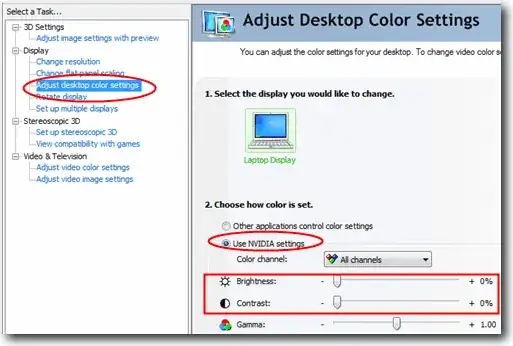
- If you use an Nvidia Graphics Driver (Resource from here )
Right click on desktop and select NVIDIA Control Panel
Click on “Adjust desktop color settings” at the left hand side navigation bar.
3) Select NVIDIA settings and you can now move the slider for Brightness and Contrast.
Have a look here
http://www.istartedsomething.com/20090829/windows-7-application-controls-backlight-ordinary-webcam/

Journeyman Geek
- 127,463
- 52
- 260
- 430

subanki
- 7,566
- 8
- 44
- 50
-
7
-
-
please update your answer, as this does not control the backlight, but the drivers based contrast/birghtness/gamme.. it is off topic.. I rather up vote you than down – Piotr Kula Jan 23 '12 at 13:48
3
The application Display Tuner can control the brightness for many different LCD/CRT monitors.
However, if backlight is a separate setting on your monitor, you might be out of luck.

oKtosiTe
- 9,408
- 9
- 46
- 70
-
Although it didn't work for me, I am upvoting the answer. The "ScreenBright" sofware did work – Bartek Banachewicz Oct 06 '12 at 14:23
-
2Display Tuner appears to have been discontinued. The downloadable zip file simply contains a readme.txt file telling the user that it's been retired. – Dan Atkinson Sep 13 '13 at 00:13
-
I have used this on two computers (on was an Intel IGP other was GeFroce 7600, two different monitors) on Windows XP, and for me setting both back light and contras worked. Also it let's you save profiles and assign global hot keys to them. Sadly, since updating Win7, it doesn't work on either computer (doesn't find the display at all). – ddekany Nov 29 '14 at 12:29
0
Had same issue, after hours of searching I found that it is a setting in the BIOS.
Here is how to fix:
- Boot into BIOS mode
- Go to 'display' tab (on some models it is under 'video')
- Scroll down to 'EcoPower'
- Turn it off
- Save changes
- Good to go!
Thanks to https://superuser.com/a/1556441/1202970

meblum
- 156
- 6
0
Are you talking about an external monitor or a laptop's built-in display? An external monitor's brightness is almost always controlled externally by the monitor, there just isn't any way to pass brightness settings information over any of the usual display connectors (VGA, DVI, HDMI, DisplayPort, etc.). A built-in display on a laptop or all-in-one however has its brightness control integrated with the system, and can be controlled from within windows by some software. The actual software to do so will depend on the manufacturer. Windows 7 can do it automatically from the Windows Mobility Center (press Win+X), but in Windows XP you will need the manufactuer's drivers.

nhinkle
- 37,198
- 36
- 140
- 177
-
2I ask this because I know it IS possible. I use an external monitor with my laptop and in the configuration of my laptop's video card there is a sliding control that let me adjust my EXTERNAL monitor's backlight. Unfortunately, I have to do about ten thousand clicks through the GUI only to reach that sliding control. Simply not practical. – GetFree Sep 11 '10 at 05:51
-
Interesting. Sounds like it might be specific to the video card's drivers then... I've never seen anything like that before. – nhinkle Sep 11 '10 at 06:04
-
Me neither. The drivers config dialog box says "Intel Graphics Media Accelerator Driver for mobile" and my external monitor is a Dell 2007FP – GetFree Sep 11 '10 at 06:24
-
@GetFree Not possible that your laptop controls the backlight of the external monitor.. it must be imitiation, or using a gamma reduction on the driver, to immatate the brightness on the external one. Can you proove that the backlight setting has been turned down? by looking at the stetting on the monitor?? I can bet 10 bux its driven via Drivers and not hardware.. – Piotr Kula Jan 23 '12 at 13:47
-
1@ppumkin, believe me, it's not emulated via color change or gamma reduction. It really does change the backlight brightness. My best guess is that it must be a propietary mecanism from Dell, since both my laptop and external monitor are Dell. – GetFree May 19 '12 at 10:34
-
-
6This is actually standard since 1998, but nobody seems to know about it :). http://en.wikipedia.org/wiki/Display_Data_Channel#DDC.2FCI – crazy2be Feb 10 '15 at 23:02
0
Use Desktop Lighter. It's freeware. After installation you can simply use shortcut keys to increase or decrease brightness. Your monitor's brightness control is at your fingertips. Shortcut keys can be customized. It's a small tool but very useful.


-
4I've tried this tool before. It just changes the color brightness, not the backlight intensity. – GetFree Dec 21 '12 at 00:21
-
Don't use this tool, it changes your gamma permanently, and is difficult to change it back, if possible at all. It doesn't change Backlight intensity, just changes the gamma and colours. – Anthony May 19 '13 at 16:42