How can I open a command prompt in current folder with a keyboard shortcut in Windows 7?
Is there any way to implement this?
I think Autohotkey could do this, but don't know how.
Asked
Active
Viewed 3e+01k times
129


-
1Related: [Open command prompt window without holding shift](http://superuser.com/questions/240279/windows-open-command-prompt-window-without-holding-shift/240327#240327) – slhck Feb 25 '13 at 10:19
12 Answers
156
Press Alt+D, type cmd and press Enter. For more details see blog post here.

Selfish
- 115
- 6

Ashwin Nanjappa
- 9,947
- 26
- 79
- 110
-
1nice! the other option doesn't seem to show the "open command window here" option unless you right-click on a folder - inside the folder, it doesn't show – divillysausages Feb 26 '13 at 21:55
-
This opens a cmd window, but it does not open one at the current directory. The same thing can be accomplished with win+r, cmd – Ed Orsi Jul 02 '14 at 19:02
-
2Note - You do not need to press Alt+d for this to work. All I had to do in Windows 7 was type cmd into the path of windows explorer and press enter. Alt+d just automatically selects the current path. – MiniRagnarok Jul 30 '15 at 12:50
-
7
-
1
-
Additional note to that. Whatever you execute in that search bar will be treated as a normal CMD command. For example I can fast execute a g++ command. – Georgi Peev Jun 30 '21 at 09:39
129
Use this keyboard shortcut: Shift + Menu, W, Enter
Shift + Menu (alternatively, Shift + F10), (opens extended right-click menu in current folder)
W (selects "Open Command Window Here"),
- Enter (activates selection; required since "New" is also selectable with W)
The Menu key refers to the special key introduced by Microsoft, usually to the right of the right Win key.
This shortcut is available on a default installation of Windows (7) without any 3rd party software.
The AHK way. You just need to press Win + C (or whatever you want to define it as.):
SetTitleMatchMode RegEx
return

; Stuff to do when Windows Explorer is open
;
#IfWinActive ahk_class ExploreWClass|CabinetWClass

    ; create new text file
    ;
    #t::Send !fwt

    ; open 'cmd' in the current directory
    ;
    #c::
        OpenCmdInCurrent()
    return
#IfWinActive


; Opens the command shell 'cmd' in the directory browsed in Explorer.
; Note: expecting to be run when the active window is Explorer.
;
OpenCmdInCurrent()
{
    ; This is required to get the full path of the file from the address bar
    WinGetText, full_path, A

    ; Split on newline (`n)
    StringSplit, word_array, full_path, `n

    ; Find and take the element from the array that contains address
    Loop, %word_array0%
    {
        IfInString, word_array%A_Index%, Address
        {
            full_path := word_array%A_Index%
            break
        }
    }

    ; strip to bare address
    full_path := RegExReplace(full_path, "^Address: ", "")

    ; Just in case - remove all carriage returns (`r)
    StringReplace, full_path, full_path, `r, , all


    IfInString full_path, \
    {
        Run,  cmd /K cd /D "%full_path%"
    }
    else
    {
        Run, cmd /K cd /D "C:\ "
    }
}
As a bonus, the script above also creates a new text file with this shortcut: Win + T
Credit to: Eli Bendersky


-
3
-
-
@Jonathan: Install Auto-HotKey (http://www.autohotkey.com/). Copy the script contents to the AutoHotkey.ahk file. (probably in %USERPROFILE%\documents\\) Restart Auto-Hotkey. – Leftium Feb 01 '11 at 08:17
-
This was the only working solution out of all the AutoHotkey snippets I found on the web. Thanks a lot! – Lucas Oct 23 '14 at 10:35
-
2
-
-
Also doesn't work for the desktop, if you count that as a current folder... – jiggunjer Jan 15 '16 at 02:54
-
@boleslaw.smialy : maybe it is you're not using an American/English version of Windows? (With the Italian wersion you should use 'f' instead of 'w' for instance) – danicotra Dec 03 '16 at 14:26
-
May I ask you, just of curiosity, why you changed original script in this line: `Loop, %word_array0%...` instead of keeping original `full_path = %word_array1%`? – john c. j. Apr 28 '17 at 16:10
-
@johnc.j.: Honestly, it was so long ago I don't even recall modifying the original script. The difference my version checks all array elements for the address, instead of just assuming the address is in the first element. – Leftium Apr 28 '17 at 21:49
-
There is a much neater version of AHK script down. (by using `win.LocationURL`, much easier to parse) – user26742873 Jan 01 '21 at 13:25
43
the native way to do something similar in windows7 is to hold down shift while pressing the right mouse onto the folder you want to "command prompt" to and a new menu item will appear in your context menu offering you exactly that: "open command prompt here".
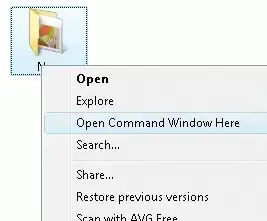
if you want pure keyboard action then you have to do this:
- open
regedit - go to
HKEY_CLASSES_ROOT\Directory\shell\cmdand rename theExtendedkey toExtended_save - go to
HKEY_CLASSES_ROOT\Drive\shell\cmdand rename theExtended key toExtended_save`
this adds the "open command window here" entry to the context menu permanently. you can trigger this entry by pressing:
- alt
- let go, context menu opens
- press the "underscored" character of the "open command window here" entry or go down with your cursor keys and hit enter
the name of the menu entry is labled according to the language of your OS.
an alternative route is to do this:
- open the folder you want in the command prompt via the explorer
- f4
- ctrla
- ctrlc
- winr
cmd /k cdctrlventer
which grabs the current path from the address bar of explorer and executes cmd /k cd PATH. with autohotkeys you can do the same, but i do not know autohotkeys.

akira
- 61,009
- 17
- 135
- 165
11
From how-to-open-cmd-in-current-folder-by-shortcut-windows-10
If you are using Windows 8/10, there is a faster and original way :
Alt + F, P
Just three key and type twice , without help of another program.

-
Thanks. Because of your tip, I was able to discover Alt + F, M A is to open command prompt in Admin mode. :) – Annie Lagang Jun 28 '19 at 07:44
-
3
As of the latest Windows 10 update, Leftium's answer's Shift + Menu, W method no longer works. However, a small modification can present a workaround, albeit with a few more keystrokes.
The problem is that Command Prompt is no longer available in the Extended Right-Click Menu. Instead, you now have Windows Powershell.
Shift + Menu, S opens up Windows Powershell in the target folder. Once in Windows Powershell, type cmd then press Enter.
This will give you access to Command Prompt within Windows Powershell.
P.S.
Ashwin Nanjappa's method of Ctrl + L, type cmd then press Enter works. However, it is elegant only if you do not intend to return to the Windows Explorer window to continue navigating among directories. Unfortunately the method brings your cursor in Windows Explorer away from the main window and requires a number of Tab keystrokes to get it back to where you can navigate folders using the arrow keys. This can be frustrating as there is limited visual confirmation when you are pressing those Tab keystrokes.
Whereas Windows Powershell does work in most ways identically to Command Prompt, I have encountered at least one case in which Windows Powershell was erroneously misreading my @tags (when I was generating javadocs) and not producing the desired result. By typing cmd then Enter within Windows Powershell, you can use Command Prompt instead which overcomes such issues.

Qladstone
- 31
- 2
2
A simpler AHK script than the one in the selected question
#c::cmdHere()

cmdHere() {
    If WinActive("ahk_class CabinetWClass") || WinActive("ahk_class ExploreWClass") {
        WinHWND := WinActive()
        For win in ComObjCreate("Shell.Application").Windows
            If (win.HWND = WinHWND) {
                dir := SubStr(win.LocationURL, 9) ; remove "file:///"
                dir := RegExReplace(dir, "%20", " ")
                Break
            }
    }
    Run, cmd, % dir ? dir : A_Desktop
}
source from here : https://autohotkey.com/boards/viewtopic.php?t=5796

MagTun
- 1,378
- 4
- 23
- 33

1
This utilizes autohotkey.exe. Save this with .ahk extension.
If explorer.exe is the active window, open cmd.exe using the active PATH.
If explorer.exe is not the active window, open cmd.exe to C:\Windows\System32.
Run this by itself or call it with a master script using #Include PATH\TO\BELOW\SCRIPT.ahk
; ###################
; #  OPEN CMD HERE  #
; ###################

!c::_OpenCMDHere()

_OpenCMDHere()
{
    GroupAdd, _GroupCMDHere, ahk_exe cmd.exe
    GroupClose, _GroupCMDHere, A
    If WinActive("ahk_class CabinetWClass") {
        _WinHWND := WinActive()
        For Win in ComObjCreate("Shell.Application").Windows
            If (Win.HWND = _WinHWND)
                _pwd := SubStr(Win.LocationURL, 9)
                _pwd := RegExReplace(_pwd, "%20", " ")
                _pwd := RegExReplace(_pwd, "/", "\")
            Run, "C:\Windows\System32\cmd.exe" /T:0A /D /K PROMPT $P$G$_$G & PUSHD "%_pwd%",, Max, WinPID
            WinWait, ahk_pid %WinPID%
            WinActivate, ahk_pid %WinPID%
    }
    Else {
        Run, "C:\Windows\System32\cmd.exe" /T:0A /D /K PROMPT $P$G$_$G & PUSHD "C:\Windows\System32\",, Max, WinPID
        WinWait, ahk_pid %WinPID%
        WinActivate, ahk_pid %WinPID%
    }
}
Return
Update:
This is even simpler and is in line with what user MagTun said above. This also fixed path issues that occur when the '&' symbol is in the file path.
!c::_OpenCMDHere()

_OpenCMDHere()
{
    If WinActive("ahk_class CabinetWClass")
        _WinHWND := WinActive()
        For Win in ComObjCreate("Shell.Application").Windows
            If (Win.HWND = _WinHWND)
            {
                _pwd := SubStr(Win.LocationURL, 9)
                _pwd := RegExReplace(_pwd, "%20", " ")
                _pwd := RegExReplace(_pwd, "%26", "&") ; Fix issues with '&' in the path
                _pwd := RegExReplace(_pwd, "/", "\")
            }
    Run, "C:\Windows\System32\cmd.exe" /T:0A /D /K PROMPT $P$G$_$G, % _pwd ? _pwd : "C:\Windows\System32\", Max
}
Return

slyfox1186
- 111
- 3
1
AutoHotKey script to open command prompt using @Ashwin's method
Open Powershell console using Win P
#P::
{
    Send !D
    Send powershell
    Send {Enter}
    return
}
Open command prompt using Win C
#C::
{
    Send !D
    Send CMD
    Send {Enter}
    return
}

iraSenthil
- 1,663
- 1
- 10
- 6
-
1I tried this but it doesn't open the cmd in the open folder but in `system32` – MagTun Jun 19 '19 at 10:59
0
Step 1-Just open File Explorer
Step 2- Get inside the folder where you want open cmd.
Step 3-After getting inside that folder type cmd in Address bar and hit enter. (Address bar is located near Search bar in the file explorer) Boom. CMD will open in current location.
Hope you like the answer. Thankyou every much.

user60845
- 25
- 5
0
If you are using a german languaged Windows version you can do this:
Press Alt+D,E
Alt+D opens a menu where you can select a few other things besides the cmd

foobarbaz
- 111
- 2
-
-
-
-
`Alt+D` works in English Windows. An alternative shortcut is `Ctrl+L`. A similar but not equivalent solution is `F4` – phuclv Jan 24 '20 at 15:32
-1
For AHK, following is my binding:
#c::
Run, C:\Windows\system32\cmd.exe
return
This does not open current folder, but it is handy.

Teoman shipahi
- 129
- 6