38

I do a lot of work on Windows Server 2008 remote desktops and often lose track of which host I am currently logged on to.

Is there a way of displaying (without installing any non-standard apps) the host name or IP address of the host I am connected to in either the wallpaper or the notification area?

I tried creating files in the desktop with the name of the machine - but my roaming profile shows the same set of desktop files on every machine, so that was scuppered. Duh!

In shell windows this is easy: just set the prompt to display the host name. Surely there is a simple way of doing the same for the graphical desktop.

SgtOJ
  • 7,267
  • 5
  • 47
  • 64
Martin
  • 515
  • 1
  • 5
  • 8

5 Answers5

44

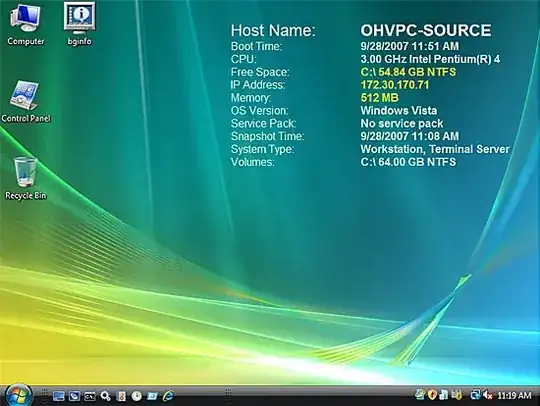
You are looking for Microsoft's Sysinternals BgInfo. It is very customizable. Not to mention it comes straight from Microsoft for free.

How many times have you walked up to a system in your office and needed to click through several diagnostic windows to remind yourself of important aspects of its configuration, such as its name, IP address, or operating system version? If you manage multiple computers you probably need BGInfo. It automatically displays relevant information about a Windows computer on the desktop's background, such as the computer name, IP address, service pack version, and more. You can edit any field as well as the font and background colors, and can place it in your startup folder so that it runs every boot, or even configure it to display as the background for the logon screen.

Screenshot of BgInfo

Gaff
  • 18,569
  • 15
  • 57
  • 68
SgtOJ
  • 7,267
  • 5
  • 47
  • 64
  • Thanks - this looks very good. Now to see if I am allowed to install it. – Martin Dec 04 '10 at 08:37
  • It should be noted that **bginfo** essentially **modifies your background image**. I can think of two disadvantages using this method: 1. If you use the same login credentials on multiple machines, assuming those credentials store your personal settings (like backgrounds), you could end up having the IP address of the machine where the information was initially created being displaying incorrectly as the IP address for other machines. 2. Having a rotating/slideshow background will wipe out the information when the background changes. – basiphobe Nov 11 '15 at 17:06
  • Just used it on windows 2022, and still working. With some bugs, like "unknown processor type" and showing a lot of not useful information, like "NONE" for each ethernet card under ip and dns. But it works, even adding a background image works. – DefToneR May 26 '22 at 17:02
30

This questions is now 8 years old. BGInfo doesn't seem to work with Windows 10 desktop backgrounds. That is, background images behind the text that BGInfo should be writing on top of. It does work entirely correctly on top of a solid color background as far as I could tell. Pete's registry key didn't work (able to change permissions, had no effect), and I'm not trying that sketchy URL.

So here's a nice simple solution that takes literally 5 seconds to setup:

Right-click on Taskbar -> Go to Toolbars -> Choose New Toolbar, type in \\%computername%, and Click Select Folder. Done.

Credit where credit is due.

Eliot Gillum
  • 401
  • 4
  • 5
  • I havent tried BGInfo on WIn 10 (as far as I can remember), but I find it hard to believe it doesnt work. Especially since it was updated last year. Still this is a neat idea. – Keltari Sep 23 '18 at 08:19
  • Sorry, my wording wasn't super clear. I wasted half an hour futzing with "it should foo when I push the foo button!" – Eliot Gillum Sep 25 '18 at 07:36
  • Now to find a way to do this using GPO – Beakie Feb 24 '20 at 23:30
  • 1
    Dump HKEY_CURRENT_USER, apply the above, dump again, diff. I'd bet my lunch money it'll be easy to see. – Eliot Gillum Feb 26 '20 at 00:46
  • This is handy on Citrix VDI systems where the policy or something is set to only allow a solid color background and the Citrix window title is dumb. – jla Aug 03 '22 at 16:12
6

Find key HKEY_CLASSES_ROOT\CLSID\{20D04FE0-3AEA-1069-A2D8-08002B30309D}

I usually rename to OLD.LocalizedString and create a new string but some people simply modify the value... it's up to you.

Edit it reads:

Name = LocalizedString Type = REG_EXPAND_SZ Data = %COMPUTERNAME%

You can also display user name data value = %USERNAME% on %COMPUTERNAME%

It's valuable in disk imaging as when you deploy and give the computer name you'll always have it. You may need to change permissions on the key. Right click on the key and select permissions.

Sathyajith Bhat
  • 61,504
  • 38
  • 179
  • 264
Pete
  • 61
  • 1
  • 1
  • I'm getting an error saying that Cannot edit LocalizedString: Error writing the value's new contents when I try to modify the value (Win8.1, ran regedit as an administrator) – Henno May 30 '14 at 13:40
  • After changing registry key permissions (owner) to be able to modify the string, the result was that now literally %COMPUTERNAME% is displayed Windows 8 Classic Shell Start Menu for "This Computer" – Henno May 30 '14 at 16:43
3

Or, requiring no external tools; Make a bat file, placed in a startup folder with content such as;

echo %COMPUTERNAME% > "c:\users\Public\desktop\%COMPUTERNAME% - is this machine"
reben
  • 282
  • 1
  • 6
3

Put BGINFO on a network share and add it to a local logon script or a batch file to the startup folder for all users.

There is a switch to supporess the license warning at first run and you can create an optional configuration file that determines what parameters are displayed.

e.g. BGINFO.BAT

@echo off
bginfo bginfo.bgi /TIMER:0 /SILENT /NOLICPROMPT /LOG:Q:\bginfo\log.txt

There is even an option to have it add the computer information to an excel spreadsheet. I have used that in the past to gather configuration information on the workstations

Nifle
  • 34,203
  • 26
  • 108
  • 137
Mike Row
  • 141
  • 1
  • 2