10

Every window has oversized borders, i tried to go to the border settings already, but im at the minimum border size now: 1, but they are still 10px wide!

How do i get it even thinner?

winuser
  • 435
  • 3
  • 9
  • 16
  • You can actually set the border padding down to 0. I'm not sure how much smaller 0 is compared to 1 but that's the first thing I change whenever I get a new system. – Zooks64 Jan 23 '11 at 14:07
  • @gadzooks64: Yeah, I change mine to 1, as it looks stupid with the thick border padding, even on high-res screens. – paradroid Jan 23 '11 at 15:07
  • 1
    @gadzooks64: please tell me how. i cant put anything lower than 1 into that box where it changes the size. is there some regkey for this? – winuser Jan 23 '11 at 15:10
  • You have to go into the Personalization menu. Window Color. Advanced appearence settings. This will pop up a new window. Select Border padding from the drop down box and change it to 0. – Zooks64 Jan 24 '11 at 00:46
  • Ahh, I had the same confusion, as the trivial thing you get to select in that dialog is border *size*. From there to realize that border *padding* is a separate setting there, is subtly difficult, partly because you can't select that one by clicking around in the visualization, so it's kinda "hidden". (And also because "border size" is a generic name already matching the item you are looking for, especially as adjusting it apparently affects exactly what we wanted to change.) – Sz. Nov 06 '17 at 13:20

3 Answers3

21

The Border Padding setting is under the Personalization/Window Color/Advanced appearance settings.

This window will pop up. Open the drop down and select Border Padding.
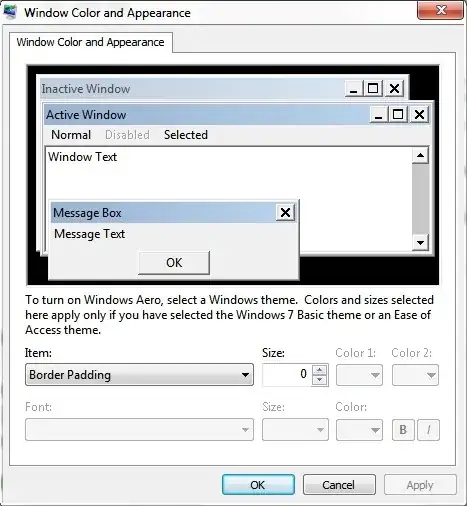
alt text

Zooks64
  • 2,012
  • 14
  • 14
7

I can't test it, but this may help you.

Hope that helps.
—Alberto

Donovan
  • 546
  • 1
  • 3
  • 10
3

Are you sure you are selecting Border Padding and not Active/Inactive Window Border, because it should go down do zero, although it is still visible at that setting?

paradroid
  • 22,761
  • 10
  • 76
  • 114