80

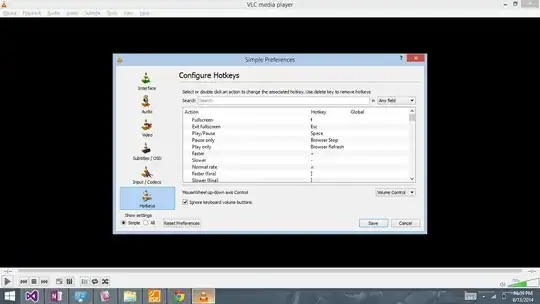
I've got an ASUS K50AF series notebook with Windows 7 Home Premium x64. I'm using VLC media player, and I want to use media keys (play, pause, rewind, forward, stop) with it. Currently, they're associated with Windows Media Center.
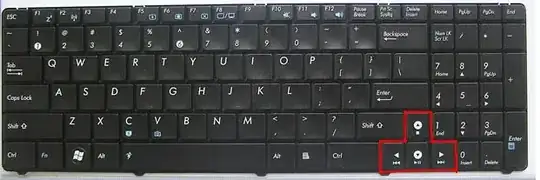
My keyboard

I've tried MK2MP. Unfortunately, it didn't fix my problem, and crashed after restarting VLC media player.

Run time error 31
at line 559

Now, I can't even start MK2MP. Any ideas?

I've disabled Media Center and Media Player. HIP now recognizes media keys, but the keys still don't do anything.

It seems that when I try capturing that key, all programs (including HIP, Key Mapper and AutoHotkey) thinks I pressed the H key.

alexia
  • 2,577
  • 2
  • 22
  • 33
  • Is there some kind of keyboard control panel by the manufacturer that lets you customize what each key does? – Sasha Chedygov Feb 01 '11 at 00:05
  • No, I haven't found anything like that. – alexia Feb 01 '11 at 12:07
  • 1
    [Brad's answer](http://superuser.com/questions/237098/how-do-i-associate-my-keyboards-media-keys-with-vlc-media-player/750103#750103) works. It should be the accepted answer. – Peter Mortensen Dec 29 '14 at 22:10
  • @PeterMortensen I have no way of verifying whether it works for me, since I don't even have that laptop anymore. – alexia Dec 29 '14 at 22:12

10 Answers10

125

You need to bind your keys in VLC media player. Other answers were right on this, but they were missing a couple of details which I am pointing out here.

  1. Start VLC media player
  2. Click menu ToolsPreferences
  3. Click the Hotkeys section near the bottom left.
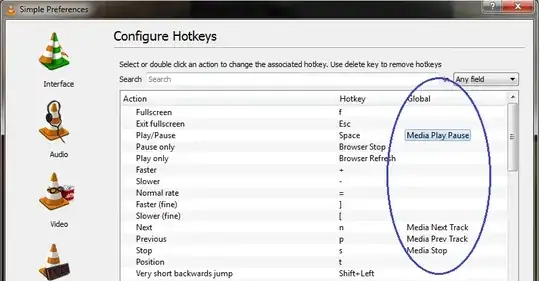
  4. Find the action you want to bind and double click in the "Global" column. If you double click anywhere else, you will be binding the wrong keyboard shortcut.
  5. Press your key. VLC media player should recognize it.
  6. Restart VLC media player. If you are binding global hotkeys, VLC media player must be restarted, so it can listen for them.

VLC media player global hotkeys

Peter Mortensen
  • 12,090
  • 23
  • 70
  • 90
Brad
  • 5,686
  • 8
  • 52
  • 83
  • 6
    This should be the accepted answer. Worked for me. – bdwakefield Aug 19 '14 at 15:54
  • 4
    In contrast to [Shekhar's answer](http://superuser.com/questions/237098/how-do-i-associate-my-keyboards-media-keys-with-vlc-media-player/237100#237100), this worked for me (after restarting VLC media player!!!!!!). And yes, it should be the accepted answer. +1. – Peter Mortensen Dec 29 '14 at 22:07
  • 9
    It works, but only when VLC has focus. – Umair Sep 28 '15 at 17:31
  • @Umair Hmmm, you might have another issue then. It works for me no matter what application I'm in, even in full screen games and movies. – Brad Sep 28 '15 at 18:23
  • What keyboard do you have? I use a Microsoft 800 wireless keyboard. – Umair Sep 29 '15 at 09:31
  • 2
    Some people were able to get it working "Globally" by restarting VLC, others (like myself) had to restart the computer. If this doesn't work, you might have other issues like another program intercepting the signal, like Spotify or something. – BillyNair Nov 05 '15 at 19:56
  • 1
    Sometimes VLC itself has certain media keys mapped to itself globally. I had this issue -- it **did** react on Next/Prev, but didn't see those keys when I tried to bind them to actions other than current. In such a case this recipe works: 1) Unbind current global media keys in VLC by **replacing** them with some temporary combinations like Ctrl+Alt+N etc; 2) **Restart VLC** so it stops listening for media keys globally; 3) Bind media keys to the desired actions. It *should* see the keystrokes now; 4) Erase temporary combinations (Step 1) with click, then Del; 5) Save. // Worked for me! – Alex Fortuna Dec 05 '15 at 22:29
  • @Brad, at point 4, don't you mean "Find the **action** ..." (instead of "Find the **key** ...")? (As the flow here is to find an action and then set a hotkey for it. Not setting a hotkey for a key.) – Qtax May 25 '16 at 13:51
  • @Qtax Yes, thank you. I don't know why they rejected your edit. I've went ahead and made the change. – Brad May 25 '16 at 16:32
  • 2
    When I press play and pause key it doesn't show up in VLC. What should I do? – Aero Windwalker Aug 18 '16 at 07:20
  • 1
    @Umair You should set your hotkey on global section not hotkey column.It works if it detects your media keys.So it should work. – Steve Moretz Mar 14 '19 at 11:56
  • 1
    like Aero, VLC is not detecting the media keys on my dell latitude e6530. When I'm trying to add it to global hotkey, the play/pause button just opens iTunes and starts playing a song. I can add regular keys to global, just not the media keys. weird. – MilkyTech May 01 '19 at 19:13
  • @ChrisM I wonder if your Dell came with some other keyboard utility that is overriding the key mapping? – Brad May 01 '19 at 19:14
  • When I installed this Win10, I didn't install any utilities, just the necessary drivers. I just now changed the default audio player from iTunes to VLC (default video was already set to VLC) and it still opens iTunes. I'll try rebooting to see if that releases iTunes from default. – MilkyTech May 01 '19 at 19:23
  • Rebooting did release iTunes, however, VLC still doesn't recognize the media keys :-( – MilkyTech May 01 '19 at 19:50
12

Before you set the VLC hotkeys, you need to set VLC as your default media player, in control panel, default programs, set your default programs, and choose VLC as default.

The global hotkeys should then work with VLC, you still have to set them in VLC - tools, preferences, hotkeys, double click on the global key you want to set, VLC will prompt you to press the key, and restart VLC afterwards so they become active.

dananfear
  • 159
  • 1
  • 2
  • Are you sure that works? Isn't the only choice, except for Windows Media Player, *"Use my current media player"*? – Peter Mortensen Dec 29 '14 at 22:28
  • 1
    That doesn't work, there is no "default media player" as such. It's possible to associate VLC with a number of media extensions, but it doesn't make it "default" anyhow. – Alex Fortuna Dec 05 '15 at 22:25
  • 1
    This answer worked for me in Windows 10 - setting VLC as the "Default app settings" app for "Music player" and "Video player" then restarting VLC didn't require any further configuration. Thanks @dananfear :o) – Andrew Sep 25 '17 at 11:47
  • Also associate CDA extension with VLC so that multimedia key for media player can open vlc – Dreaded semicolon Aug 16 '20 at 04:39
3

If you have Microsoft IntelliType installed (it happens automatically for certain keyboards), try un-installing it via "Add or Remove Programs".

Via http://forum.videolan.org/viewtopic.php?f=14&t=79605

Max Cantor
  • 494
  • 1
  • 8
  • 18
  • thanks for trying to help, but I'm sure I didn't have it installed (I don't use Windows anymore). – alexia Oct 04 '11 at 16:28
  • 1
    I had to uninstall "Microsoft Mouse and Keyboard Center". Thanks! – localhost Apr 16 '15 at 11:19
  • This was the one which worked for me, since it was my case. This is definitely weird, since it works with any other application I've already tried it. It filters only the Play/Pause button, making VLC recognize it as "Unset". Go figure how VLC recognizes the key like this, but anyway, I could register it. Still, it doesn't work globally, even after restarting VLC. Let's see after the next system restart. – Charles Roberto Canato Mar 18 '20 at 02:42
3

None of the previous solutions should work, as the problem is in the ATK Media utility provided by Asus. Instead of emitting keyboard events (like normal media keys), it maps them to specific applications (you can actually change those applications in the registry, see here http://mcbx.netne.net/hacks/asusmmed/index.htm).

The order and name of applications that it looks for change depending on version and system, but luckily there's an easier fix to enable the use of generic media key events.

I just came across the solution for this after some time reading a bunch of sites.

  1. Download the rar package from this blog post: http://3mptylab.blogspot.it/2012/09/how-to-make-asus-notebooks-media-keys.html

  2. Stop the current DMedia.exe process.

  3. Go to your ATK Media install folder (normally C:\Program Files (x86)\ASUS\ATK Package\ATK Media) and rename DMedia.exe to DMedia.exe.old (just to be safe).

  4. Put DMedia.exe you'll find in the RAR into the ATK Media directory. Double click it to run it, but it gets run at boot anyway.

  5. Check if the media keys work as they should. Grab a beer or watch a movie if it works!

I just tested it on my Asus U30Jc under Windows 8 Pro 64-bits, and it works great! This tool actually maps generic keyboard events to the media keys in the integrated keyboard, so they work with any application enabled for this (in some cases like Winamp you might need to enable global keys).

After enabling hotkeys in VLC media player, it should work with no problems, and with any other media program too (Spotify, Windows Media Player, Winamp, Xbox Music, etc).

Peter Mortensen
  • 12,090
  • 23
  • 70
  • 90
Rodrigo Chiong
  • 291
  • 2
  • 4
2

For older VLC media player versions: Go to GeneralHotkeys in menu ToolsPreferences and try to bind your media keys.

The menu layout in newer VLC media player versions has changed and now you need to do the following:

Menu ToolsPreferencesHotkeys from the left hand menu on the window that opens up.

VLC media player menu screenshot

Peter Mortensen
  • 12,090
  • 23
  • 70
  • 90
Shekhar
  • 5,009
  • 4
  • 33
  • 49
  • 4
    I've tried that, but VLC won't recgonize them. – alexia Jan 24 '11 at 12:05
  • @Nyuszika7H : do the bindings work with any other keys ? – Shekhar Jan 24 '11 at 12:11
  • 1
    Yes, they work with other keys, but not with media keys (when I press them, Media Center starts if it isn't started). – alexia Jan 24 '11 at 12:26
  • 1
    Its obvious that your media keys are bound to media center , find a way to dissociate your keys from media center and it might work – Shekhar Jan 24 '11 at 12:30
  • It almost worked when I tried it. It seems like the effect is like a media key is send two times. Thus for a key with toggle effect, play/pause, there is no effect (and double effect for the non-toggle keys). However, it may be a problem with my keyboard. It was tried on VLC media player 1.0.2. – Peter Mortensen Dec 29 '14 at 20:23
  • It wasn't my keyboard. By instead using [Brad's answer](http://superuser.com/questions/237098/how-do-i-associate-my-keyboards-media-keys-with-vlc-media-player/750103#750103), it worked. – Peter Mortensen Dec 29 '14 at 22:04
  • @Shekhar If it's obvious you should've suggested that fix first. – Hellreaver May 21 '19 at 07:21
2

You could set up macros in Event Ghost to capture the keys and set them up to trigger the actions that you want.

xdumaine
  • 2,299
  • 4
  • 22
  • 35
1

You might be able to use the article Disable Windows multimedia key shortcuts to disable the multimedia keys on Windows.

It counsels deleting entries from the registry key of HKLM\Software\Microsoft\Windows\CurrentVersion\Explorer\AppKey, so it is advised to first take some precautions.

To a lesser degree, you might also find the article How to Disable or Enable Windows Hotkeys in Vista useful although it may not apply to your case.

Peter Mortensen
  • 12,090
  • 23
  • 70
  • 90
harrymc
  • 455,459
  • 31
  • 526
  • 924
1
  1. Open up the hotkey window in VLC media player by menu ToolsPreferencesHotkeys
  2. Double click on the desired action to change
    • If you can set the media button to your desired hotkey.
    • If you cannot, unsetting the hotkey could help. You can do this by clicking Unset. This worked.

I also had problems with Windows Mouse & Keyboard Center. Uninstalling it helped use the sway.fm Chrome plugin (more details).

Peter Mortensen
  • 12,090
  • 23
  • 70
  • 90
Tim Kist
  • 111
  • 3
0

Try the following:

  1. Click Tools and select Preferences

  2. From the left hand side select Hotkeys

  3. You will now be prompted to select an action and associate it with a hotkey. Scroll down until you find the action Next and then double-click on it

  4. You should now be prompted to enter your media key for "Next Track"

  5. Click [Apply]

Once you do these five steps try playing a music/video file and testing ALL of your media keys as they should automatically work now.

Peter Mortensen
  • 12,090
  • 23
  • 70
  • 90
  • 2
    On my Logietch MK700 keyboard, this does not work. VLC does not "see" the play/pause/fastforward/rewind buttons when pressed. – dan_linder Jun 07 '13 at 20:18
0

I just had this problem, and it turned out that iTunes advanced setting "Enable full keyboard navigation" was checked. I unchecked it, and the keys worked in VLC media player again, without having to map them.

Peter Mortensen
  • 12,090
  • 23
  • 70
  • 90