I have a MacBook and I'd like to install Windows 7 via USB. I've created the partition using Boot Camp and I've got an .ISO of my Windows 7 install disk. Is it possible to install this via USB, instead of burning a DVD?
Asked
Active
Viewed 1.5e+01k times


4 Answers
15
Through Disk Utility you can restore the Windows 7 ISO onto the flash drive.
When you hold option at startup to access the boot options the disc will appear.
Note: When you do the restore through Disk Utlity make sure your flash drive is partitioned correctly.
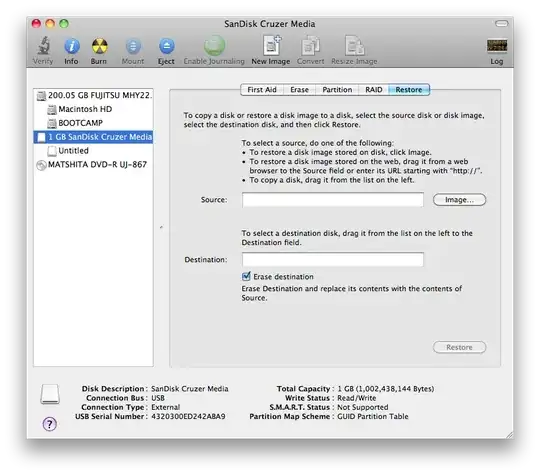
It needs to be partitioned as Mac OS X journaled (HFS+) - this will enable the GUID partition map (so the boot menu can read the ISO). Next, click source and within the finder locate the ISO and you're set.

Gaff
- 18,569
- 15
- 57
- 68

Alexander Webber
- 166
- 2
-
11This doesn't work for me. I'm partitioning my disk with 1 partition as 'Max OS Extended (Journaled)', but when I try to select the ISO in the Source: field, the iso file is greyed out by Finder, and attempting to do it by drag-and-drop gives 'Could not validate source - Invalid argument'. Also, I'm on Mac OS X Mountain Lion. – JeremyKun Jul 16 '12 at 04:39
8
With Lion, Apple has added an option to BootCamp that will create a bootable USB Windows 7 install disk, this option is only enabled in Mac models which don't have an optical drive. To enable this option just follow this guide.

Aviel
- 197
- 1
- 2
-
3Welcome to Super User! Whilst this may theoretically answer the question, [it would be preferable](http://meta.stackexchange.com/q/8259) to include the essential parts of the answer here, and provide the link for reference. – slhck May 23 '12 at 07:41
-
Thanks for the comment! I'll take it into consideration for my following answers. – Aviel Jun 10 '12 at 12:43
-
I don't know if it's a Mountain Lion thing, but I cannot modify the plist file. Even sudo won't cut it as the file is "locked". – Maciej Trybiło May 18 '13 at 19:16
-
@Aviel - Please include the relevant information from your link.. This is an excellent chance for somebody, to find the content that was at that link, and submit a new proper answer. – Ramhound Sep 17 '16 at 12:18
-
It looks like that link is dead. Or at least it's going to a very sketchy looking site with no obvious link to the information. – Sean McMillan Nov 13 '18 at 01:51
7
This worked for me:
Burn ISO to bootable USB flash drive in Mac OSX terminal (via command line Diskutil)
- Convert the .iso file to .img using the convert option of hdiutil (e.g.,
hdiutil convert -format UDRW -o ~/path/to/target.img ~/path/to/ubuntu.iso)- Note: OS X tends to put the .dmg ending on the output file automatically.
- Run
diskutil listto get the current list of devices- Insert your flash media
- Run
diskutil listagain and determine the device node assigned to your flash media (e.g. /dev/disk2)- Run
diskutil unmountDisk /dev/diskN(replace N with the disk number from the last command; in the previous example, N would be 2)- Execute
sudo dd if=/path/to/downloaded.img of=/dev/rdiskN bs=1m(replace N with your disk number)- Run
diskutil eject /dev/diskNand remove your flash media when the command completes


1
Make sure to run the Bootcamp assistant before you try to boot off the flash drive. Follow the instructions in How to install Windows 7 from USB, then see if the computer will recognize the flash drive when you boot up. To choose different boot media when a Mac starts, press Option, then select the flash drive if it appears.
If that doesn't work, post in the comments; there may be more steps required to get it to boot off of the external drive.

