117

Is it possible to disable the automatic spell checker in MS Word 2010 for single paragraphs of a document or just for some parts of a document?

I'd like to get rid of the squiggly lines in some parts of a document (e.g. containing extracts of an XML document), because they make reading the document hard.

M4N
  • 5,326
  • 6
  • 29
  • 30

6 Answers6

136

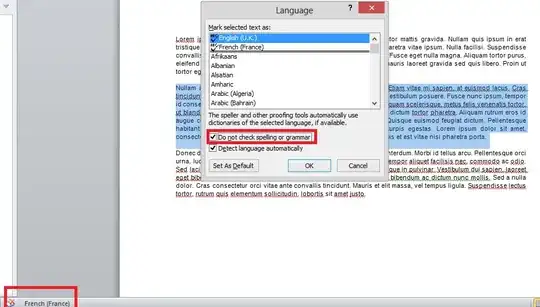
OK, I guess I found it and it's quite simple:

  • select the part of the document where you want to disable spell checking
  • click the language in the status bar
  • select the check box "Do not check spelling or grammar"
  • click OK

Word 2007

Screenshot from English version of Word

Word 2010/2013/2016

For Word 2010/2013/2016 you have use Review ribbon menu. Click Language and then Set proofing language. You can disable spell and grammar check there even you can select a different language for proofing.

Albin
  • 9,307
  • 11
  • 50
  • 89
M4N
  • 5,326
  • 6
  • 29
  • 30
  • 1
    The EN-US localization of the text surrounded by red boxes in the screenshot: "English (U.S.)" and "Do not check spelling or grammar". – Firefeather May 12 '11 at 17:40
  • 2
    In Word 2007, here is how you do the same action described above: You choose the text that needs to have the spell check disabled. And from the *Review* ribbon hit the *Set Language* button and you get the option to disable spell check as shown above in M4N's post. –  May 26 '13 at 18:43
  • I've added a English version of the screenshot, it just has to be accepted. I hope you don't mind. :D – Zain Patel May 26 '13 at 18:58
  • 4
    I recommend moving the Word 2010/2013/2016 section to the top of your answer. However, I have set "Do not check spelling or grammar" on a section - which already had a square box when I opened the dialog - and the red-underlining of text still occurs. Version: Word 2013. – PeterX Jan 24 '18 at 23:06
  • It feels so wrong that you still have to select one of the languages even if none of them fits. I am missing something like Unknown, Other or Data in the list of languages. – pabouk - Ukraine stay strong Jun 16 '22 at 10:18
  • Funny, this does not work if I select all of the document (with ctrl-a). Works for partial selections. Using Word 365 MSO (Version 2206 Build 16.0....) 64 bit – David Balažic Jul 13 '22 at 08:09
12

You can create a custom style for the XML parts. It is possible to select no-spellchecking for individual styles. Sorry I don't know the exact key sequences as I have a very old version of word.

EDIT in my old version the sequence from the style dialog is "Modify" then "format" then "language" then click "Do not check spelling or grammar".

Mick
  • 1,563
  • 7
  • 34
  • 61
  • That was my first idea, but I couldn't find any options to disable spellchecking. – M4N Mar 11 '11 at 13:38
  • @M4N and @Mick in Word 2003 (don't know which version you're using M4N, but I've got this handy) this is where you find the options when editing a style http://i.imgur.com/r0p2w.png http://i.imgur.com/PoXJT.png (Mick, feel free to use these in your answer if you wish). You can also get there from `Tools-Language-Set Language` on the menu bar, but I'd advise using a specifically designed style for your code inserts. – DMA57361 Mar 11 '11 at 13:39
  • See my edit - that might do the trick. – Mick Mar 11 '11 at 14:12
  • Modifying the style does not affect the pre-existing paragraphs. To retroactively apply the changes to the existing paragraphs: Right-click the style, Select All xx Instance(s), then select the style again to reapply. – Hampden123 Sep 24 '15 at 18:19
  • I use this method when @M4N 's answer doesn't work and it works fine – golimar May 12 '21 at 16:18
3

You can find detailed answer for each MS Office program at MS Office Support: The spelling and grammar checker isn't working as expected:

In Office 2010, Office 2013, and Office 2016

  1. Select the text that you want the spelling and grammar checker to ignore.
  2. On the Review tab, in the Language group, click Language, and then click Set Proofing Language.
  3. Select the Do not check spelling or grammar check box.

In Office 2007

  1. Select the text that you want the spelling and grammar checker to ignore.
  2. Open the Language dialog box:
    • In Word: On the Review tab, in the Proofing group, click Set Language.
    • In Outlook: In the Spelling drop-down list, in the Proofing group, click Set Language.
    • In PowerPoint: On the Review tab, in the Proofing group, click Language.
  3. Select the Do not check spelling or grammar check box.

After selecting Do not check spelling or grammar check box, I've found very useful the option to create a new style from selection:

In Word 2010, you can create a special style that is based on the selected text:

Right-click the selection, and then click Save Selection as a New Quick Style.

Give the style a name—for example, code—and then click OK.

Notice that if you don't find the New Quick Style in the context menu, you can find it under Sytles as "Save Selection as new Quick Style..."

After that, you can give that Style to all portions of text you don't want to be checked.

endolith
  • 7,507
  • 25
  • 84
  • 121
2

The following macro will toggle proofing for the selected text. You can assign a keyboard shortcut to it, which makes life easy:

Sub toggle_proofing_in_selection_only()
    Selection.NoProofing = Not (Selection.NoProofing)
End Sub

It is essentially equivalent to the effect you'd get if you use the menu/ribbon as suggested in the answer that was selected best, however, if you do assign a shortcut to it (as I did), it will save you all those mouse movements and clicks...

ynagar
  • 41
  • 2
0
  • select the part of the document where you want to disable spell checking
  • click the language in the status bar
  • select the check box "Do not check spelling or grammar"
  • click OK
Edy
  • 1
  • 1
0

No, you can however select it and then assign a specific langugae to it.

Perhaps you could add all XML tags to another language that you would never write/use?

Tamara Wijsman
  • 57,083
  • 27
  • 185
  • 256