81

I use three columns. A, B and C. In column C I have a formula every row =A1*(1.6*B1) and then for the next row I have =A2*(1.6*B2) in C2.

How can I do so I don't have to type in the new formula in column C for every row?

I use it in both Google Docs SpreadSheet and OpenOffice SpreadSheet.

Jonas
  • 26,874
  • 52
  • 105
  • 125

9 Answers9

92

Using the Mouse

  1. Click the cell whose formula you want to repeat
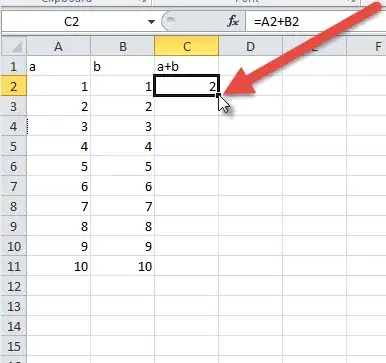
  2. A dark square "handle" will appear in the lower right corner

    Location of Drag box

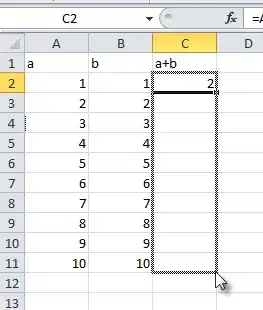
  3. Click and drag that handle, dragging down the column (or right across the row). You can also double click the handle to auto-fill.

    Dragging the box

  4. Stop at the last cell you wish to fill

Using the Keyboard

  1. Move the cursor to the cell whose formula you want to repeat
  2. Hold shift
  3. While holding, press down repeatedly to select the rest of the range of cells you want to fill
  4. When you reach the bottom, release shift then press CTRL + D (Use CTRL + R if you're filling to the right)(Using this method also preserves notes, unlike the mouse solution.)

In both cases what you're doing is called "filling." It is supported by every(?) spreadsheet program.

Geoff
  • 1,138
  • 8
  • 10
  • Is there any way I can type this? because I use a laptop and it is hard to select the hole column.... – Jonas Mar 21 '11 at 21:14
  • You can copy and paste over and over, but be sure to copy the cell (not the formula), to ensure the row numbers get updated. – Geoff Mar 21 '11 at 21:38
  • I added a keyboard-only option to the answer. – Geoff Mar 21 '11 at 21:44
  • 5
    Just FYI, in excel, you can double click the bottom, right corner of the selected cell to copy the data down the column down as long as a neighboring cell has data. The bottom right corner should have a little black box on it, you click that. – skub Mar 22 '11 at 00:00
  • @skub: I was looking for that function. Don't think it exists in docs? – Boris Callens Jul 26 '13 at 11:57
  • 1
    @BorisCallens, filling shortcuts are in `Ctrl-/` popup help. – anatoly techtonik Feb 12 '14 at 17:54
  • 1
    I have a big range, and really need the fastest way to copy the formula on all rows. The double click on bottom right corner is not working in Google Docs – Kostanos Jun 30 '14 at 23:32
  • @Kostanos - You can hold `SHIFT` and press `PGDN` to select lots of rows, then use `CTRL+D` to fill down. – Geoff Jul 03 '14 at 14:21
  • Still to slow for huge number of rows. Thank you anyway – Kostanos Jul 03 '14 at 22:06
  • 3
    @Kostanos - See ceoliphant's answer below. It should do what you need. – Geoff Aug 11 '14 at 20:35
  • You can also use Page Down instead of Shift. This is much faster if you need to fill a large number of rows. – user2428118 Feb 18 '15 at 13:53
  • 1
    I can confirm that this works in Google Spreadsheets: 1. Select cell with formula 2. Press Shift + Command + Down to select all cels below 3. Press Command + D, to fill all the range. Works like a charm for ~40000 rows – Dmytriy Voloshyn Aug 19 '15 at 09:41
  • Also you can select cell or cells with formula you want to populate, scroll down to latest cell, while Shift click on the last cell. You will select all array from your first to last cell. And then click Ctrl+D (Cmd+D on Mac) to fill out cells with formula. – Yaroslav Jan 20 '17 at 14:27
  • PURELY MAGIC!!! – peizhao Aug 08 '17 at 22:25
  • 4
    On Mac you have to use `⌘-D`. It's is also bound to "Create Bookmark" in Chrome, but still works! Also, if you configure the first cell in the column, you can simply click the column title to select the entire thing, then press `Ctrl-D` or `⌘-D` to fill down. – jchook Oct 29 '17 at 23:37
  • This will also copy the VALUE!!! – Jamie Hutber Feb 02 '18 at 00:27
  • @JamieHutber - who are you replying to? What will copy the value? – Geoff Mar 16 '18 at 17:54
  • 1
    In Google sheets you can double click on the drag handler to copy the formula down every row - as long as these rows do not already have data. – Dan Walters May 30 '19 at 10:27
  • Just a side note for information purposes: This idea of filling is sort of applying a macro to fill in multiple fields which is fine but it's filling it in with what programmers call `hardcoding` sometimes called `magic numbers`. That's having specific references to specific cells. This causes all sorts of problems in the programming world. The solution in those cases is to use variables to get dynamic not static data. I think that column name colon column name gets that but I can't get it to work. That's supposed to be `A:A` or `B:B`. – 1.21 gigawatts Nov 29 '22 at 20:33
82

An even easier solution in Google Sheets would be to enter this formula in C1:

=ARRAYFORMULA(IF(A5:A,A5:A*(1.6*B5:B),""))

It automatically propagates to subsequent rows if a value is entered in column A, removing the need to copy it to each row. In fact, if you copied it to C2, it would be automatically overwritten by the continuation of the formula in C1.

The important part is the :A and :B, which specify you'd like to include these entire columns in your formula. This means you could apply the single cell formula =A5*(1.6*B5) to entire columns with:

=ARRAYFORMULA(A5:A*(1.6*B5:B)) 

Note that this yields bad results where A and B are missing values, so we wrap it in an IF() statement (see above) to show nothing when there are no values. You could also use IFERROR() to handle bad results.

Allison
  • 103
  • 4
ceoliphant
  • 821
  • 6
  • 2
  • This is great. I wonder how you would modify it if I want to copy it to every alternate row? – shparekh Sep 11 '18 at 01:22
  • The references to specific cells (`A5`, `B5`) is unexpected/unnecessary here; @skube's answer below seems more straightforward: https://superuser.com/a/986607/9096. – mjs Nov 04 '19 at 12:54
14

The suggested answers work well for small sheets but I had thousands of rows and using the mouse or the keyboard to select them was simply too time consuming.

The ARRAYFORMULA method works but it's complicated, forces me to rewrite formula style and consider possible errors).

The solution is so simple it can be done in 2 seconds:

  1. Write your new formula in the first CELL.
  2. click on the cell, press CTRL+C (copy the cell)
  3. click on the column header (for example A) to select the whole column
  4. CTRL+V -> paste the cell formula into the whole column
  5. profit
John
  • 316
  • 1
  • 3
  • 9
  • 3
    Finally someone as lazy as me! For Google Sheets at least this should be the defacto answer. – Tom Nov 02 '17 at 11:49
  • Can this be done to only process if the other two cells are populated, I end up with a column full of 0s after the ones I did – TheHamstring Feb 07 '18 at 11:17
  • @TheHamstring You can extend your formula a little bit, add an IF case that only processes the field if it has content. In that case you can have the formula in all rows but it only outputs a value in those where you want it. – John Jan 16 '20 at 06:40
  • @John I have the same situation. So this copies the formula to each cell? How do you handle errors (empty fields)? Can you post your formula? – 1.21 gigawatts Nov 29 '22 at 20:35
13

here is a another way, go ahead and delete all the formulas that are in there right now, then type in the formula in C1 having it correspond to A1 and B1 and hit enter.
so now the correct formula is just in C1,
now click the C1 box, a bounding box will appear, the bottom right corner of this bounding box has a dark square,
double click this square and the formula will 'fill down'
you will notice C2 corresponds to A2 and B2 and so on.
if this is what you need and i am understanding correctly

fightermagethief
  • 853
  • 4
  • 12
  • 26
6

I found all of these solutions very frustrating and confusing also.

I will warn you though, this will replace whatever is currently in the cells, but as it is a formula this should not be a problem.

For me it was simple.

  1. Click the cell whose formula you want to copy once (select it)
  2. Copy the cells contents (Ctrl+C on Windows, cmd+C on macOS)
  3. Hold Shift+Ctrl+Down (selecting all of the cells in that row)
  4. Now Paste the formula as you have all of the cells selected.

This will put the formula, updated with each cells on references.

phuclv
  • 26,555
  • 15
  • 113
  • 235
Jamie Hutber
  • 363
  • 2
  • 10
  • 28
6

Very similar to ceoliphant's answer but a little more straightforward, simply add one formula to C1:

=ARRAYFORMULA(iferror(A:A*B:B*1.6))
skube
  • 241
  • 3
  • 6
5

After you write your forumla, you can double click the bottom, right corner of the selected cell with the blue box, to copy the data down the column down as long as a neighboring cell has data.

This saves a lot of time when you have a 7,000 row sheet you are working with.

enter image description here

Joshua Dance
  • 332
  • 1
  • 4
  • 11
3

P.S. I am working in OpenOffice, and now I see that it also works by simply copying the content of the cell and pasting it into the other ones. The formula is automatically adjusted to each row! (To avoid the automatic adjustment prefix the name of row number and column numbers with a $).

Mihai
  • 31
  • 1
2

You could select the complete column C by selecting the header and paste the formula =A1*(1.6*B1) . it will apply to every row.

No need to select and drag to copy to every cell.

palaniraja
  • 341
  • 2
  • 10
  • 2
    how to paste it to all the cells? as I do it, the formula is copied to the first cell only – Moisei Oct 06 '13 at 14:53