I recently read this answer on Gaming.SE, which made me realize that I actually have no idea how to tell which graphics card I have in my PC. Where can I find this information?
Asked
Active
Viewed 2.2e+01k times


9 Answers
42
Open the system Control Panel, by typing Win+Break or going to My Computer and clicking on System Properties.

Click on your Windows Experience Rating to go to Performance Information and Tools
Click View and Print detailed system information
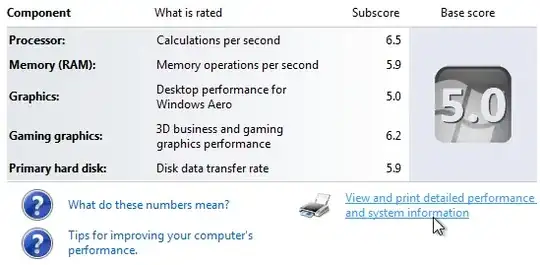
Scroll down to the Graphics section. If you have the proper drivers installed for your card, it should say under "display adapter type" what kind of graphics card you have.


-
I feel a blog post coming up ;-) – Ivo Flipse Apr 10 '11 at 09:51
-
3This will however only work if the graphics card is known to the OS, and/or a driver is installed. – Pekka Apr 10 '11 at 13:50
-
2perfectly hidden by Microsoft – Avatar Dec 19 '14 at 11:36
38
Use the DirectX diagnostic tool.
- Start, Run...,
dxdiag
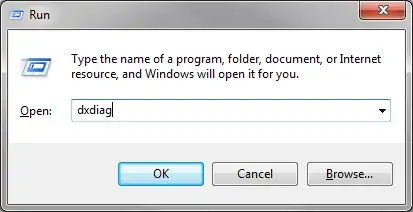
- Go to the Display tab of whichever monitor you want to determine is driven by whatever graphics card.
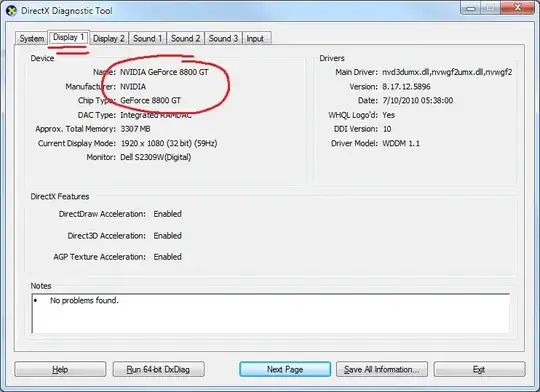
This works on any version of Windows with DirectX, XP, Vista, 7, whatever.

Nick T
- 2,667
- 7
- 32
- 42
-
1This will however only work if the graphics card is known to the OS, and/or a driver is installed. – Pekka Apr 10 '11 at 13:49
-
1
-
1Note that the 'approx memory' column in the display will usually be 2-4x times the actual memory of your card. So 3307 MB means you probably have a 1 GB card. – apoorv020 Apr 15 '11 at 16:37
-
Just in case the second graphics card is not showing up in a separate tab, make sure you have the cable plugged in correctly in your pc. Sounds dumb but exactly this hit me today. – Avatar Dec 19 '14 at 13:44
25
All the specified methods are fine as long as you have graphic card drivers installed. Here's what to do if you don't: In Device Manager, right click the Unknown Device (that you assume is the graphics card), select properties and go to Details tab. Select Hardware IDs from the Property drop list. Right-click and copy any of the values and paste it on http://devid.info/en/

Artem Pakk
- 364
- 2
- 5
-
2This is the answer I was looking for when I saw the question. When you need to know what graphics card your system is running, *there usually is no driver present* – Pekka Apr 10 '11 at 13:49
-
I know I have a graphics card, but for some reason it doesn't show up as an unknown device – erict Nov 19 '14 at 03:58
20
Use a tool like GPU-z
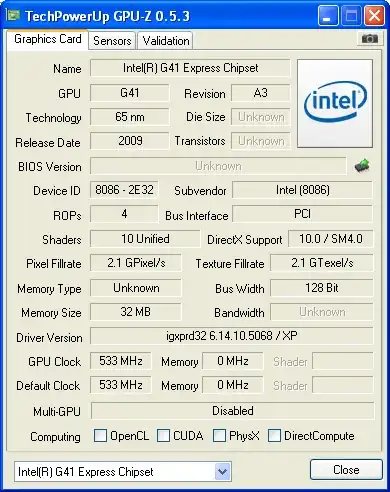

Gaff
- 18,569
- 15
- 57
- 68

Sathyajith Bhat
- 61,504
- 38
- 179
- 264
-
-
1Lets say that I use the internal gfx card for Windows, and when I check in GPU-z I see that card. Of course when I use a game I want the game to use the dedicated gfx card - will that be visible in GPU-z when that change is made? – miphe Apr 29 '13 at 21:20
-
To echo @Pekka, This will however only work if the graphics card is known to the OS, and/or a driver is installed – erict Nov 19 '14 at 03:57
17
Wow, great answers -- and I have a fourth way!
Click the start menu (or press the Windows key) and type "Device Manager", then launch Device Manager. If you're a command line kind of person execute devmgmt.msc.
From here expand Display adapters to see what kind of video card you have.
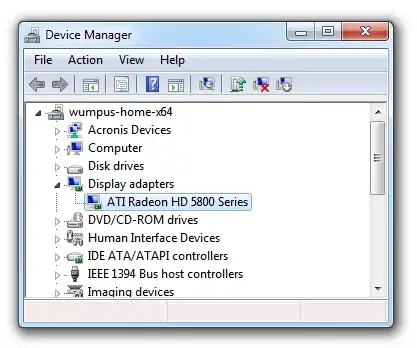
You can right click the display adapter and select properties to see even more detail.

Jeff Atwood
- 23,972
- 30
- 99
- 120
-
3This will however only work if the graphics card is known to the OS, and/or a driver is installed. – Pekka Apr 10 '11 at 13:50
-
7
13
The existing answers are all for Windows.
In Linux you can use lshw to get information on pretty much any piece of hardware in the PC.
lshw -short lists everything, look for display:
$ sudo lshw -short
H/W path           Device       Class      Description
======================================================
/0                              bus        Rampage II GENE
/0/0                            memory     64KiB BIOS
...
/0/100/3/0                      display    G98 [GeForce 8400 GS]
...
Alternatively, lshw -c display gives more detail on the graphics:
$ sudo lshw -c display
  *-display
       description: VGA compatible controller
       product: G98 [GeForce 8400 GS]
       vendor: nVidia Corporation
       ...
So in this case, the graphics card is an nVidia GeForce 8400 GS.

j-g-faustus
- 1,229
- 13
- 15
-
1I think `lspci` is more likely to be found by default on at least some Linux varieties [citation needed]. `lspci | grep VGA` gives the same info as above, if `lshw` is not found. – Daniel Andersson Apr 13 '11 at 12:45
6
For a broad set of hardware that goes detailed: Start > System Information > Components > Display:
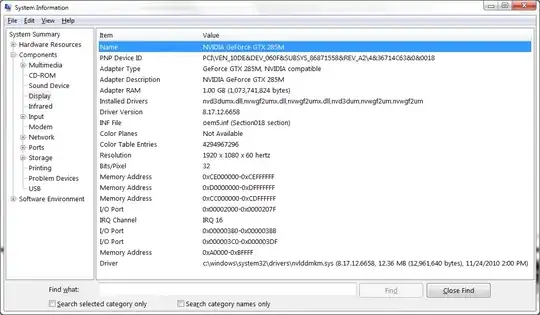
Gaff
- 18,569
- 15
- 57
- 68

Tamara Wijsman
- 57,083
- 27
- 185
- 256
6
On Mac OS X:
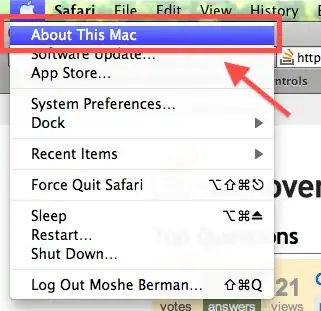
First click on the Apple in the topbar.
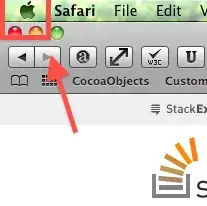
Click "About this Mac".
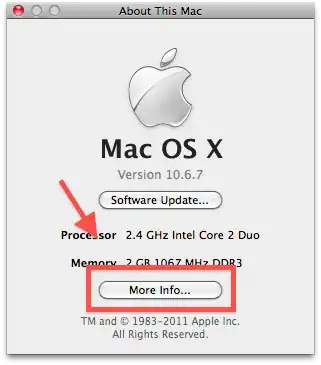
Then, click on "more info".
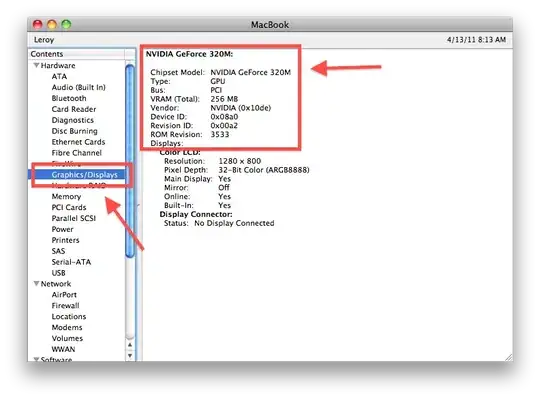
There is an entry there for your graphics information.

Moshe
- 5,828
- 21
- 65
- 100
1
If you want to know and there aren't any drivers installed here is a nifty way of doing it:
Open up a command prompt (winkey + r, write cmd, hit enter)
In this prompt type: debug (hit enter)
In the debug program write: d C000:0010 (hit enter)
EDIT: I realize that you may not have debug.exe if you run windows 7. If you get "IB M VGA Compatible BIOS." you can continue through the memory with "d" (enter, no quotes) where it may show a string like "Nvidia XXXXX" or ATI "XXXXX".
If you, however, are using an onboard graphics card you may not get another string than "IB M VGA Compatible BIOS."
Anyways its an old school way of getting the graphics card that may not be applicable for your motherboard and/or OS (windows 7 enterprise as example, pro version is ok though.)
It may however save you some trouble from time to time when you are fixing your "friends" computers still running other versions(XP) or specific versions of 7 (Can't say if it works for Vista, never ran it)
Take this at facevalue. Personally im saving this for when i need it, a 2 - 5 years old computer, that you promised to fix and re-installed but you can-not-find-the-drivers for kind of scenario.

artifex
- 436
- 3
- 12
-
Was not helpful for me at all: `00......@...00IB M VGA Compatible BIOS. .Z.j.x... PCIR...)........ ........f....... ........t....... ....../......... ................` – Artem Pakk Apr 11 '11 at 07:24