Old question, I understand. But since the one answer doesn't give any details, let's add some details.
In modern (NT-based) Windows, that is all Windows versions released since 2000 (inclusive), there are two things that govern write access:
You are attempting to modify the former, but seem to expect the result you'd get from modifying the latter. The reason I can make this claim is because it's the only possibility left (aside from malware and such), when you witness attrib not working. It's kind of akin to trying chmod on Linux and getting access denied because someone used chattr +i on the file/folder previously (which doesn't show up as a file mode).
Suppose your principal (i.e. your user in the sense of a user context) has full access to a file, it can simply remove the (DOS-)attribute the way you tried. But if you aren't the owner and aren't explicitly given permission to access a file or directory, you don't have access. The more extreme form is that someone explicitly denied you access (we'll get there at the very end).
Suppose you don't have access to an object on Windows, there's nothing you can do about it, unless you happen to be the owner of the machine and therefore can also elevate yourself to a privileged user context.
If that's the case you can use the command line tool icacls, successor to the older cacls (which has no idea about inheritance, the i in icacls), to reset the ACLs:
icacls * /T /Q /C /RESET
The /T applies the operation to all matching files and directories. /Q suppresses success messages and /C continues in case of errors. The /RESET will reset the ACLs with default inherited ACLs (from the parent container). That last point is important, because this won't work unless you also have access to the parent container.
The effect should be the same you'd expect from copying your files off of your disk to a FAT-formatted thumb drive and back. Simply because copying back from a FAT-formatted drive (which knows no ACL) will reset the ACLs to be inherited from each respective parent container.
Simply using icacls with a file/folder name will yield the ACL as output for inspection. But you can also right-click a file or folder and select the "Security" tab (also something mentioned in Linda's answer already):
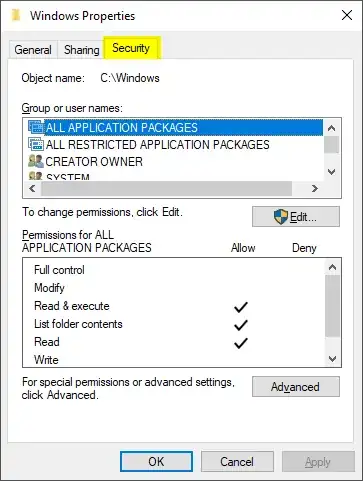
Suppose you still don't have any permission to a certain type of access, you'll want to click the "Advanced" button (in the dialog shown above) and change the owner:
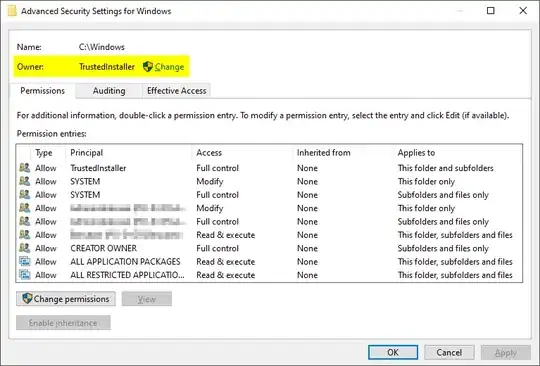
This, however, can also be done with icacls /setowner ...
And that's last bit is what is required if you want to gain access to an object (or hierarchy of objects) to which you have been explicitly denied access (Deny ACEs take precedence over Allow ones) or if the objects are owned by someone else and you haven't been given access.
However, this is getting you into "deeper waters" than you may want to venture to without reading up on the NT security model and how principals, ACLs and ACEs relate to each other. In short: get a friend with enough knowledge about these matters to help you. Taking ownership of objects carries its own risks, which is why that privilege is only bestowed on admins (and the TCB) by default.
How did we get here?
Suppose you don't have malware that plays a nasty prank on you, you don't give something like %HOMEPATH% or %USERPROFILE%, so perhaps this isn't actually your profile? Perhaps you're attempting to access C:\Users\username when your current profile is actually C:\Users\username.000?!
This could conceivably happen if you upgraded to Windows 7 and your previous profile remained under that username. It could be a changed SID for the system. Perhaps you forgot to mention that the files came from elsewhere or had been restored from a backup of a system with another SID. There's a multitude of possibilities of what could be the cause for what you're seeing.
Another possibility is that the drive on which your C:\Users resides is read-only (in case you used a reparse point of some sort to divert C:\Users), although I'd expect logon issues in this case. So I'll refer back to the profile folder issues I mentioned before.
Malware is indeed a possibility, but without an offline scan (i.e. boot with a CD/DVD and scan the system drive and all other drives of your Windows system) and under the assumption that the used AV knows about that malware, you may never know. And frankly whenever I've seen this in the past, the inspection of the (DOS) file attributes and the ACLs of all involved objects (including the parent containers) would at least give a clue, because they would indicate that the object should be accessible (e.g. icacls) but the fact that it's not would hint at the malware. So while I'm not precluding this, it's still likely not your issue.
Long story short, had I seen this question some years earlier, I would have asked for more details from you. As it stands too much is left to guessing, although restrictive ACLs seem like the most likely cause.


