47

When I'm using Chrome, Powerpoint, Notepad++, etc. I take a lot of advantage of the keyboard shortcuts in those programs. However, this gets a bit tedious and straining, having my pinky stretch down to the Ctrl key every time I need to save, for example.

At this point my pinky is strong enough to beat anyone in the "Pinky Wrestling" that Burger King describes on their hash brown baggies, but it's also quite sore after a couple hours in front of the computer.

How should I go about hitting the Ctrl key without straining my pinky?

Giacomo1968
  • 53,069
  • 19
  • 162
  • 212
digitxp
  • 14,432
  • 9
  • 56
  • 76
  • By “stretching”, do you mean folding/bending? Which hand are you talking about? I have no trouble pressing the left Ctrl key with my pinky, but doing so with the right one certainly crunches my finger. However, I can comfortably hold the right Ctrl key with my right thumb. – Synetech Aug 01 '11 at 04:49
  • 7
    That's why Apple placed their equivalent primary keyboard shortcut key where the alt key is on Windows keyboard. Much easier on the fingers. – Daniel Beck Aug 01 '11 at 10:10
  • 5
    Funny, I never use the pinky to hit the Ctrl Key. I just hit it with my outside knuckle. – surfasb Aug 01 '11 at 10:22
  • 1
    My first thought when reading was "EMACS Syndrome". And @Daniel, Haiku OS does much the same thing, but instead uses ALT for what most other operating systems use CTRL for. – new123456 Aug 01 '11 at 13:30
  • 1
    @new Interesting, unfortunately I'm not particularly keen on using an alpha release OS ;) – Daniel Beck Aug 01 '11 at 14:31
  • @surfasb, I didn’t notice until I looked at DMA’s answer, but apparently that’s what I do as well, I keep my pinky straight and hold the left Ctrl key down with the section between my palm and first knuckle. Now that I think about it, I’m sure that I probably *never* actually bend my pinky (which would be extremely uncomfortable, though not as uncomfortable as bending my **right** pinky to press the right Ctrl key since it is even farther from the letter keys). – Synetech Aug 02 '11 at 01:07
  • @Syntech: Yeah, there is no way I can reach the Ctrl without moving my hands off the Home row. I'm cursed with average fingers. – surfasb Aug 02 '11 at 05:21
  • @surfasb You got me imagining Superman trying to hit the CTRL key now. – digitxp Aug 02 '11 at 18:31

15 Answers15

51

I'd suggest that you don't use your pinky at all - press the outer command keys using the base of your small finger on the relevant hand (the edge of your palm, essentially), this works well for Ctrl and Ctrl+Shift combos.

This method doesn't require moving your hand much and doesn't require any finger gymnastics. I guess it might need a little bit of practice if its new to you, and is completely useless if you have a "flat" laptop keyboard as you need to be able to press in from the edge of the keys.

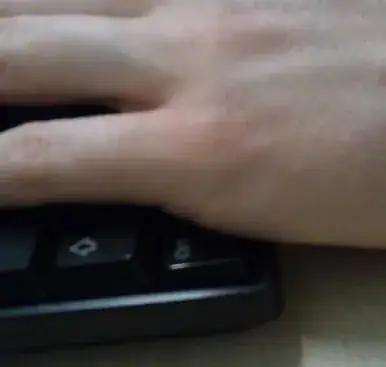
Since I'm not 100% sure I've explained what I mean very well, here's a quick photo I've just taken of what I mean - my left hand pressing the Ctrl key with the base of my small finger having not moved my hand. For pressing Ctrl+Shift my hand would just be a little further up, to cover both:

Photo showing left hand with base of small finger pressing Ctrl left of keyboard


Another option is to press Ctrl and the key being modified with different hands if you don't do so already - allowing you to lower the hand pressing Ctrl and avoid the finger gymnastics, but this again will need training and might be slower in general but especially if you happen to have the other hand on the mouse at the time.

DMA57361
  • 18,562
  • 7
  • 72
  • 96
  • 3
    Ctrl-X and Ctrl-Z are difficult to press like that with just one hand. – Daniel Beck Aug 01 '11 at 10:12
  • Ctrl+X isn't really a problem - the index finger is much easier to bend to X than the small finger is to Ctrl. But you are correct that Ctrl+Z is pretty difficult, I tend to use a curled 3rd finger here, but it's not the most comfortable manoeuvre. But Ctrl+Z is (usually) "undo" anyway, so will normally cause a break in flow, such that I'd say a delay in pressing it isn't really a problem. Hopefully, it's also used more rarely than the "easier" combinations. – DMA57361 Aug 01 '11 at 10:19
  • 4
    It's fairly easy to use your thumb to press Ctrl+Z in this position. – Alex Barrett Aug 01 '11 at 10:54
  • Somehow that feels even less comfortable that using my third finger @Alex. Just what I'm used to, I suppose. Still, one way or another it is viable. :) – DMA57361 Aug 01 '11 at 14:37
  • I can’t press the left Ctrl key with the side of my hand in your photo, instead I (apparently naturally, though I didn’t notice until just now), hold it with the first segment of my pinky (the section between the palm and first knuckle). In other words, I never bend my pinky, I keep it nice and straight. – Synetech Aug 02 '11 at 01:04
  • The key is to roll your hand 45 degrees. I learned this habit from Starcraft. For Control Z, I find myself instinctively reaching for the right side Ctrl. – surfasb Aug 02 '11 at 05:18
  • @Synetech - I don't use the side of my hand, the photo was only to demonstrate how my hand lines up with the keys as per the line, I keep my hand almost entirely flat when doing this. I'll see if I can manage to take a decent reverse angle shot that isn't as misleading. – DMA57361 Aug 02 '11 at 06:54
  • What?? How would you press Ctrl-s with your left hand like this? – Veridian Feb 17 '17 at 05:26
  • For Ctrl+ a single key in awkward place - S, A, Z etc - I tend to press that key but curling my 3rd finger or just raising my hand and finger-pressing everything. The latter is certainly the case for key combos with Ctrl+Shift and an awkward key (Ctrl+Shift+Z for redo or Ctrl+Shift+A for the action list in my IDE) - but use of those is quite rare. – DMA57361 Feb 17 '17 at 08:14
  • don't work if you use an ergonomic keyboard :p – Kellen Stuart Feb 12 '20 at 19:26
35

Using autohotkey, remap your capslock key as your third control key; the script will go something like this--

; capslock into control key
SetCapsLockState, AlwaysOff
Capslock::
Send {Control Down}
Sleep 500
Send {Control Up}
Return
Jim Syyap
  • 698
  • 1
  • 5
  • 16
  • Then how do you use the caps lock key?? Plus, he was asking how to hit it, not how to avoid hitting it. – soandos Aug 01 '11 at 04:29
  • 14
    @soandos Seriously, how often do you need to type in all caps for an extended period of time? I don't have a mapped CAPSLOCK. Much better to hold the shift key for a few seconds to type a word or two and use that valuable keys pace for something useful. – bahamat Aug 01 '11 at 05:05
  • @sandos--after remapping caps lock as your third control key, you then use that as you would when you need to use the control key (but now it's easier on your pinky). Like bahamat, I seldom use caps lock. I sit on the shift key while I type in the letters. Try it yourself and see the difference. – Jim Syyap Aug 01 '11 at 22:04
  • 2
    I had to disable my lower left ctrl key to force-train myself a new habit – bradvido Oct 03 '14 at 12:54
  • I never use the caps lock key either, so I mapped it to CTRL. A cleaner way to achieve the same thing would be a registry edit; that way you don't have to install/run another program. – nick May 12 '15 at 13:30
  • I already use Caps Lock for Escape. So this isn't an option for people like me (i.e. vim users!) – Aaron McDaid Aug 27 '15 at 15:30
  • 1
    This is a very useful program. I personally use it to invert all the number row keys to be able to access symbol directly and number with the help of shift key. This prevent having to use my pinky to press the shift key and, in my case, because I'm a programmer, I more often use the symbols than numbers. – Samuel Nov 08 '15 at 12:46
  • @soandos – you can use CapsLock very easily even after remapping. Just press Shift+CapsLock. I am using CapsLock with various modifiers to do various things but I reserve Alt+CapsLock, giving it no such function so it allows the original functionality. – miroxlav Sep 21 '17 at 00:18
  • @bahamat, if you are an enterprise SQL developer with strick UPPERCASE standards. I just used it then. – thenaglecode Oct 13 '17 at 03:27
  • I don't know what's the problem but this AutoHotKey code doesn't work very well in Visual Studio... – Jérôme MEVEL Mar 04 '19 at 06:13
  • Well actually the AutoHotKey script could be much simpler: `CapsLock::LCtrl` so this is working exactly like the `Control` button does with no weird behaviors – Jérôme MEVEL Mar 08 '19 at 06:15
  • I actually use the caps key pretty often. In VIM, (just used the caps key :) ), I was considering remapping the CAPS LOCK to ESC because it's such a pain in the butt. I definitely don't use CAPS enough to justify it being in the home row though... Perhaps you could make a macro to make CAPS just be triggered by hitting SHIFT twice quickly – Kellen Stuart Feb 12 '20 at 19:29
  • This AHK solution would be a problem for web browser users who want to use Ctrl + Tab for quick tab switching – PythonProgrammer Jan 03 '22 at 04:53
6

Since you are supposed to hit the control key on the opposite side of the keyboard of the key that you want to hit, just slide your other hand back to hit it. It may be easier to rotate your hand instead though.

soandos
  • 24,206
  • 28
  • 102
  • 134
6

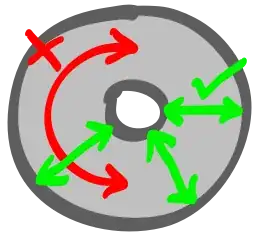
OS X has a built-in way to remap ⇪ to ⌃:

enter image description here


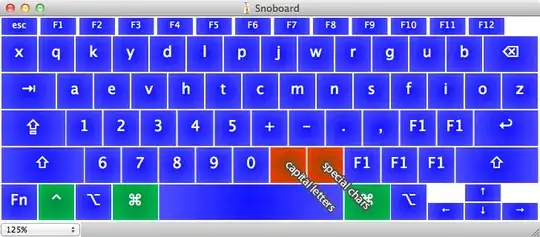
A bit extreme, but you could make a custom keyboard layout where the actions usually provided by modifier key states are accessed with dead keys under the thumbs:

enter image description here

On OS X the actions under control or command can't be remapped using this technique, but the actions that output single characters (under shift and option) can.

Gaff
  • 18,569
  • 15
  • 57
  • 68
Lri
  • 40,894
  • 7
  • 119
  • 157
4

Here is a page (xahlee.org) that talks about various ways to avoid the pinky problem.

I tried the method he outlines for pressing the control key using your palm, and had varying levels of success. Unfortunately, years of habit is very hard to break, and I keep falling back to using my pinky (on Caps Lock key, at least).

Glorfindel
  • 4,089
  • 8
  • 24
  • 37
Dysaster
  • 321
  • 1
  • 5
3

Before doing shortcuts like this, I lift my left hand off the home row (A S D F) to a new position.

I tend to turn my hand to the left slightly (~5-10°) and move my fingers down a row.

The final position is then Ctrl Z X C, with V to the right of my index finger.

Using Ctrl as a pivot point, if I open my hand the T key can be reached without much strain.

I think the strain you mention may be caused by trying to reach for Ctrl without moving your hand.

deizel.
  • 383
  • 3
  • 8
2

If you're using Windows, turn on StickyKeys (Tap Shift 5x). It lets you use Shift, Ctrl and Alt without holding the keys down.

This way for example when copying, you just press and release Ctrl followed by c.

I found it much more comfortable for my pinky when I did not have to hold these keys down.

2

You could try a different keyboard. A smaller one may fit your hand better. In fact, you may want to look into an ergonomic keyboard that feels good to you for general use, not just Chrome.

Synetech
  • 68,243
  • 36
  • 223
  • 356
  • 2
    [For some ergonomic keyboards, the Control key isn't even under the little finger in the first place.](http://www.maltron.com/keyboard-info/keyboard-layout-information/uk-keyboard-layouts/259-uk-89-dual-3d-keyboard-layouts.html) ☺ – JdeBP Aug 01 '11 at 17:30
  • I used 3 different ergonomic keyboards from now and I can assure you that ergonomic keyboards are the best solution IMHO. I currently use the Truly Ergonomic Keyboard since 3 weeks and it's a joy for my fingers. Just not to be totally inapt to use a normal keyboard, I tried yesterday to switch back to a normal keyboard for one week and I change my mind after a couple of hours because the pain having the hands squeezed at the center of the keyboard. Ctrl+C and other shortcut are done with the left part of the space bar button that I change to Ctrl key. – Samuel Nov 08 '15 at 12:42
2

You can also download Microsoft's Keyboard mapper and design your very own layout.

http://msdn.microsoft.com/en-us/goglobal/bb964665

It's relatively trivial to swap the buttons and load it up as a new keybaord mapping. While it take a bit more effort than the above solutions, it has the added advantage of being more compatible at a lower level. This is the same tool people used to make the DVORAK - QWERTY + CTRL layout.

https://stackoverflow.com/questions/808422/mac-style-dvorak-qwerty-command-keyboard-mapping-for-windows

surfasb
  • 22,452
  • 5
  • 52
  • 77
1

I know this question is 9 years old, but still hanging in there.

I've cracked this problem over a span of 15 years.

I've gradually perfected a very lightly customized keyboard layout over that time, that doesn't use pinky for CTRL. Initially I did it only so that I could have roughly the same keys for the same common functions, across Windows, MacOS with Apple keyboard, and Linux. (And any of the previous on any keyboard layout, e.g. Apple keyboard on Windows.)

The optimal way to accomplish this, is in part, to remap the CTRL function to the left Alt. Then, you activate CTRL with your thumb. Easy-peasy.

And Alt now occupies what was formerly CTRL, both left and right. Often times to activate that, I find it easier to just lift my whole hand - left or right - and press it with my THUMB, with brute-force like a monkey, and then return my hand to home row. This sound crazy actually writing it out, but it works. And this, in spite of the fact that 1) I have long fingers, 2) I'm a musician with strong flexible fingers, 3) I'm a touch-typist who can type 100 wpm if I put my mind to it. It's just automatic, fast, and it works.

For Windows on a standard PC keyboard, I remap:

  • Left ALT = Left CTRL
  • Left Windows = Context Menu
  • Left CTRL = Left ALT
  • Right ALT = Right Windows
  • Right Windows = Right ALT
  • Right CTRL = Right Alt

I do this on all machines, Windows or Linux. For Windows I use an ancient utility called KeyTweak. It remaps things in the registry and requires a reboot, so it doesn't matter that it's an ancient 32-bit program; and it works on any keyboard no matter the scancodes or funky layout. For Linux, I use a custom script that, surprisingly, took a few years of debugging to work reliably every time. It modifies XWindow keyboard mapping and has to be run after every reboot.

Hope this helps.

Jim
  • 126
  • 3
1

The pinky strain depends on your compatibility with the keyboard. I recently bought an expensive Microsoft ergonomic wireless keyboard (because my old dell one was too noisy) and while it's great for typing, it's a pinky-killer.

The problem with this one is that the Ctrl button is too close to the Z button. I have to bend my pointer and my pinky until they almost touch.

I had no problem with the dell doing this, but with the new microsoft keyboard I'd better learn how to use another finger for the Z.

After just a couple of days I'm feeling pain in the articulations. I do 3D and I probably hit Ctrl, Shift, alt, Z, X, C, V combinations about 20 times a minute. Funny I never had a problem with my dell keyboard (over 3 years of use). I guess "one-size-fits-all" doesn't go with keyboards.

Bottom line - try to find a quality keyboard based on reviews. Once bought, try to adapt to it if it doesn't feel natural. Try switching fingers (hard, I know) and ultimately, if you can't get used to it, buy another one. No point in sacrificing your health over a few $$$. A bottle of painkillers may cost as much as a proper keyboard :)

capcaunu
  • 11
  • 1
0

You may want foot switch with a macro function. I am using this. You can macro any key up and down strokes into switch on and off.

One of cons is the switch depth is far deep, some fast shortcuts like Ctrl+C, Ctrl+V are not done as you want.

Giacomo1968
  • 53,069
  • 19
  • 162
  • 212
sephiron
  • 1
  • 1
0

I'm using combination of palm pressing and key remapping mentioned in posted answers. I've swapped LCtrl with Tab using xmodmap and I press the remapped Tab with pinky and remapped LCtrl with palm.

I think it works well in that sense you don't usually press and hold Tab so you don't end up with your hand in different postion during Ctrl+ chords. However you loose pinky during e.g. Ctrl+a compared to pressing LCtrl with palm, but this issue is no different from standard usage w/o palm.

I strongly agree that standard placement of Ctrl is no-go for pinky (especially RCtrl which is often farther than LCtrl) given that how many keyboard shortcuts involve Ctrl.

WloHu
  • 101
  • 3
0

Abandon the home row with your left hand! Having been a PC gamer for over a decade, my left hand rests on the following keys: Shift, A, W, D, Space. From here, you can reach Ctrl without breaking a sweat. As a bonus, you can tell your boss that the extended gaming sessions at your work desk are for "training".

Sam Rice
  • 556
  • 4
  • 4
0

Late to the party, but since I've been struggling with this for some time and, even tried some of the solutions proposed with varying results, I've recently found a solution which worked awesome for me, since then, about 4 months ago.

Remapping keys to other positions didn't help me as much, since they were also away from the home row. Good ergonomic keyboards with "mod keys under thumbs" and fancy shapes are very expensive (although it would have been justified if this didn't worked).

What I ended up implementing is a home row mod tailored to my needs and tastes, specifically GACS variant on my S,D,F,G keys instead of A,S,D,F due to keyboard shape, my hand ergonomics and personal prerence. Notice that the article refers to firmwares and keyboards, but I've done it purely via software under Linux with my aging split keyboard. Read it just for the ergonomics, they make a lot of sense.

Basically, it means using keys in the home row as dual letter/mod. For example, I have my F key act as CTRL if hold and regular key if press-released. Ditto for S/Super,D/Alt,G/Shift. Also, since I'm on a split keyboard which provides a nice separation, I've mirrored those in H/J/K/L keys so I have mod keys in both sides. Now my home mod keys are always closer than the real mod keys, which is awesome to get used, since it becomes more comfortable soon. You can tweak your setup to what suits you better. Ergonomically, looks to me the best solution and very easy to get used to.

The software I've used is kmonad and a config file refined as I've been using it. Kmonad is a true awesomeness for keyboard customization. I've also added some very personal gimmicks, such as an extra ESC key on my Right Shift tap, and " (double quotes) on Left Shift tap, added to their usual function. And, by using layers (see docs) I've created an extra arrow keys set by doing B+[hjkl]. You can go crazy in customizing and works for any keyboard, no special hardware/firmwares needed.

After some months of using, I've got very used to it. Since you keep normal functioning, it does not gets much in the way and you can progressively get used. Try using F/J as Ctrl at first. I was surprised on how quick I got used, but as it's way easier (read: lazier) to use them, it quickly became my preferred choice. Feels very comfortable, since there is way less hand travel. And, since you have all keys at your disposal to create customizations and layers, it can fit well for lots of cases.

amontero
  • 31
  • 2