40

One time I searched for Orange Juice in Chrome's Omnibar. Now, every time I start typing Orange, I get the search suggestion:

How do I get Chrome to stop offering me this search suggestion? If I need to edit some config file, I can do that.

Please don't post answers if you haven't ensured they work first. (This is intended to prevent people from answering "Press Shift-Delete.")

Clarification: I'd prefer a solution in which I can selectively delete entries, not just by time segment. I also prefer a solution that does not involve cancelling any Chrome functionality.

Ram Rachum
  • 5,121
  • 14
  • 58
  • 80
  • 1
    I think you have to clear cache of the browser to get rid of this. – Darius Aug 22 '11 at 18:37
  • 1
    @Ram Rachum: Why do you downvote answers that don't work for you but that do work for others? – harrymc Aug 27 '11 at 05:38
  • 1
    If everyone who it doesn't work for gives a downvote and everyone who it does work for give an upvote, we'll have a pretty good idea on which answers are good. – Ram Rachum Aug 28 '11 at 14:32
  • Note that starting with v28 the History page has changed and there is no more "Edit Items" link. The fastest way to delete the term from the omnibar autocomplete is to clear your history up to the point where you first used that term and restart the browser. At least that did the trick for me. – thdoan Apr 01 '16 at 03:49
  • I already have an answer to this: https://superuser.com/questions/579257/google-chrome-disable-url-suggestions-from-history/1234987#1234987 – mhadidg Aug 01 '17 at 05:44

14 Answers14

33

The term Orange Juice is stored in the C:\Users\{username}\AppData\Local\Google\Chrome\User Data\Default folder for Windows 7, and in /Users/{username}/Library/Application Support/Google/Chrome/Default for Mac OS X, inside a SQLite database file named History (no file extension), in a table called keyword_search_terms. If you're looking to change URL predictions, the table is called 'urls'.

You need to make sure Chrome is not running, so open this page in another browser.

Next, download a SQLite database browser such as SQLite Browser (recommended for OS X), or the Firefox addon SQLite Manager.

With the Firefox addon, you can click on Explorer's address bar and paste %LOCALAPPDATA%\Google\Chrome\User Data\Default to quickly get to that folder.

SQLite browser doesn't show you the hidden files & folders you need on mac. You can choose "Go To Folder..." and paste the path to have the folder opened, or you can go to Finder and have all hidden files/folders shown. Follow these steps to show them. Then go to /Users/YourMacUsername/Library/Application Support/Google/Chrome. Drag the 'Default' Folder to the sidebar as a shortcut. Then, in SQLite browser, click the open folder icon in the top left, and then the default folder in the finder sidebar. Select the file named 'History' with no file extension. Then find and go to 'Browse Data'.

Next, open up the keyword_search_terms table, and in the lower_term column, find Orange Juice delete the row and save changes. For URL predictions, open up the urls table and remove entries.

If you want to do this in one command, SQLite can run SQLite SQL scripts, too. Something like DELETE FROM keyword_search_terms WHERE lower_term = 'orange juice'.
Jon Ramvi
  • 103
  • 4
William C
  • 2,439
  • 5
  • 27
  • 44
  • 1
    Great. I apologize for the half-bounty, SO didn't notify me that the bounty was ending. – Ram Rachum Sep 02 '11 at 18:45
  • How does manually deleting a row affect the rest of the database? Doesn’t it mess up the other tables when you remove an indexed row? Don’t all the other rows that have the corresponding id now point to nothing? What about the other files like `Archived History` or the monthly ones? I would love a manual solution, but I have found the Chrome databases to be too intertwined and messy to be that easily editable. – Synetech Sep 06 '11 at 20:56
  • @Synetech: Deleting a row causes a row in the `url` table to have nothing pointing to it. This url row is orphaned, a waste of a few bytes of space. That's okay, because if you think about it, Chrome traverses from `keyword_search_terms` to `url` and never ever the other way around. Also, nothing uniquely points to `keyword_search_terms`. The `Archived History` or the monthly files are unaffected. Lastly, Synetech, c'mon, what's the worst thing that could happen? :) – William C Sep 07 '11 at 04:11
  • 2
    *> worst thing that could happen?* You could corrupt the history and lose all record of the sites you’ve visited. I’m not one of those people who has to wipe out all traces of all the seedy things they do. `:-)` – Synetech Sep 07 '11 at 05:29
  • **This deserves more upvotes**, great find! I can finally try and get `cal` to point to calendar.google.com instead of 'cats doing silly things' searches – Jay Wick Jun 11 '13 at 06:43
  • This shouldn't be the accepted answer. There are a lot more ways that are better because they are using ways the Google Chrome developers actually implemented to do this job... – Daniel Hilgarth Oct 05 '14 at 08:44
  • I'm also a big fan of deleting things from chrome's sqlite's however this didn't work, I can still see my previous searches, I actually don't want to see any searches and only see the url's instead – Kaan Soral Jan 31 '15 at 20:02
  • -> You also have to delete all the "omni_box_shortcuts" from the Shortcuts database similar to the History ... it did solve the issue for me – Kaan Soral Jan 31 '15 at 20:45
33

The easy solution to delete a single prediction is:

What annoyed me was entering facebook.com. I was used to write "face" and then press "enter". But i messed it up, and when i was writing "face" instead of auto completing to facebook.com I was ending up on the address "face/" which obviously gave a error, because no such address exists.

The solution is (in my case)

Write the address you want to remove, in my case "face". Press the down arrow, to select the first prediction, or the prediction you want to remove. After it is selected, simply press "Shift+Delete".

Enjoy

kiarfuzzy
  • 339
  • 3
  • 2
7

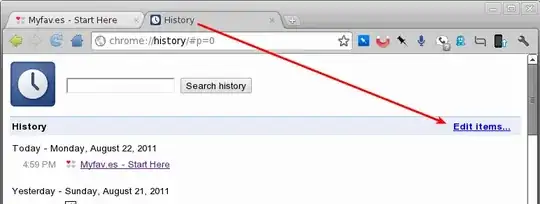
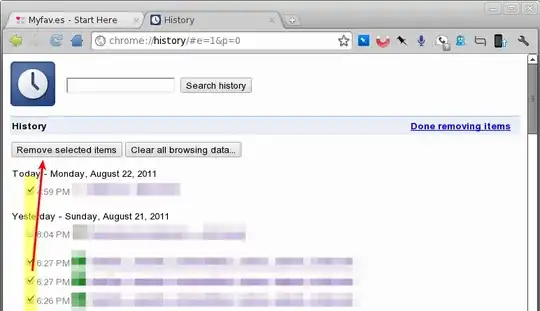
Instead of going into Options to delete entries, you can also delete history by hitting CTRL+H: Hit edit items... Check your items and hit delete

digitxp
  • 14,432
  • 9
  • 56
  • 76
  • Tried it, didn't work. Searched for my search term, found a Google search, deleted it like you said, restarted Chrome, but still getting the search suggestion. – Ram Rachum Aug 22 '11 at 23:49
  • This works with mine, even after restarting Chrome: http://imgur.com/a/ZxgzN#DqIOk – Ellesa Aug 26 '11 at 21:16
  • Wrong. This deletes history options but not itemss that appear even when history is cleared. – superuser Feb 09 '15 at 05:57
2

The Shortcuts Database also has a reference that will pull up the recommendation if you dont go clear it as well.

MLS
  • 29
  • 1
1

Click the wrench icon in the upper right corner

select options

select under the hood on the left side

select clear browsing data

select a time from obliterate the following items from

check clear browsing history

click clear browsing data

restart Chrome and your searches are gone.

Keltari
  • 71,875
  • 26
  • 179
  • 229
1

Upon further investigation and rereading your question, it seems that you can't nuke search entries selectively. It's buried in there in your profile in some obscure cache file or something.

However, you can disable the autocomplete:

The prediction service is typically turned on by default. Follow the steps below to turn it off.

  1. Click the wrench icon tools menu on the browser toolbar.
  2. Select Options (Preferences on Mac and Linux; Settings on a Chromebook).
  3. Click the Under the Hood tab.
  4. In the "Privacy" section, deselect the "Use a prediction service to help complete searches and URLs typed in the address bar" checkbox.

Keep in mind that the address bar shows matches from your browsing history, in addition to predictions. If you don't want to see matches from your browsing history, clear your browsing history.

You can couple this with the disable history suggestions flag, --disable-history-quick-provider.

digitxp
  • 14,432
  • 9
  • 56
  • 76
  • 2
    I'll keep looking for a solution that doesn't involve cancelling Chrome functionality. – Ram Rachum Aug 23 '11 at 18:12
  • @Ram Unfortunately, since Chrome is not very extensible, that means you're going to be spending some time either lobbying Chrome devs or implementing what you want yourself. Sorry. – digitxp Aug 23 '11 at 18:16
  • 4
    Let's see: IE has allowed you to do this almost as long as it has had an address bar. Firefox has too. Chrome, you've got some catching up to do. – music2myear Aug 26 '11 at 20:49
0

Type the first letter of the word you search, e.g o (in case of orange juice). When you see the word on the opened section under address bar, navigate to (Orange juice) Hold the shift and delete the whole suggestion USING BACKSPACE. You won't see it again when you type (ora..)

John
  • 9
  • 1
0

This has worked for me, for removing a site from omnbix: Example removing facebook.com:

  1. Type f
  2. Use the arrows down-up to select facebook, even if it is first
  3. Hold shift, hit delete, then release shift (On a mac you have to hit fn while holding shift)
Nifle
  • 34,203
  • 26
  • 108
  • 137
0

Update: this will delete all Omnibar history.

Just launch Chrome with option

--omnibox-popup-count=0

(you may append this line to the end of "Target" field in "Properties" window for Google Chrome alias)

This option will cause Chrome to erase all remembered search suggestions. It will not cause Chrome to turn off suggestions completely.

(original answer provided by some Google user, named Bapabooiee, back in 2009)

alexkovelsky
  • 141
  • 6
0

On a chromebook, you should try shift+alt backspace, that's what worked for me

Jack
  • 1
-1

to completely remove your history and searchs goto your account when looged into google select dashboard or just goto:

https://history.google.com/history

there you can remove all your history including switching history tracking off.

When using chrome your bookmarks and searches etc usually sync to your account so when clearing this hostory it will clear throughout your profile meaning when you load chrome that history will also dissapear.

Outside of thast just download any free history eraser to erase all local content from your pc but bare in mind that this does not effect you online google profile.

itspj
  • 1
-1
  1. Press Ctrl+h
  2. Click on clear browsing data
  3. In the dialogue that appears, check the 6th option - just under the password option - (I have a french version of Google Chrome)
  4. Click clear browsing data.
Linger
  • 3,274
  • 10
  • 35
  • 47
-1

I'm not sure if this applies to all versions, given that the original question was asked 3 years ago, but I see that this topic is still active, so…

The problem is that Chrome is saving specific sites as 'search engines'. Not sure what's in the site coding that makes it do that, but here's now to fix it:

Options/Settings > Search > Manage Search Engines

You'll see a dialog box with the usual search engines: Google, Yahoo, Wikipedia, etc. Below that you'll see "Other Search Engines". Go through and delete any you don't want. (Hover over the entry. There's an X all the way to the right. Click to delete.)

Sorted. That worked for me at any rate.

Smokegrey
  • 1
  • 1
-1

Alt-Backspace is the equivalent of delete, so shift-alt-delete will delete items from the search bar.

I have tried and it worked on my HP11 Chromebook, so it should work. Hope I helped!

Kevin Panko
  • 7,346
  • 22
  • 44
  • 53