19

When I copy multiple files on a Mac, the system tries to copy them all at the same time. The problem is two-fold.

First of all, when you select multiple files and copy them, they all go into one process with an "all or nothing" approach not unlike ACID in databases. Often this is not desireable.

Further, when you add other copy-processes, the system tries to copy everything at the same time.

For example, I decide to copy a large file A, then later I decide to copy a large file B as well. This results in two parallel copy operations, regardless if one of the "large files" also is a selection of many files.

I do not like this for several reasons:

  • When several copy processes run at once, it seems to bogs down other processes.
  • Also, when several files are copied at the same time, the copy process itself seems to go much slower.
  • And lastly, if the process is aborted, none of the files reach its destination.
  • When adding a file to the queue, it will also start copying at once, and bogging down the process even further.
  • This is a real problem when copying to other machines or drives on the (local) net.

Result: The file A, which I wanted to transfer and use first, takes much longer to arrive than needed, and when copying from a central HD on the LAN, I cannot use the first file until all the other files also have arrived.

Thus... How do I queue multiple files for copying on a Mac? To clarify: Regardless of many files are chosen, or they are added one by one, I want them all put into a queue that only copies one file at a time, until the queue is done.

Answers in Bash and especially Perl are also welcome!

Oliver Salzburg
  • 86,445
  • 63
  • 260
  • 306
Kebman
  • 515
  • 2
  • 5
  • 13
  • I really don't understand the question. It partly seems you start multiple independent copy operations at once, and then again, you don't...? Have you tried copying all relevant files as part of the same copy operation e.g. by selecting them all, then dragging to the destination; or selecting them, `Cmd-C`, then `Cmd-V` at the destination? – Daniel Beck Aug 27 '11 at 13:57
  • 1
    @Daniel I tried to clarify the question — this is a problem I've encountered myself as well: It's about starting independent copy operations. The solution would be a queue where you can just put files to be copied and the jobs would be processed in a sequential way. – slhck Aug 27 '11 at 14:01
  • @slhck How does *And lastly, if the process is aborted, none of the files reach its destination* apply to independent operations? What does *I cannot use the first file until all the other files also have arrived.* mean? – Daniel Beck Aug 27 '11 at 14:02
  • 1
    It's also a problem when selecting many files and copying them. All the files constitute one process where the files in it aren't possible to queue. This is IMHO also bad. Nevertheless, I'd also like to add files to a queue. – Kebman Aug 27 '11 at 15:22
  • They are actually copied one after the other. You mean the order in which they're copied is essentially random? – Daniel Beck Aug 27 '11 at 16:05
  • 3
    This is behavior of the Finder which I find absolutely infuriating and stupid. And I can not figure out why no-one at Apple has done something about this, just for their own sake! It just doesn't make sense that the OS behaves in this way. Quite frankly, I was hoping to learn about a deep, hidden preference only available by editing a plist file which would force the Finder to use "individual" copy mode. Or something like that. Disappointed! – AuralArch Jul 16 '20 at 22:58
  • Even worse is that Finder STILL does this 12 years on... You start copying a large file, and then start copying a second large file, and the copy performance is now MUCH WORSE than if you waited and did them one by one. – theLastNightTrain Sep 01 '23 at 19:21

8 Answers8

9

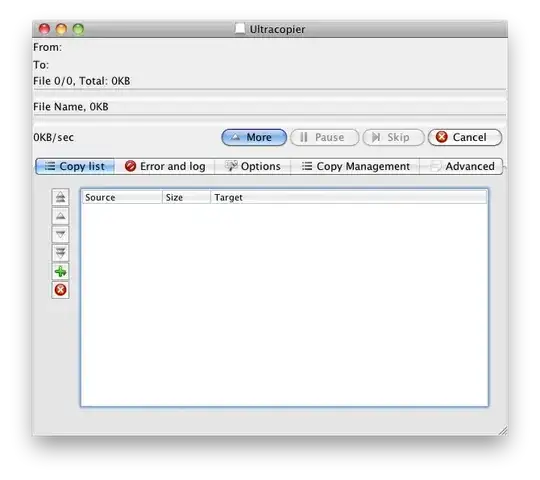
UltraCopier

UltraCopier is a free and cross-platform copy utility that is currently in development, so it's not that neat and polished yet. Once you install it, it sits in your menu bar.

It manages a copy list that allows you to queue copy or move jobs, which are then sequentially processed. You can also define the copy process priority as well as the block size of the transfer.

With the new version you can group with similar source and/or destination, or just always or never.

enter image description here

slhck
  • 223,558
  • 70
  • 607
  • 592
  • Nice! *Using!* Works perfect! Actually looked up XCode, Cocoa and Objective C contemplating writing my own app. – Kebman Aug 27 '11 at 17:10
5

Here is a bash solution:

cp file1 dest1; cp file2 dest2

Repeat this for how ever many files you want to copy. Just keep adding semicolons and cp commands.

You could also do

cp file1 dest1 && cp file2 dest2

In this example, the file will only be copied if the one before it copied successfully.

For a folder, you can do something like this:

for x in folder/*; do echo "Copying $x"; cp "$x" destdir; done
Wuffers
  • 19,020
  • 17
  • 95
  • 126
  • But when you try to copy an entire folder this way, it is treated as one process again, which isn't desirable. I also want each file in the folder queued. – Kebman Aug 27 '11 at 15:28
  • 1
    @Kebman: See my most recent edit. – Wuffers Aug 27 '11 at 15:31
  • 2
    Be aware of files with spaces and globbing characters with the `for` approach. I'd probably do it with a `find -print0` piped into `xargs -0` to be safe. – slhck Aug 27 '11 at 15:50
2

The Finder alternative Path Finder includes a copy queue functionality since version 6.

File Transfer Queue

Access current file operations from either a toolbar item or a separate unified window.

Daniel Beck
  • 109,300
  • 14
  • 287
  • 334
2

Path Finder 6 looks easier to navigate than ultracopier and definitely creates a clear cue, plus it has way more options. There's also a 30 day trial for it.

But I'm using this professionally so I say totally worth it.

File Operations in Path Finder 6 (YouTube video)

slhck
  • 223,558
  • 70
  • 607
  • 592
  • 1
    I was looking for a free solution, but Path Finder is known to be a good app. In fact I think it's a shame that Finder is so simplistic that you need a third party app if you want to do any anything half-advanced. – Kebman Jan 02 '14 at 13:42
2

In addition to some of the other copy managers in this thread, you might want to look at ForkLift: http://www.binarynights.com/forklift/

Pros:

  • Turn queuing on / off,
  • FTP + SFTP + Amazon S3 + WEBDav,
  • Bunch of handy sync tools geared towards developers.

Cons:

  • Paid (though at the time of writing there is a special on the App Store but...),
  • App Store version is missing features (oh sandbox).
LordParsley
  • 201
  • 1
  • 4
1

I had the same issue and found an app on the app store called 'CopyQueue'.

https://itunes.apple.com/gb/app/copyqueue/id711074010?mt=12

It seems to work great. Just drag the folder(s) or file(s) you want to copy to the queue and it will start copying through the queue. You can pause, reorder queue priority, and one of my favourite features is click verify for it to confirm the copy was successful.

Art Gertner
  • 7,149
  • 11
  • 42
  • 72
Tris
  • 11
  • 1
1

There's also Mini Copier - UI looks pretty similar to UltraCopier.

Steve Bennett
  • 1,740
  • 6
  • 21
  • 40
-1

Plan what you want to move

  • Create aliases of the folders in the source
  • Move the Aliases to the target folder

Make a script that finds the aliases and replace them with the origin (move)

Launch the script and go to sleep.

Ramkam
  • 1
  • 1
  • 1
    I don't want to plan. I just want to queue up files and have them moved one by one without thinking. Creating aliases is superfluous if you already use a script. Also, if I knew how to make a script, I'd already have made it. Do you have an example of a script that supports _file queuing_? – Kebman Jan 28 '14 at 15:11
  • Put source pathes and target pathes in a "queue.txt" text file, separated by a delimiter, like a pipe |. Example of a line /foo/bar/source|/target. Then cat queue.txt | while read l; do src="$(echo "$l" | awk -F"|" '{print $1}')"; dst="$(echo "$l" | awk -F"|" '{print $2}')"; echo "Copying from $src TO $dst"; cp -r "$src" "$dst"; done. That's a very crude example. I wouldn't advise you gamble on scripts just like that, there's ton of pitfalls. Anyway if you ever try, start by reading this : http://devblog.virtage.com/2013/01/to-trailing-slash-or-not-to-trailing-slash-to-rsync-path/ – Ramkam Jan 29 '14 at 10:26
  • The link has died or moved, would it be this article, [Rsync – To Slash or Not To Slash?](http://qdosmsq.dunbar-it.co.uk/blog/2013/02/rsync-to-slash-or-not-to-slash/)? – Greenonline Dec 09 '21 at 13:15