57

I know that there used to be a Corsair memory detection tool, but I can no longer find it. I didn't find anything when searching Google.

I would like to scan my machine to know a few things:

  1. How many memory slots I have on my motherboard.
  2. The stats per memory stick I have installed in my machine (i.e. speed and size of each stick)
  3. The maximum allowable size and speed per slot (i.e. my motherboard can manage 4GB per slot, at DDR27600 - if that is even a speed, been a while since I upgraded :|)

I am using Windows XP and 7. Any suggestions?

Gaff
  • 18,569
  • 15
  • 57
  • 68
marcamillion
  • 905
  • 4
  • 11
  • 21

12 Answers12

83

How about going by command-line without any third party installer?

wmic MEMORYCHIP get banklabel, capacity, caption, devicelocator, partnumber

gives you something like this

BankLabel  Capacity    Caption          DeviceLocator   PartNumber
BANK 2     4294967296  Physical Memory  ChannelB-DIMM0  xxxxxxxxxx-PB
sarat
  • 1,506
  • 3
  • 17
  • 21
31

To answer question (1) using WMIC:

wmic memphysical get MaxCapacity,MemoryDevices

produces something like this:

MaxCapacity  MemoryDevices
16777216     2
mivk
  • 3,441
  • 36
  • 33
AndyH
  • 411
  • 4
  • 2
28

CPU-Z offers detailed information about RAM slots, timings, XMP profiles, etc. As for max supported you normally will have to look up the limits imposed by your northbridge.

enter image description here

Gaff
  • 18,569
  • 15
  • 57
  • 68
Lamar B
  • 1,315
  • 8
  • 10
22

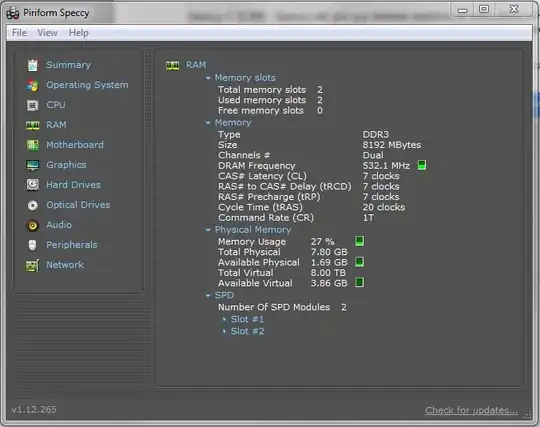
Try Speccy Free Edition

.

enter image description here

Moab
  • 58,044
  • 21
  • 113
  • 176
11

For anyone using Windows 10, you can just open Task Manager -> Performance Tab -> Click Memory and it will tell you slots used out of total available.

Andrew Nguyen
  • 511
  • 5
  • 4
9

What about PowerShell, Let's check this out:

Get-WmiObject -Class Win32_PhysicalMemory | fl BankLabel, Capacity, `
  DeviceLocator, PartNumber, SerialNumber, PositionInRow, Speed, Tag
marcino
  • 91
  • 1
  • 1
3

To find total RAM slots are in a server use the below in a command prompt:

wmic memphysical get MaxCapacity, MemoryDevices

To find how much RAM is present in the server use the following:

wmic MEMORYCHIP get banklabel, capacity, caption, devicelocator, partnumber
bertieb
  • 7,344
  • 36
  • 42
  • 54
Gabriel
  • 31
  • 1
2

The easiest solution for Windows users is to open the Windows Task Manager.

  1. Press the Windows key, type Task Manager, and then press Enter.
  2. In the window that appears, click the Performance tab, then select Memory.
  3. In the lower-right corner, the number of slots is displayed in the Slots used: section.

You can also use some apps or examine the motherboard. This post will show you these two methods: https://www.computerhope.com/issues/ch001405.htm

laurayuan
  • 145
  • 4
2

None of the solutions above truly present an accurate description of physical memory configurations including empty slots, particularly with servers running Windows due to the lack of SPD info (which most of the reporting programs freely available rely on). The ONLY solution I have found that does not cost s-tons is Belarc Advisor. It doesn't have a nice real-time interface like Speccy but the text report is mucho helpful. Just look at this, does not get any more clear:

Memory Modules 
Slot 'DIMM_A1 ' has 16384 MB (serial number 0D561***)
Slot 'DIMM_A2 ' is Empty
Slot 'DIMM_A3 ' is Empty
Slot 'DIMM_A4 ' is Empty
Slot 'DIMM_A5 ' is Empty
Slot 'DIMM_A6 ' is Empty
Slot 'DIMM_B1 ' has 16384 MB (serial number 0D561***)
Slot 'DIMM_B2 ' is Empty
Slot 'DIMM_B3 ' is Empty
Slot 'DIMM_B4 ' is Empty
Slot 'DIMM_B5 ' is Empty
Slot 'DIMM_B6 ' is Empty
Danilo Piazzalunga
  • 331
  • 1
  • 5
  • 13
Ciscodile
  • 21
  • 1
  • I know this is an old post but I needed to see what memory was installed on my server and what slots were open. I don't have physical access, only RD. I like and use Speccy a lot but it was not able to tell me the slots used vs open on this particular server. Belarc Adv did that for me. Between BA and SIW below (which also was helpful for the details on the exact memory currently installed) I have a handle on what I need. – Jeff Mergler May 22 '18 at 18:48
2

I've used System Information for Windows (SIW) for years and found it a fantastic toolkit. Not only does it show number of memory slots, it shows what's in them, the maximum capacity, the manufacturer, part number, voltage etc etc

That's just the tip of the iceberg - you can find out software licence keys (Windows, Office and others), certain passwords, CPU information, laptop battery wear, hard drive temperatures, the list is endless! (I've used it for years and must have used a fraction of it's features.)

Not only that - there's no install, it's just a 2MB executable so ideal for putting on a USB drive for PC diagnostics.

System Information for Windows

Unfortunately, the free home version has been discontinued, and even if you can find it it doesn't work on Windows 10. I guess Gabriel Topala finally wanted more than the "Buy me a coffee" option, but to be fair he's certainly earned it!

SharpC
  • 593
  • 5
  • 8
  • I know this is an old post but I needed to see what memory was installed on my server and what slots were open. I don't have physical access, only RD. SIW (trial) was helpful for the details on the exact memory currently installed including model, Serial, Capacity, speed, etc (all crucial details when ordering more ram). It didn't indicate empty slots however (maybe due to trial status). For that information Belarc Advisor above was good: it indicated 2 slots of n were being used. Now I know that I can get n-2 more ram for this machine. – Jeff Mergler May 22 '18 at 18:48
0

On windows you can just :

  1. Open the task manager (Shortcut Ctrl + Alt + Escape Key)
  2. Click on the Performance Tab
  3. Select The Memory Option
  4. Information of the memory will be available (including information about available slots, used and unused).
tinlyx
  • 1,460
  • 6
  • 26
  • 42
Kali
  • 1
0

The easiest solution for Windows users is to open the Windows Task Manager.

Press the Windows key, type Task Manager, and then press Enter. In the window that appears, click the Performance tab (A), then select Memory (B). In the lower-right corner, the number of slots is displayed in the Slots used: section (C).

laurayuan
  • 145
  • 4
  • (1) This seems to duplicate a couple of previous answers.  (2) What's this about "A", "B" and "C"?  Did you mean to include a picture?  (3) Please specify what version of Windows you are talking about.  This does not work on all versions. … … … … … … … … … … … … … … … … … … Please do not respond in comments; [edit] your answer to make it clearer and more complete. – G-Man Says 'Reinstate Monica' May 07 '20 at 04:24