I don't even use this browser normally, just for testing purposes, and the directory size of "Chrome" in "AppData\Local\Google" is like 500 MB.
Is there a way I can disable page cache in Chrome?
I don't even use this browser normally, just for testing purposes, and the directory size of "Chrome" in "AppData\Local\Google" is like 500 MB.
Is there a way I can disable page cache in Chrome?


Just found out about this solution. You start Chrome under Windows with --disk-cache-dir=null parameter and enjoy. Works also under *nix system with /dev/null.
You can limit the disk cache size with a very small number (say, 1 byte) with an option:
--disk-cache-size=N
Where 'N' is the cache size limit, in bytes
Perhaps, another option is also useful for a similar purpose: --media-cache-size=1
I've tried --disk-cache-size=1 in my Chromium 17.0.963.1 (under Linux), and it has an effect: the size of the cache dir has reduced tremendously!
(Now I wonder whether it's possible to put this option into a configuration file, preferrably system-wide one -- so that it will be the default without me having to replace the menu and/or hiding the executable with my own script with this option. I would like it as a default on my system as a measure for more effective usage of my SSD.)
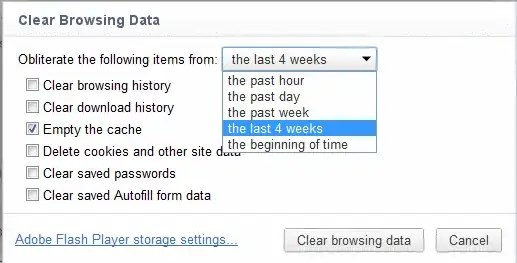
You can clear the cache regularly.
Settings -> Advanced -> Privacy and Security -> Clear browsing data
or
More Tools > Clear browsing Data
Once the cache is cleared use Incognito mode to disable caching while browsing.
The easiest way to disable browser caching in Google Chrome is simply to use its "Incognito Window" mode, similar to IE's InPrivate mode. Press CTRL + SHIFT + N to open up the relevant tab.
Some other suggestion here for normal mode, not sure if any of them work.

Press f12 to open the developer console. Then, under the elements tab, click the gear in the lower right corner:  . On the left, there is an option to
 disable cache.

Temporary Clearing
If you hit <Ctrl> + <Shift> + <Del> it will automatically bring up the clear cache screen.
The other option is hit F12 to reveal the developer panel and then hit the gear in the corner

The most effective way to disable caching in Chrome is to provide it with a cache directory that does not exist. D.Iankov answer helps but the full solution looks like this:
--disk-cache-dir="z:\" --media-cache-dir="z:\"
You need to specify both cache directories to eliminate Chrome caching. On Windows, use the above line (if you don't have a z: drive) or use any other drive that does not exist. On Linux/MacOS, /dev/null will work instead of "z:\".
The above line needs to be added to the Chrome shortcut properties. To find the shortcut on Windows, press the Start button, click into the search window and type Chrome (don't press Enter). Wait for a shortcut to Chrome to appear. Right click on it and select Properties.
In the Google Chrome Properties window, find the field labelled "Target" and add the above line to the end of it. If the path to chrome.exe is surrounded by double-quotes, make sure that the above line is added after the closing double-quotes.

Try the Cache Killer extension, which effectively disables the browser cache.
Automatically clear your browser cache before loading a page. Can be enabled/disabled with a single mouse click.
This extension allows you to easily disable caching in Chrome. When Cache Killer is activated, it will clean your Browser Cache before every page load. With just one click you can disable or enable this feature.


The best way to do this if using Windows is to locate the ”Cache’ folder under “%localappdata%\Google\Chrome\User Data\Default\Cache. Right-Click, Properties, [Security] Tab. [Advanced] button, [Disable Inheritance], ‘Removal All’. There should be no object listing, click [OK]. [OK] again. Now Chrome wont be able to cache anything. You can do the same to the MediaCache and GPUCache and all other Cache folders as well.

For those who don't want to use the flags above and want to disable the cache permanently, I found another way on *nix systems to disable cache. It is possible to link the google chrome cache folder to /dev/null, disabling it. The commands for Linux look like this:
rm -rf ~/.cache/google-chrome
ln -s /dev/null ~/.cache/google-chrome
This should work on linux. I don't know where the chrome cache is stored on mac os, so I couldn't generate commands for mac os.

Google Chrome version 54.0: Go to Developer Menu -> Network, and on the first row underneath that, there's a checkbox to disable cache

On MacOS run this from the terminal to disable disk caching:
defaults write com.google.Chrome DiskCacheDir -string /dev/null

For Ubuntu, run this in the terminal. It changes the program shortcut.
sudo sed -i 's/google-chrome-stable.*/& --disk-cache-dir=\/dev\/null/g' /usr/share/applications/google-chrome.desktop

In my opinion, there is no justifiable reason for the amount of data that gets cached by Chrome. I wish someone would do an independent study to emphasize how ridiculous the situation actually is.
And since it doesn't provide settings to cap the amount that is cached. The best answer to your question is this:
Uninstall Chrome. This seems to cap its cache quite well; its the best way to reduce the memory it wastes and it is the best way to protest the fact that it doesn't provide you options to not cache anything longer than your browser's session.
At today's bandwidths, Web pages load quickly enough without caching anything! And even if not caching causes a brief delay, it is your right to endure that delay. If your browser doesn't even give you the option of auto-clearing cache after each session, that is a violation of your freedom in my opinion. Consider LibreWolf as an alternative.


