18

I have set up a Cisco IPSec VPN connection instead of using the Cisco client on Mac OS X. I like it fairly well, it just sits in the tray next to the clock and allows me to easily connect and disconnect.

However, the one disadvantage to this is that Apple's network preference pane really enforces the remote server's policy of not storing user passwords, so it will let me store it once when I first create the connection, and it will let me connect with it that way, but after I disconnect it removes the password and won't let me type in that field anymore.
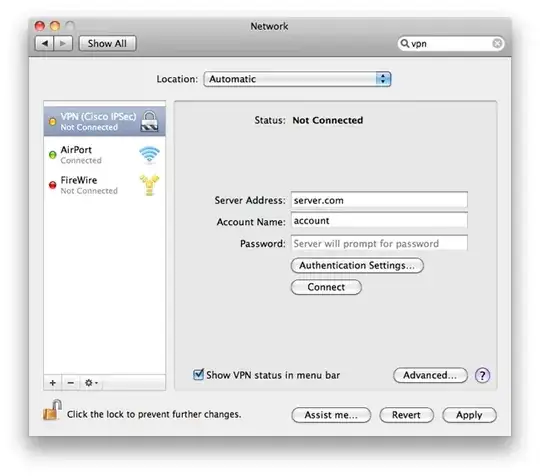
enter image description here

What I end up with is a box prompting me for login credentials each time I connect. Is there a way to bypass / auto fill this?

enter image description here

Hennes
  • 64,768
  • 7
  • 111
  • 168
cwd
  • 17,668
  • 42
  • 121
  • 159

6 Answers6

3

I finally found a working solution. I'm using Anyconnect VPN secure mobility 4.8

We can use this to connect to Anyconnect with terminal

To connect:

printf 'USERNAME\nPASSWORD\ny' | /opt/cisco/anyconnect/bin/vpn -s connect HOST

Replace USERNAME, PASSWORD, and HOST. The \ny at the end is to accept the login banner - this is specific to my host.

Note the single quotes ' instead of double quotes " - this is because double quotes tell Bash to interpret certain characters within strings, such as exclamation marks, as Bash history commands. Double quotes will make this command fail with an "event not found" error if the password contains an exclamation mark. Single-quoted strings pass exclamation marks along without interpreting them.

To disconnect:

/opt/cisco/anyconnect/bin/vpn disconnect

I've made an alias to bash_profile to those commands

shivam13juna
  • 131
  • 1
  • best combine this with https://github.com/plyint/encpass.sh to not store unencrypted passwords in scripts – Fábio Dec 06 '20 at 09:53
  • @Fábio Thank you, that'll be just a cherry on the top. It was the only thing missing from my solution. – shivam13juna Dec 07 '20 at 12:33
  • This works for Cisco Anyconnect (same command as on Linux) + you can use GUI app to view the connection (like on Linux) – SUhrmann May 10 '21 at 09:53
3

There is a workaround with AppleScript that works for me.

Synox
  • 230
  • 2
  • 7
  • Can anyone confirm if this AppleScript still works in 10.9.4? I get my password pasted in the terminal if I run the script via osascript or pasted at the cursor if I run it from AppleScript Editor. – cclark Jul 30 '14 at 06:41
  • Yes it works on 10.9.4. You can also test my fork: https://gist.github.com/synox/c597321d6d007f812f45 – Synox Sep 12 '14 at 19:15
  • We ended up having it changed on the router to allow it to be saved so unfortunately I no longer have an environment where it is easy to test the fork. Thanks for following up and sharing. – cclark Sep 16 '14 at 04:25
  • Can confirm this works on Yosemite. But it does not seem to automatically enter my password in when I open my VPN connector. It requires me to manually click the "run" button for the script to enter the password in - was this an intended functionality? – theGreenCabbage Dec 08 '14 at 03:12
  • This is not intended, it does all automatically for me. Let me check again with the latest updates. – Synox Dec 08 '14 at 07:28
  • I can confirm that this script still works on osx 10.10.1 with AnyConnect 3.1.04074. But the other solution from twksos works even better. – Synox Dec 09 '14 at 23:08
  • best combine this with https://github.com/plyint/encpass.sh to not store unencrypted passwords in scripts – Fábio Dec 06 '20 at 09:53
3

I got another script on github.

Instead of simulating click and input, this script access the process and simply triggers the actions.

While the first time the script runs, OSX may ask for accessibility.

twksos
  • 31
  • 1
  • Sorry total Mac newb here. Does this fire off automatically when I try to connect to my VPN in the top bar or is this called manually sort of like a script to connect to the VPN? – fIwJlxSzApHEZIl May 22 '15 at 00:18
  • This is giving me 'vpn is now allowed assistive access'. The solution is to go to security settings and add the name of the script to allow access. – fIwJlxSzApHEZIl May 22 '15 at 18:47
  • best combine this with https://github.com/plyint/encpass.sh to not store unencrypted passwords in scripts – Fábio Dec 06 '20 at 09:53
2

In the bad old days of using Cisco's client, it was easy to edit the .pcf file to work around the remote server policy. Using the alternative client Shimo has worked for me as of a couple of years ago (it's now closed-source, but you can get the old version from Google Code). Here's another workaround I haven't tried that uses the Keychain.

David
  • 597
  • 2
  • 8
  • 1
    Thank you. Cisco can be buggy on OS X though and so I much prefer the built in IPSec functionality. Yes with the `pcf` file you could store the password and make the file effectively "read only" so the client couldn't erase the password even if the remote server's policy said to do so. Also, Shimo might work but really my question is about how to do it on the built-in client. Have tried the workaround - it allows you to store the password initially but after you disconnect the password is erased. – cwd Mar 05 '12 at 01:38
  • @cwd Why did you accept this answer if it doesn't answer your question? Or am I parsing your comment wrong? – unomi Apr 11 '15 at 13:31
0

A better way to use Cisco Anyconnect could be by using it via command line.

Create a text file called anyconnect.txt and add the following

connect vpn.website.com
0
username
password
y
exit

Here, replace the host, username and password. Also the 0 in 2nd line is for the GROUP. If you have more than 1 group, use the appropriate index.

Then the only command you need to start your VPN is:

/opt/cisco/anyconnect/bin/vpn -s < anyconnect.txt

Use the following command to disconnect:

/opt/cisco/anyconnect/bin/vpn disconnect

Make it more quick by defining these commands in your bash_profile like so:

# Cisco Anyconnect
alias cisco='/opt/cisco/anyconnect/bin/vpn -s < anyconnect.txt'
alias nocisco='/opt/cisco/anyconnect/bin/vpn disconnect'

Now, command cisco will connect your VPN, and nocisco will disconnect it!

-1

Explanation:

This is caused by a problem with the Keychain Access item for the VPN IPSec connection. A two minute fix will sort it out for you.

Solution:

  1. Launch Keychain Access by clicking Applications > Utilities > Keychain Access
  2. On the left upper pane, under Keychains select System
  3. On the left lower, under Category select All Items
  4. On the right side of the screen scroll to the bottom and locate the two items called VPN(IPSec)
  5. Double-click the VPN(IPSec) whos kind is IPSec XAuth Password
  6. Click the Access Control button/tab. The applications permitted to use this keychain item will be displayed below. If you’re prompted for your password, enter it.
  7. Click the plus (+) sign
  8. When the Finder window appears, press Cmd + Shift + G on your keyboard
  9. When the Go To Folder dialog appears, enter /usr/libexec/configd and click Go
  10. Select it and click Add
  11. Click Save Changes
  12. Close Keychain Access and try connecting to your VPN again

http://www.proposedsolution.com/solutions/vpn-ipsec-prompting-saved-password/

skywinder
  • 313
  • 4
  • 14