2

I'm dead confused, I followed the instructions here and set my desktop folder to D:\Pocket\desktop2.

We can verify this in the registry:
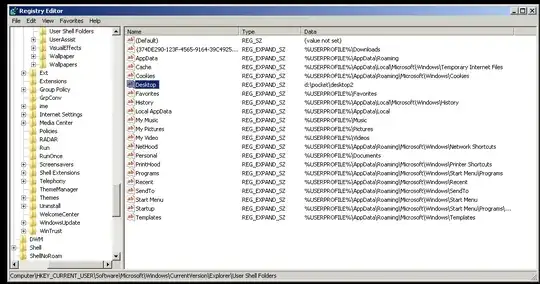
enter image description here

But desktop2 folder is not showing in D:\pocket. Instead, the Desktop is shown!

enter image description here

I can't understand what's happening. I've had "show hidden files and folders" enabled, so why is D:\pocket\desktop2 not showing?

Pacerier
  • 26,733
  • 82
  • 197
  • 273

4 Answers4

3

Windows has an ability to set a "localized" name for special folders. For example, on all Windows versions "Documents" folder remains "Documents", but shows its name in current user's GUI language. So this is why you see this folder named "Desktop".

How to rename

  1. Enable "Show Hidden files" if Explorer Folder Options (In view tab)

  2. Open hidden file desktop.ini in Notepad

  3. Change LocalizedResourceName to whatever you like:

    [.ShellClassInfo]
    LocalizedResourceName=My Magical Name
    IconResource=%SystemRoot%\system32\imageres.dll,-112
    IconFile=%SystemRoot%\system32\shell32.dll
    IconIndex=-235
    

You can delete this desktop.ini file outright, but it is re-created automatically, sometimes.

haimg
  • 22,193
  • 16
  • 79
  • 113
  • This is SO cool! I renamed my desktop to "Dash." Hello world of fantastically named system folders! I can't picture this blowing up all over my face... :) – Ryan Clarke Oct 14 '11 at 17:49
  • @haimg I've no idea why a search for `desktop.ini` through my drive gives me alot of results. Are you saying that all these files are safe to delete? – Pacerier Oct 14 '11 at 17:59
  • There are lots of "customized" folders by default: Documents, Pictures, Downloads, etc. Each time you use View|Customize in Windows Explorer, such file is created. So it's ok to have lots of these (hidden) desktop.ini files. But of course I cannot say that *all* your desktop.ini files could be safely deleted, I don't know for sure that all these files are indeed folder customization files... – haimg Oct 14 '11 at 18:09
  • I think you only want to change the one in the D:\pocket\test folder. – Ryan Clarke Oct 14 '11 at 18:13
  • @haimg cooool, could you explain the last 3 lines in the `desktop.init` file? – Pacerier Oct 15 '11 at 08:06
  • @Pacifier: These 3 lines specify the folder's icon in Explorer. See http://hwiegman.home.xs4all.nl/desktopini.html and http://msdn.microsoft.com/en-us/library/windows/desktop/cc144102%28v=vs.85%29.aspx for more info, actually if you google desktop.ini lots of useful info turns up :-) – haimg Oct 15 '11 at 14:19
2

"Desktop" is a special virtual folder (hence the different icon). You changed the real folder it (effectively) points to, but you did not change the name of the special virtual folder that Windows Explorer shows you.

RedGrittyBrick
  • 81,981
  • 20
  • 135
  • 205
2

It seems like more of a feature than a bug.

You have set the folder D:\Pocket\Test as your desktop folder. Now Windows Vista is masking the real folder and is showing you the logical folder that is the Desktop.

You can make sure that the desktop folder is indeed your D:\Pocket\Test by right clicking the Desktop folder and verifying the path in Properties.

Also try opening D:\Pocket\Test from Run Prompt. It should open Desktop folder.

If you REALLY want to see that D:\Pocket\Test exists, just boot up using a Live CD and browse your Windows drive to D:\Pocket\Test. You will find the folder there.

Ganesh R.
  • 5,179
  • 1
  • 27
  • 28
0

A decade later ... The key to masking the real folder is the hidden and system file desktop.ini, which is located in the same directory. Every single directory designated as a system folder is has one, and it controls how that folder is handled. When Windows 'masks' or makes any change like default type, or color, or background or icon .. and NAME .. it's done with this file. It's actually the way things used to be before the Registry f'd everything up - and now we forgot how it's supposed to be (Linux still uses local files for control - no registry.) So - I'm in a study phase to see what all - but you can get instructions and change the name back if you want. Just don't know yet how Windows will react. Also, for the stock names, icons, colors, etc, Windows will reference some registry entry value that defines it, so it can be globally changed if you want, and you can change "Desktop" to "Bird Cage" everywhere.

Xgenei
  • 1
  • 1